
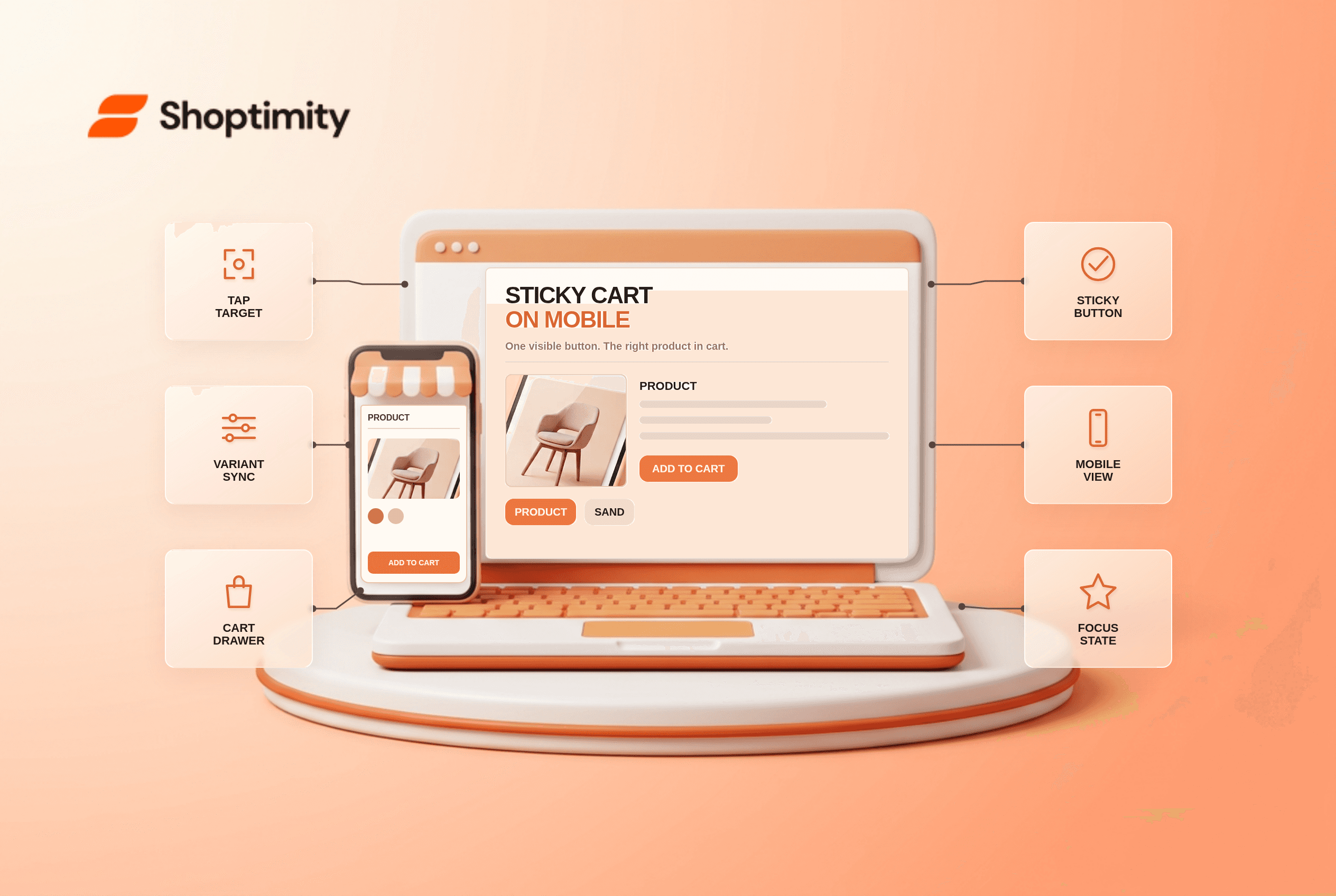
If a sticky add-to-cart button is not working on mobile, the cause may be the bar's visibility, its tap area, the selected variant, or the cart action itself. Test those as four separate steps. A button that stays on screen but adds the wrong size is more dangerous than one that disappears: the first defect can survive until a customer reaches checkout.
Why is sticky add to cart not working on mobile?
A fixed purchase bar has to remain usable while the page, phone viewport and product selection change. A sticky button may sit behind a cookie banner, cover the bottom of a cart drawer, or keep an earlier product variant after the shopper switches size. These are different faults. Start by recording the phone, browser, product URL, selected variant and exact action that fails; otherwise a designer may fix the bar's appearance while the wrong item still enters the cart.
According to Shopify's accessibility guidance for themes says touch targets on primary controls, including add-to-cart buttons and variant options, should be at least 44 by 44 pixels. That is a practical minimum for the sticky bar too. As of October 2026, check this alongside the selected variant, not as a substitute for it. A visually large bar can still fail if only a tiny part of it responds to touch.
How do you isolate the mobile failure?
Reproduce the failure on a real product page, not just in a static theme-editor preview. Run at least 2 tests: one default variant and one alternate variant. Work through this six-part checklist:
- Check when the bar appears. Scroll past the main add-to-cart control and back. Make sure the sticky version appears only when useful, rather than covering a visible primary button.
- Choose a non-default variant. Select a different size or color and watch the sticky bar. Does it update availability, price and product option before the buyer taps?
- Tap once and inspect the cart. Confirm the correct variant ID or option labels and quantity, not merely that the cart drawer opened.
- Open overlays. Test the cookie notice, chat widget, quick view and cart drawer. The purchase bar should not cover their controls or steal taps from them.
- Rotate and resize. Try portrait and landscape, browser toolbar expanded and collapsed, and text zoom. A bar that is only safe at one viewport height is unfinished.
- Use keyboard and screen-reader checks. Check focus order, button name and announcement of changed price or availability when possible. Visual success is not enough.
A test record with “selected medium, bar showed large, cart added large” gives support a reproducible issue. “Sticky cart broken” does not. Shopify's own guidance emphasizes keyboard focus order and accessible dynamic variant information, not just a button visible at the bottom of the page.
What if the sticky bar adds the wrong variant?
Fix variant synchronization before changing its color or position. The primary product picker and sticky bar should describe the same selected option. Choose a product with visibly different variants, switch between them and compare the main price, bar label and cart line item. If the wrong item enters the cart, disable the sticky feature on that template until the theme developer or app vendor resolves the behavior.
Do not assume this is unique to any one theme. An extra sticky-cart app can conflict with a theme's built-in sticky control when both are enabled. Check whether the page has two purchase bars or two handlers responding to one tap. Remove or disable only one in a draft theme, retest, and keep the implementation that preserves the correct cart state.
What if the bar covers checkout or a cookie banner?
The content around the bar needs room to remain actionable. Test the lowest on-screen controls: cart drawer checkout, quantity editor, consent choices and payment buttons. A temporary layout fix that raises the bar above an overlay may still be wrong if the overlay changes height across devices or languages. Coordinate positioning and stacking rather than adding arbitrary large z-index values to every component.
If a third-party app supplies the overlay, identify whether it is an app embed before editing the theme. Shopify describes app embeds as theme integrations that can float above content. You may need to adjust the embed's placement or leave the sticky bar hidden while a drawer or modal is open.
We checked Shopify's accessibility and app-integration documentation plus Shoptimity's public mobile-first feature descriptions. We have not run a device test on your storefront, so no specific fix is guaranteed. Shoptimity lists a sticky cart among its tools, but the right question is whether your selected variants and overlays work together. Compare its mobile-theme guidance with your own test results before adding another widget.
When should you turn the sticky feature off?
Turn it off temporarily if it adds the wrong item or hides a critical control. A normal product-page button that works is preferable to a persistent shortcut that damages the buying path. For a cosmetic spacing issue, use a draft and ask theme support for the intended positioning. For an incorrect variant or duplicate cart action, provide a clear recording of the selected option and final cart line item.
The goal is not to keep a sticky bar visible at all costs. It is to let someone choose and buy the intended product with one predictable tap, on the devices they actually use.
Ready to build a faster, higher-converting store?
Every Shoptimity theme ships with conversion widgets built in — so you get speed and features without stacking apps.
7-day free trial · all themes included · cancel anytime
Continue Reading
Top Shopify Theme for Wholesale: A 2026 Buyer's Guide
You've just spent weeks sourcing inventory and building supplier relationships. But when you launch ...
Ecommerce Return Status Updates: Separate Request and Refund
Ecommerce return status updates should separate request, label, receipt, inspection and refund so sh...
Ecommerce Delivery Delay Updates: Show the New Reality
Ecommerce delivery delay updates should replace stale promises with a dated revised estimate, clear ...