
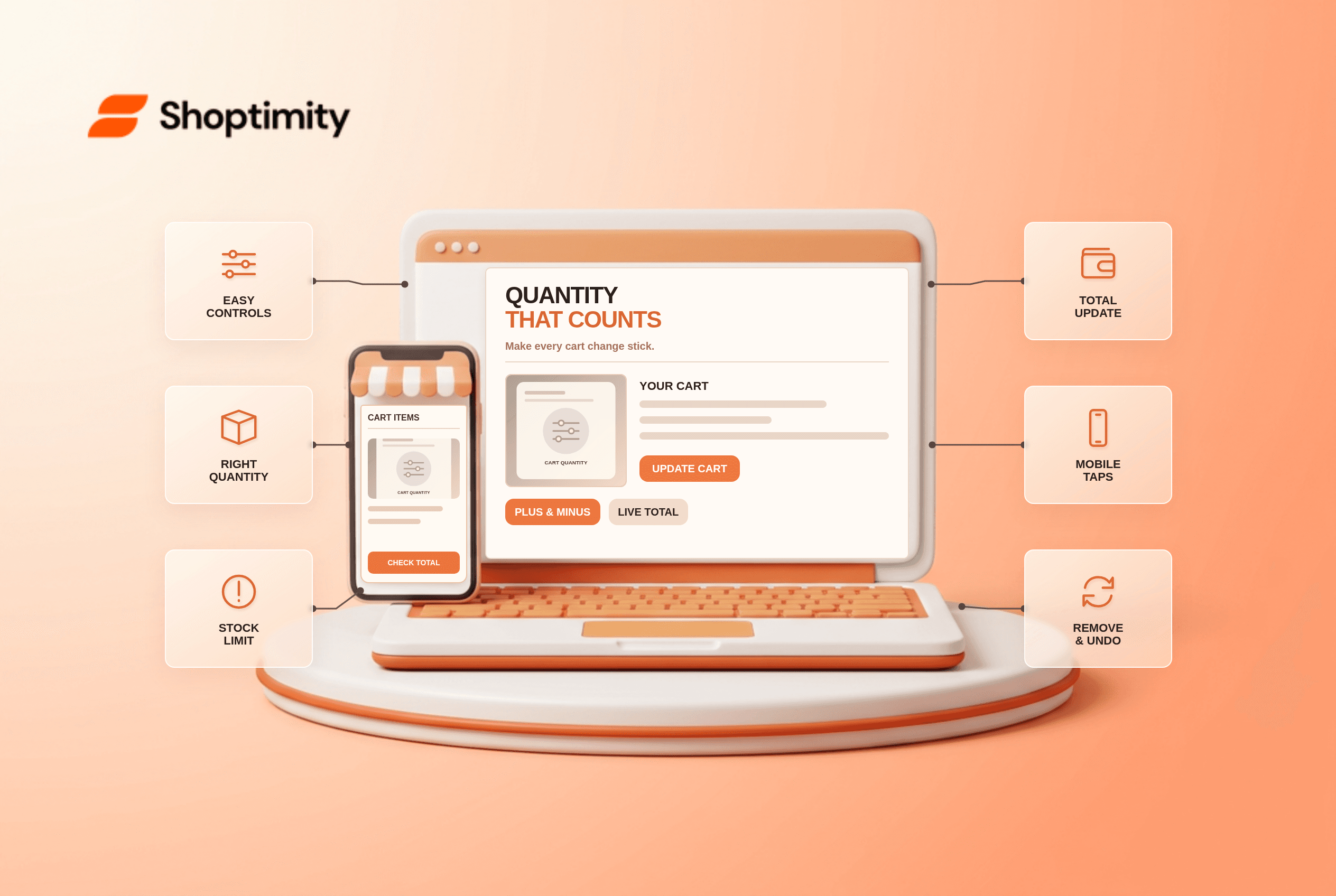
A cart quantity selector should register each change clearly, update the order summary and shipping eligibility, and prevent unintended quantities. For ordinary purchases, plus and minus buttons or buttons with a numeric input are easier to use than a hidden update step. If quantity reaches zero, explain that the item will be removed and offer undo when the platform can support it.
What should a cart quantity selector do?
Make the displayed number and charged number match. When someone increases a quantity, the line total, discounts, stock eligibility and cart total should update as one coherent state. An optimistic screen update that later reverts due to inventory is not success; show an explanation and keep the real accepted quantity visible before checkout.
According to Baymard's 2022 cart-quantity research, 61% of benchmarked sites used only a dropdown or text field rather than a button-based control, and some tested users accidentally entered “21” when trying to change one item to two. That observation concerns tested carts, not a measured error rate for your store.
How should typed values behave?
Allow a deliberate replacement of the old value. If the selector includes a text input, highlight the existing number on focus so typing “2” does not append to “1.” A brief debounce can give someone time to type a two-digit number, but the accepted cart state and total must become clear. Never require a separate low-visibility Save link to commit a change.
Baymard's implementation guidance also discusses immediate totals, the minus-to-zero case, undo and mobile control spacing. A high-quantity wholesale order may need direct typing as well as buttons; forcing someone to tap plus dozens of times is not an improvement. Choose controls for actual order sizes.
- Change a cart line from one to two units using buttons; verify line and order totals update.
- Enter a multi-digit value in the text input, if one exists, and check the accepted state.
- Test stock limits and minimum or maximum purchase rules with an explanatory message.
- Reduce quantity to zero and verify removal, undo and cart badge behavior.
- Change a quantity while a discount or free-shipping threshold is active; recalculate both.
- Reload and navigate back after an update to confirm the server retained the same quantity.
- Test mobile tap spacing, keyboard labels and screen-reader announcement of totals.
What if a quantity is unavailable?
Never silently change the requested amount. If a customer asks for four units and only three can be fulfilled, show the accepted three and say why. Let them continue with three or remove the item; do not display four in the cart and bill for three. When availability changes during checkout, reconcile the state before payment.
A useful test case is two items in a cart that just qualifies for free standard shipping. Reducing one line may drop the order below the threshold. If the subtotal changes but the shipping promise remains “free” until the final payment step, the selector has exposed a broader cart-calculation problem.
We checked Baymard's public research, not your checkout rules or inventory feed. Our advice is to test totals and persistence before tuning button color. Shoptimity themes can present a selector, while the platform owns actual cart state. See our free-shipping threshold guide and product variant checklist for related calculations.
How do you know the cart is reliable?
Compare each visible state with the server's order draft. Check line totals, taxes, shipping and discount changes after each quantity edit. Review support contacts about wrong quantities and reproduce any mismatch. Do not infer a conversion improvement from fewer taps alone; cart correctness is the baseline, not a marketing test.
Ready to build a faster, higher-converting store?
Every Shoptimity theme ships with conversion widgets built in — so you get speed and features without stacking apps.
7-day free trial · all themes included · cancel anytime
Continue Reading
Shopify Flow Variant Added vs Deleted: Safe Alerts
Compare Shopify Flow variant added and deleted triggers, understand the default-variant exception, a...
Shopify Flow Workflow Error Trigger: Alert Limits
Use the Shopify Flow workflow error trigger to route internal alerts, understand the 30-day suppress...
Shopify Flow Fulfillment Rescheduled: 3PL Alerts
Build Shopify Flow fulfillment rescheduled alerts for third-party services, review affected assignme...