
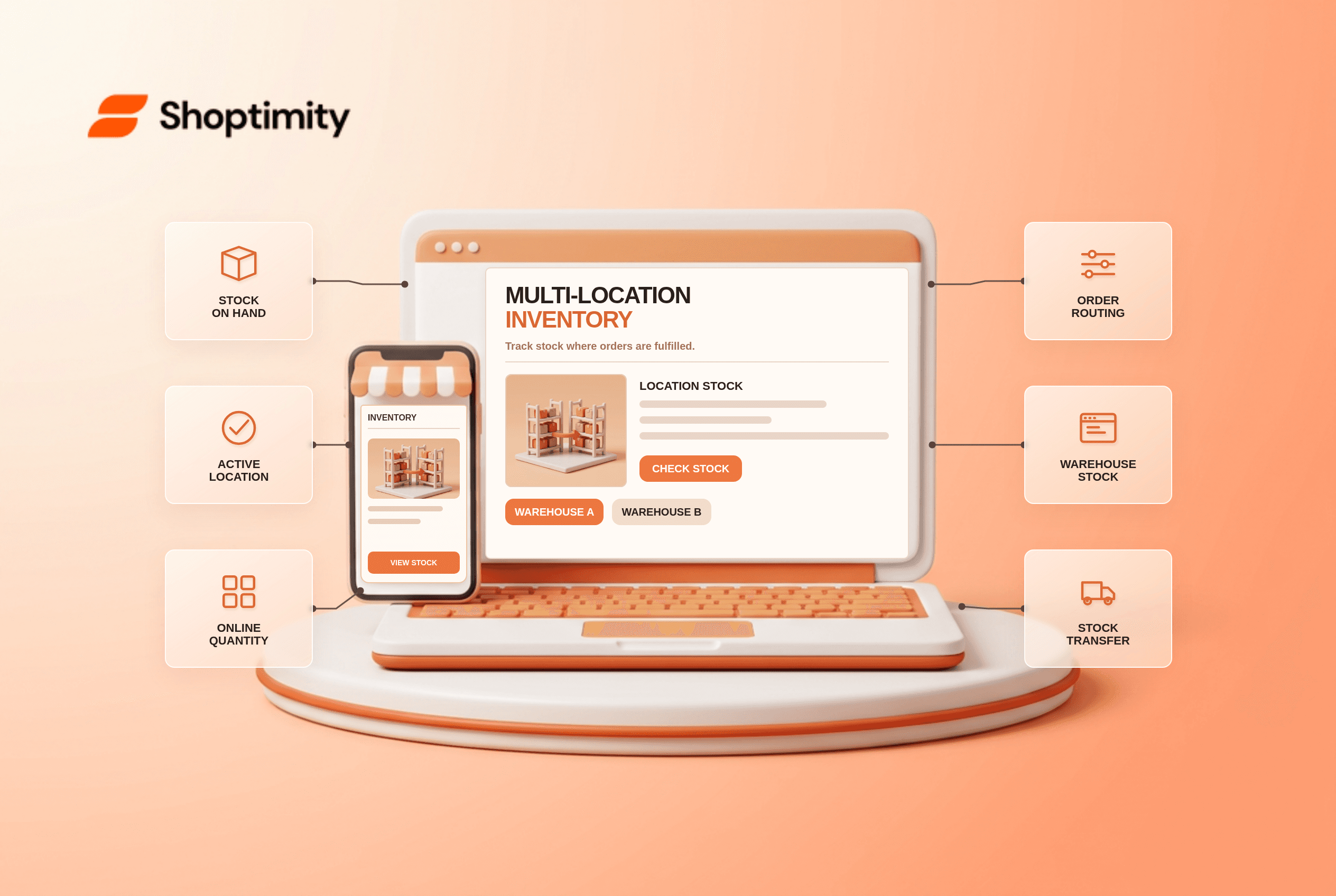
Shopify inventory across locations can say you have stock in a warehouse while your storefront says “sold out.” The likely explanation is not the product-card design: inventory is tracked separately by location, and only certain active, online-fulfillment locations contribute to online availability. Fix location activation and routing before changing the theme or installing another inventory widget.
How does Shopify multi-location inventory work?
Each location has its own quantity and fulfillment settings. According to Shopify's location-inventory guide says quantities are not pooled as one interchangeable bin. A product can have on-hand stock at a location yet be inactive there; in that case its Available value can appear as a dash and it cannot be sold or fulfilled from that location.
There is another distinction: a retail-only location might contribute to your total inventory but not your online quantity. Shopify says the online quantity determines whether the product appears available to online shoppers. If someone sees 20 units in a stockroom and zero online, check whether that stockroom is allowed to fulfill online orders and whether the variant is active there.
Why does a product show stock but look sold out online?
Work from product assignment outward, not from CSS inward. Run 2 tests: one with an online-fulfillment location and one with a retail-only location. Check these six layers:
- Variant tracking. Open the exact variant, not only the parent product. Check whether inventory is tracked and whether the intended location has units for that variant.
- Location activation. Confirm the product is active at that location. Shopify says a newly created location starts with zero inventory and products need to be activated and stocked appropriately.
- Online fulfillment setting. In Settings → Locations, check whether the location can fulfill online orders. Turning that off excludes its units from the online quantity.
- Shipping and routing. A location might have stock but lack the applicable delivery method, shipping profile or service route for a buyer's address.
- Reserved or committed units. Compare On hand with Available rather than assuming they are identical. Orders and other inventory states can remove units from the sellable count.
- Draft-theme comparison. If all inventory settings check out but only one template displays “sold out,” test another theme with the same variant and market before escalating a storefront display issue.
Shopify's location-fulfillment documentation says orders are assigned based on available inventory and the configured routing rules. By default, geographic proximity is not automatically the priority. The “Ship from closest location” rule must be configured if that is the behavior you want.
What happens when no location can fulfill the whole order?
Shopify can split an order or oversell at a priority location, depending on routing and stock. In Shopify's example, one location has 1 shirt and another has 2. An order for 2 shirts goes to the second location because it can fulfill the line. An order for 3 can oversell the highest-priority location, leaving a negative quantity there. That example is in the official routing guide, not a promise that Shopify will always split in the way a merchant expects.
A simplified diagnostic table makes the next action clearer:
| What you see | Likely layer | First check |
|---|---|---|
| On hand is positive; Available is a dash | Product-location activation | Activate the variant at the location |
| Total stock positive; online quantity zero | Online fulfillment eligibility | Check location's online setting |
| Orders ship from a distant warehouse | Routing priority | Review routing rules and proximity option |
| One location goes negative | Order assignment and insufficient stock | Inspect split and oversell rules |
Treat these as starting points, not guaranteed diagnoses. Your fulfillment app, profiles and market configuration can add more constraints.
How should you handle inventory transfers?
A transfer records movement; it does not automatically repair every selling permission. Check 3 cases after a transfer: physical receipt, variant activation and online-fulfillment eligibility. Shopify's assignment guide notes that receiving stock or transferring it to a location can leave an On hand value while Available remains a dash if the variant is inactive at that location. After receiving a transfer, verify both physical receipt and location activation before announcing that the product is back online.
For a two-warehouse merchant, write down which site should receive stock first, whether the nearest warehouse should win, and what happens when an order has items stored in different places. Test a cart containing two different products and a cart with multiple units of one variant. Shipping cost and delivery promise can change when an order splits; a theme's “in stock” badge alone cannot explain the route.
We checked Shopify's current location and order-routing guidance, not a merchant's admin settings. Shoptimity's themes can display availability clearly, but they cannot invent sellable units at an inactive location. For the storefront/platform boundary, see theme versus app; for delivery-rule checks, see our shipping-bar diagnostic. Fix the source inventory state first, then review the display.
Ready to build a faster, higher-converting store?
Every Shoptimity theme ships with conversion widgets built in — so you get speed and features without stacking apps.
7-day free trial · all themes included · cancel anytime
Continue Reading
Top Shopify Theme for Wholesale: A 2026 Buyer's Guide
You've just spent weeks sourcing inventory and building supplier relationships. But when you launch ...
Ecommerce Return Status Updates: Separate Request and Refund
Ecommerce return status updates should separate request, label, receipt, inspection and refund so sh...
Ecommerce Delivery Delay Updates: Show the New Reality
Ecommerce delivery delay updates should replace stale promises with a dated revised estimate, clear ...