
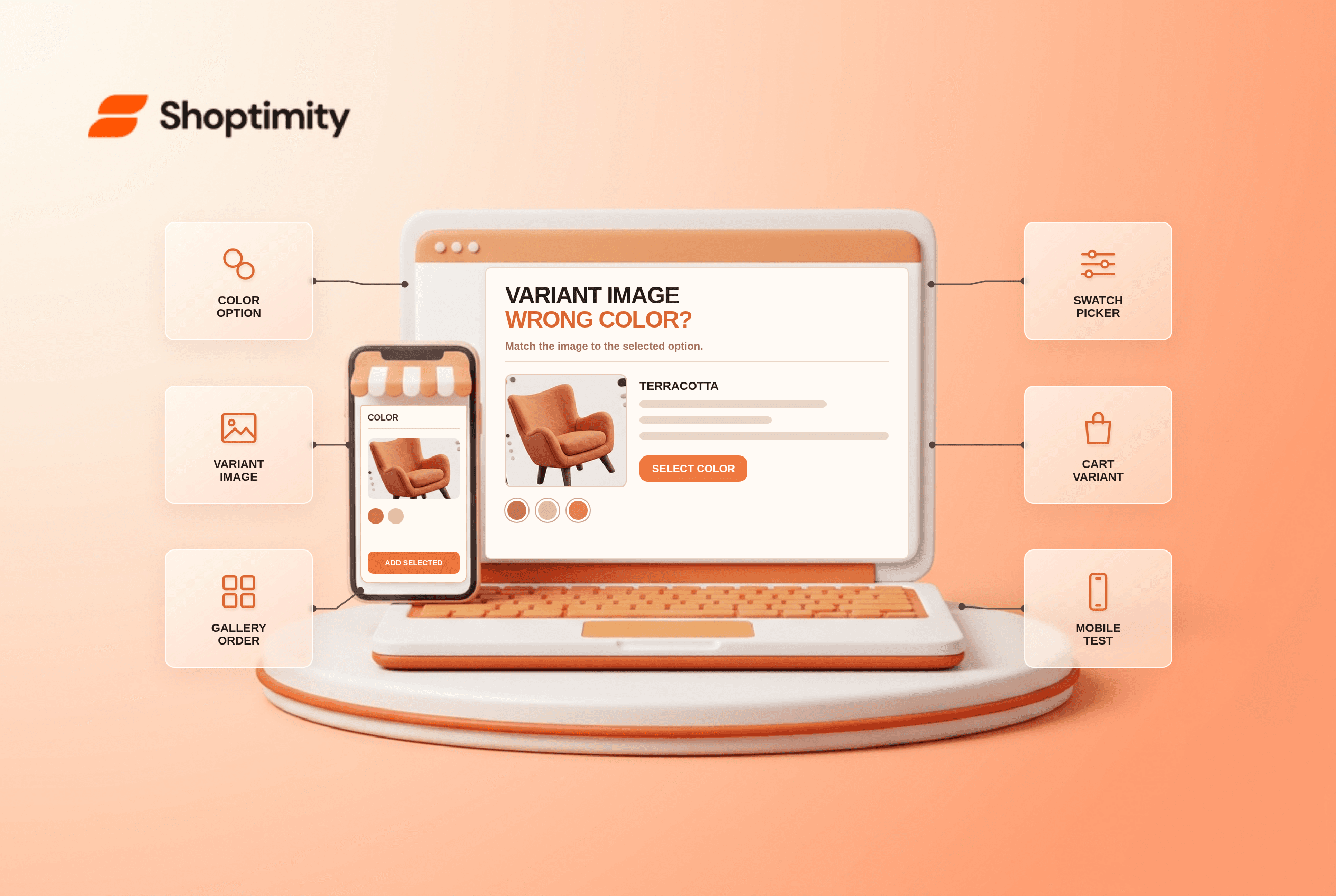
If Shopify variant images show the wrong color, check the assigned image in the product's variant settings before changing the theme. Shopify lets you assign one image per variant; the rest of the gallery is still product media. Your theme decides how that gallery responds when a shopper switches colors. A mismatched cart thumbnail or a gallery that never filters may need a different fix.
Why do Shopify variant images show the wrong color?
The selected variant, its assigned image and the visible gallery are related but not identical. Shopify's variant-image instructions say each variant supports one assigned image. When the variant is chosen, that image becomes its preview, while shoppers may still scroll through other images in the product gallery. A merchant who expects every image of the blue shirt to hide when red is selected may be asking for theme-specific gallery behavior beyond Shopify's basic assignment.
As of October 2026, the distinction still matters. Start by naming the symptom precisely. Does the large hero image show the wrong color? Does the thumbnail strip still show other colors? Does the cart contain the right SKU but display an unexpected thumbnail? Or did the buyer actually add the wrong variant? Each symptom points to a different layer and should be tested separately.
How do you fix the image assignment first?
Verify the catalog data before debugging the design. Run 2 tests on one product with deliberately distinct colors: inspect the gallery selection, then inspect the cart. This six-step check keeps the two results separate:
- Open Products in Shopify Admin and select the affected product.
- Add the intended photos to the product media gallery. Place related images near one another to make the gallery easier to inspect.
- Open the first affected variant and assign its correct product image. Shopify supports one assigned image per variant, not a full photo set attached to that variant.
- Repeat for the second variant and save. Check that the labels and option values are not swapped.
- Preview the product in a draft theme. Select each color and record the main image, active variant and price.
- Add each color to cart separately. Confirm the cart line item reflects the chosen option even if its thumbnail design differs.
According to Shopify's product-media guide, a product's first media item is the featured or main item used across collection, cart, checkout and homepage contexts. This makes main-media ordering worth checking when those surfaces look inconsistent, but do not confuse it with the image explicitly assigned to a variant.
What if the correct image appears but the other colors remain visible?
That can be normal gallery behavior, not an image-assignment failure. Shopify's documented flow places related media together, assigns one preview image to each variant, and leaves the rest available as gallery media. Some themes offer variant-image sets that hide unrelated photos when a color changes; others show the complete gallery. Check the specific theme's gallery settings and demo before promising automatic grouping.
Shoptimity's Amendment theme page describes “variant image sets” as a built-in feature. Treat that as a feature to verify on your actual product: does it hide the correct set on desktop and mobile, and what happens when color and size are both variant options? We checked the public feature description, not the theme's licensed code or your store. A theme switch can solve presentation only if the catalog assignments are right first.
When do you need separate products instead of variants?
Use a more advanced listing model only when each color needs genuinely independent content. If every color requires its own description, URL or full gallery, one assigned image per Shopify variant may be too narrow. Shopify's Combined Listings documentation explains a way to connect separate products under a shared option, with more product-level content for each. Shopify states that availability depends on eligible plans; check your plan before treating it as the default answer.
The smaller fix usually wins. A shirt with two colors and one hero photo per color may need only corrected image assignments and a gallery setting. Splitting it into separate products introduces more catalog and SEO work, so save that route for cases where distinct titles, copy or image collections are part of the merchandising strategy.
How do you prevent another color mismatch?
Test the complete selection path, not only a static screenshot. On mobile, choose one color, change size, switch back, open quick view if the theme offers it, and add the item to cart. Then repeat from a collection page. If the hero changes correctly but quick view or sticky add-to-cart retains an older variant, record the sequence and device for theme support; that is stronger evidence than “the photo is wrong.”
Keep image filenames and alt text descriptive for your team, and check the selected option against the cart line item. Avoid manually editing a variant title to disguise a gallery defect. For broader theme decisions, read what to test in a fashion store theme and which capabilities belong to a theme rather than an app.
Ready to build a faster, higher-converting store?
Every Shoptimity theme ships with conversion widgets built in — so you get speed and features without stacking apps.
7-day free trial · all themes included · cancel anytime
Continue Reading
Top Shopify Theme for Wholesale: A 2026 Buyer's Guide
You've just spent weeks sourcing inventory and building supplier relationships. But when you launch ...
Ecommerce Return Status Updates: Separate Request and Refund
Ecommerce return status updates should separate request, label, receipt, inspection and refund so sh...
Ecommerce Delivery Delay Updates: Show the New Reality
Ecommerce delivery delay updates should replace stale promises with a dated revised estimate, clear ...