
How to Change Shopify Themes Without SEO Drop
A messy theme migration can tank your organic traffic overnight. Many merchants hesitate to upgrade their storefronts because they fear breaking their hard-earned search rankings or losing custom code. The reality is that staying on a slow, outdated theme costs you far more in lost conversions.
If you are wondering how to change a Shopify theme without triggering a sudden drop in rankings, you need a precise migration plan. Swapping a theme is not as simple as clicking a button, but it is completely safe when you follow a structured process.
Key takeaways:
- Always install your new theme as an unpublished duplicate first.
- Your core backend data (products, collections, and customer records) stays perfectly safe during the switch.
- You must rebind your product metafields and reinstall third-party app snippets before going live.
- Publish your new theme during your lowest traffic window to minimize customer disruption.
What Is Changing a Shopify Theme?
Changing your Shopify theme simply means replacing the visual frontend layer of your website. Your theme dictates the HTML, CSS, JavaScript, and layout sections that your customers interact with.
When you swap themes, your backend data remains untouched. Your products, variants, inventory levels, customer profiles, and order history are all stored securely in your Shopify admin.
You can build your new design in the background while your live store continues making sales. As noted in Shopify's official documentation, you can upload or add a new theme to your admin and keep it safely in draft mode. This sandbox environment lets you tweak typography, swap brand colors, and restructure landing pages without your live customers ever seeing a work in progress.
Your Essential Shopify Theme Migration Checklist
Before you even touch the new theme editor, you need to prepare your assets. Failing to map out your existing customizations is the number one reason migrations fail.
In my experience auditing client stores, merchants who skip the preparation phase always lose critical tracking pixels or SEO metadata. Follow this strict Shopify theme migration checklist to ensure a safe transition:
- Audit your current apps: List every app that injects visual code into your live theme. Think about review widgets, size charts, or loyalty program banners. You will need to turn these on again in the new theme.
- Document your metafields: If your current product pages rely on custom metafields for technical specs or shipping badges, map out where those appear so you can rebind them in the new layout.
- Backup tracking scripts: Copy your Google Analytics, Meta Pixel, and any custom header scripts from your old
theme.liquidfile. - Check your SEO titles and meta descriptions: While core SEO data lives in the product backend, some older themes hardcode specific SEO structures into the templates. Ensure your new theme handles SEO meta tags cleanly.
For most active stores, a thorough migration requires one to two weeks of preparation. According to migration experts at Fuel Themes, updating a fragile, abandoned theme is a recurring pain forever. The math almost always favors a clean migration to a modern framework.
Step-by-Step Guide on How to Change a Shopify Theme
Once your checklist is complete, you are ready to build. Here is the exact process to execute the swap safely.
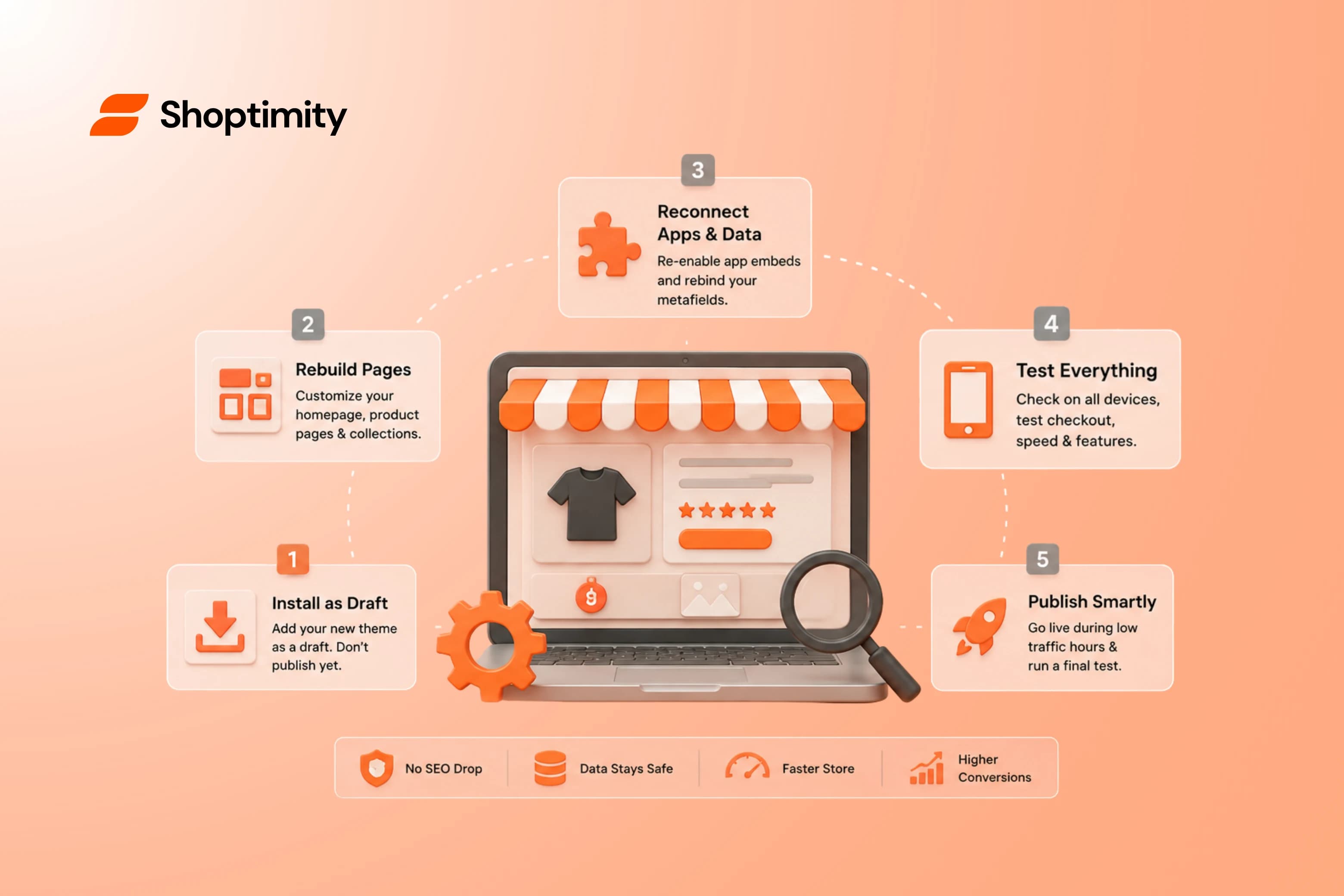
1. Install the new theme as a draft Navigate to your Shopify Admin, click Online Store, and go to Themes. Upload your new theme file or select it from your library. It will appear in the "Theme library" section below your live theme. Do not click Publish yet.
2. Recreate your core pages in the editor Click "Customize" on your draft theme. Use the Online Store 2.0 section editor to rebuild your homepage, product templates, and collections. Because OS 2.0 is highly modular, you are entirely rebuilding visual layouts rather than hacking raw code.
3. Reconnect your apps and metafields Go to the App Embeds tab within the theme editor and toggle your essential apps back on. Navigate to your product templates and click the dynamic source icon to reconnect your metafields to the new text blocks.
4. Test extensively across devices Never trust the desktop preview alone. Send the preview link to your phone. Test the add-to-cart functionality, open the mobile navigation menu, and complete a test checkout. Check your page speed scores to ensure no rogue apps are slowing down the new layout.
5. Publish during a low-traffic window Identify your lowest traffic hour using your Shopify analytics. Click Publish on the draft theme. Immediately run a live test purchase to verify everything functions correctly.
Why Updating a Shopify Theme Often Goes Wrong
Most people get this wrong: they attempt updating a Shopify theme by dragging over dozens of old, heavy apps from their previous setup.
Legacy apps for quantity breaks, sticky carts, and trust badges inject conflicting JavaScript into your fresh template. This bloat tanks your page speed and ruins your core web vitals, which directly hurts your SEO rankings.
A clean slate is always better than patching old code.
This is exactly why we built Shoptimity Themes. Our layouts are built natively on Shopify Online Store 2.0 architecture with absolutely no legacy liquid files. Instead of paying hefty monthly fees for 15 different apps that slow down your store, Shoptimity includes 30+ native conversion tools built right in.
Merchants using Shoptimity average a 44% conversion rate lift and achieve a lightning-fast 98.9 Speed Score. By eliminating third-party app bloat, your SEO rankings stay protected. Furthermore, our Agentic AI functionality allows you to generate and customize complex theme sections using simple text prompts, removing the need for expensive developers.
Ready to build a faster, higher-converting store?
Every Shoptimity theme ships with conversion widgets built in — so you get speed and features without stacking apps.
7-day free trial · all themes included · cancel anytime
Continue Reading
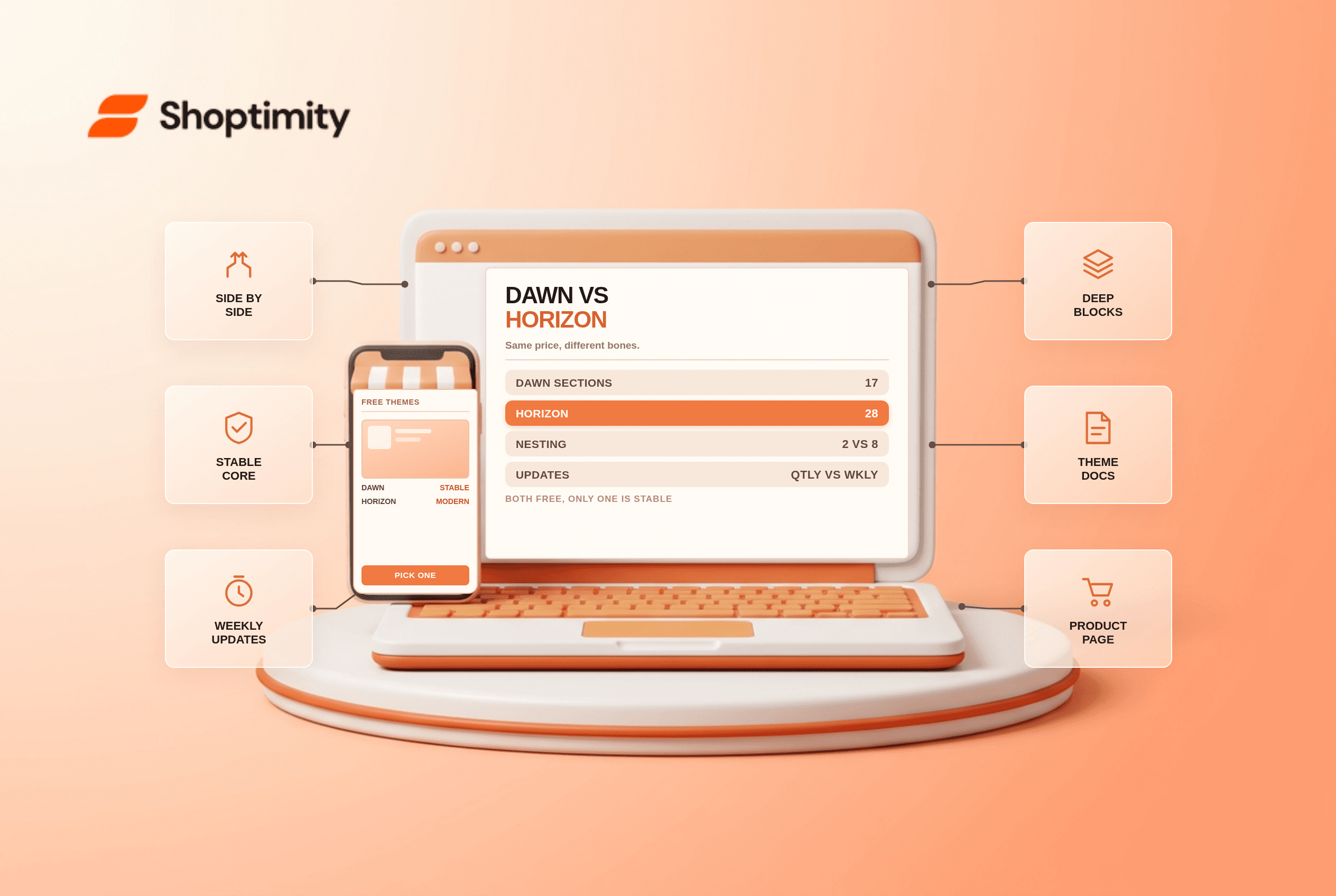
Shopify Dawn vs Horizon: Which Free Theme to Start With in 2026
Both free, very different builds. Horizon gives 28 sections and deep nesting, Dawn gives stability. ...
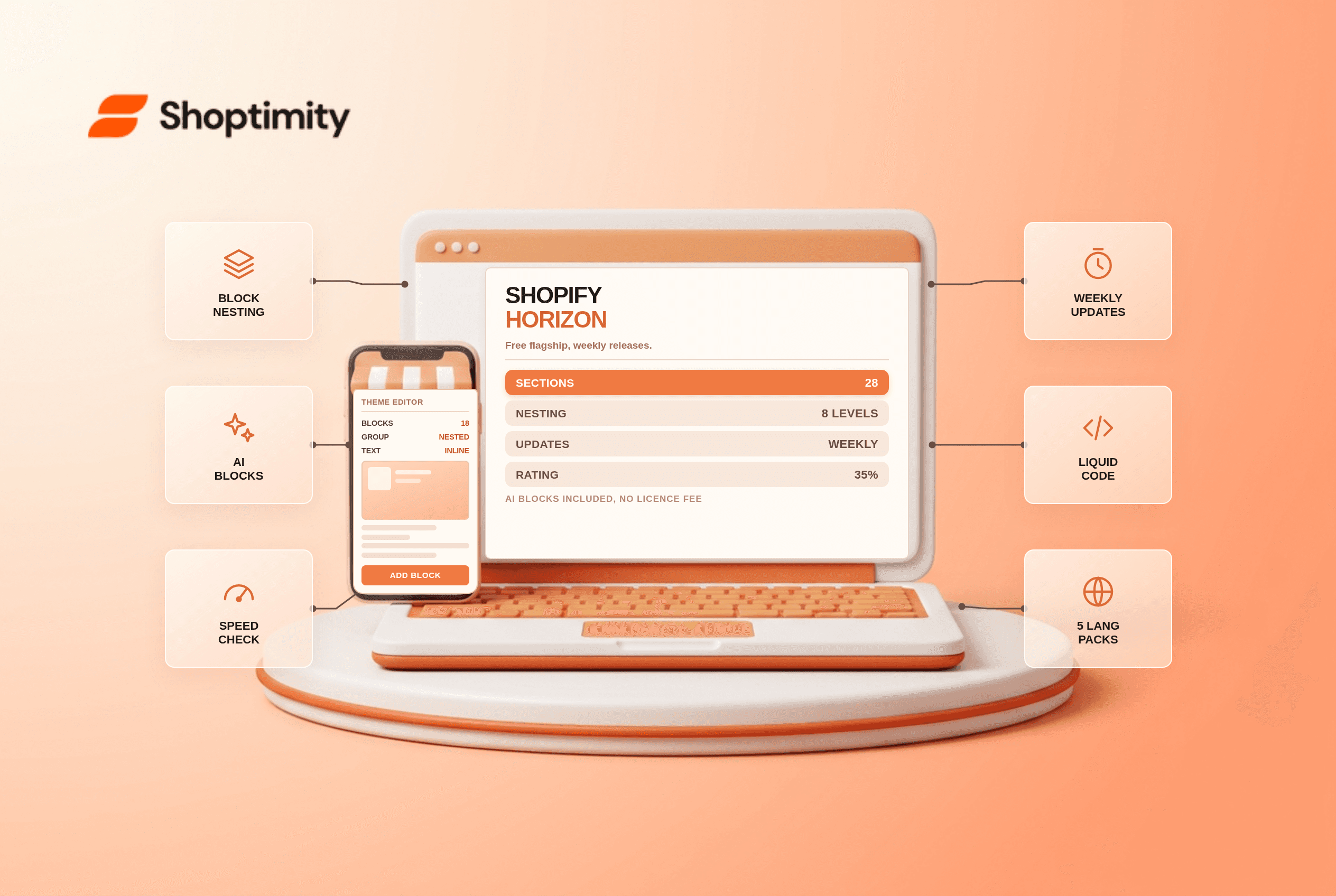
Shopify Horizon Theme Review 2026: The Best Free Theme, With a Catch
Horizon is free, block-based and AI-assisted, with a 35% merchant rating. What it does better than D...
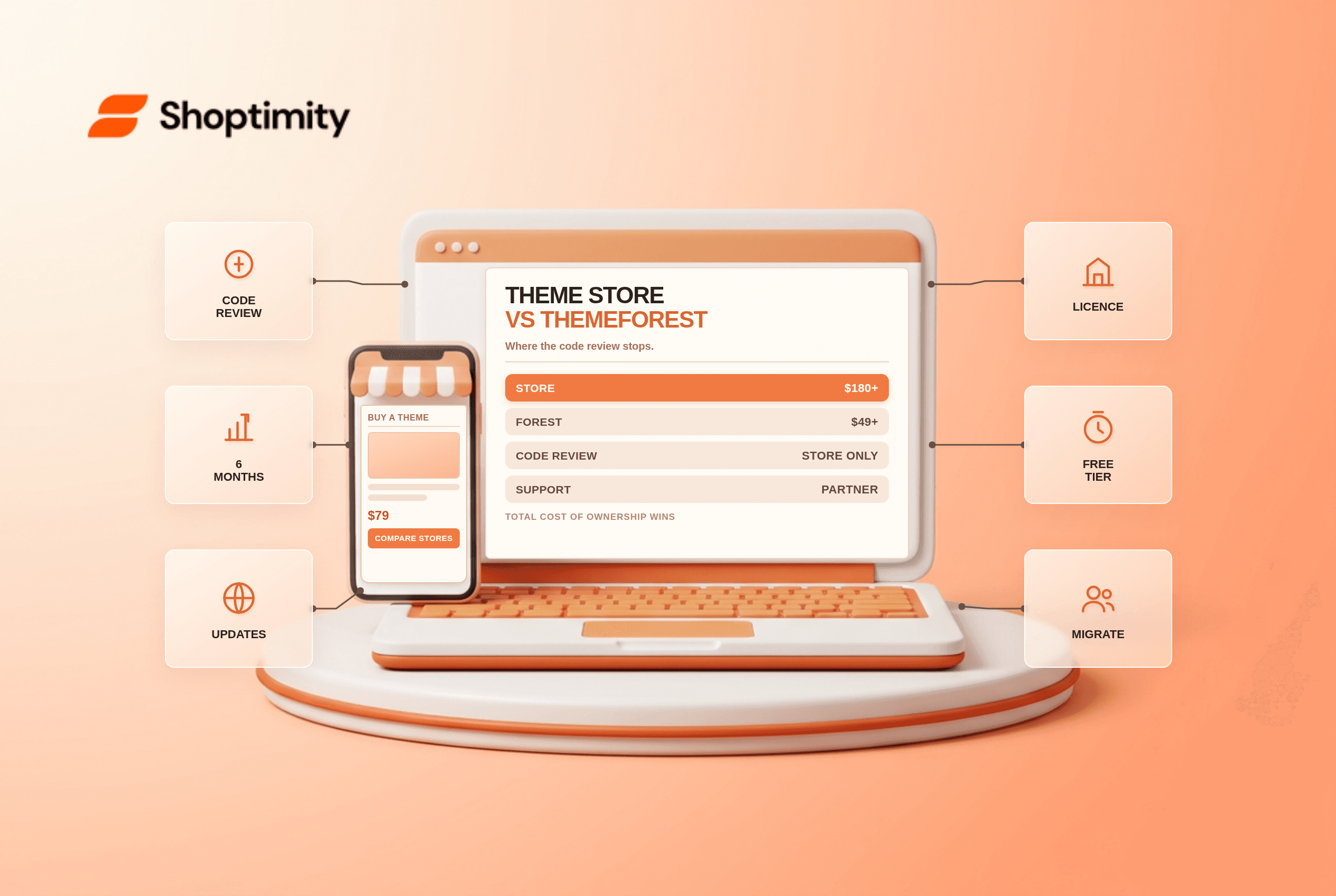
Shopify Theme Store vs ThemeForest: Where to Buy in 2026
Code review, support terms and update paths compared, plus the total cost of ownership that neither ...