
How to Start a Shopify Store: Complete Beginner's Guide
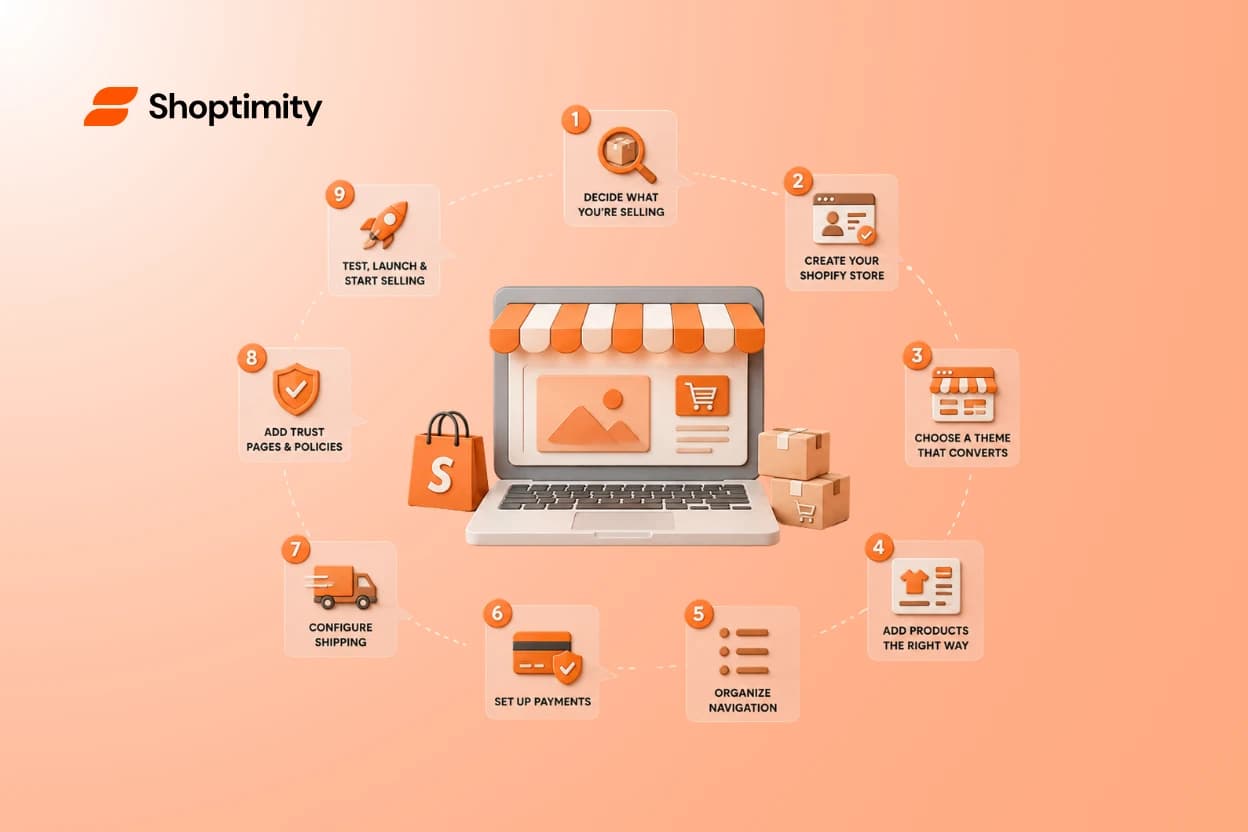
Most beginners spend their first weekend fussing over homepage colors — then wonder why nobody buys. Here's the truth: to start a Shopify store that actually sells, you build the buying experience first and the pretty stuff second. This guide walks the steps in the exact order they should happen, from choosing what to sell to hitting launch. No jargon, no fluff — just what you need to do next.
Quick answer for the skimmers: starting a Shopify store means signing up, picking a theme, adding products, setting up payments and shipping, writing your policies, testing checkout on your phone, then launching. Do those in order and you'll avoid the mistakes that trip up most first-timers.
Before you build: the mindset that saves you weeks
A store doesn't need to be perfect to launch. It needs to be clear, trustworthy, and easy to buy from.
When we look at how beginners spend their setup time, the pattern is almost always the same. They pour hours into the homepage banner and font choices, then rush the checkout, shipping, and policies at the end — the parts that actually decide whether a sale goes through.
The one rule to remember: build the core buying journey first — products, pricing, product pages, navigation, checkout, payments, shipping, policies, mobile. Polish the design after that works.
Step 1: Decide what you're actually selling
Before you touch Shopify, get clear on your product and who it's for. A store built around a vague idea is hard to name, theme, or write copy for.
You don't need a hundred SKUs. You need one to a few products you can describe clearly and ship reliably.
- Pick a product you can source and fulfill without drama.
- Know your rough price and margin before you list it.
- Write one sentence on who it's for and why they'd care.
Step 2: Create your Shopify account and store
Head to Shopify and start a trial — you'll pick a store name and get a working admin in minutes. Don't overthink the name; you can change your public brand name later, and you'll add a custom domain when you're closer to launch.
Spend five minutes in the admin just clicking around. Products, Online Store, Settings — knowing where those live makes every later step faster. Shopify's official setup docs
Step 3: Choose a theme that's built to convert
Your theme is the frame your whole store lives in. Beginners often grab the default, customize it for hours, then realize it loads slowly or looks broken on mobile — where most of your visitors actually are.
Pick a theme that's fast, mobile-first, and comes with the selling tools already inside it. That way you're not bolting on ten separate apps just to get a sticky cart or countdown timer working.
This is where a theme club earns its keep. With Shoptimity, one subscription gives you conversion-ready themes like Celeste plus 30+ built-in selling tools — sticky cart, upsells, reviews, a free-shipping bar — so you skip the app-store rabbit hole entirely. browse the themes
Step 4: Add your products the right way
This is the heart of your store, so give it real attention. A weak product page loses the sale no matter how nice your homepage looks.
What every product page needs
- Clear photos — several angles, plus one in-use shot if you can.
- A benefit-first title and description — say what it does for the buyer, then the specs.
- Honest price and variants — sizes, colors, and options set up cleanly.
- Shipping and returns info — answer "when will I get it?" before they ask.
Write product descriptions for a nervous first-time buyer, not for yourself. Answer the doubt, then close.
Step 5: Organize navigation so people can find things
Navigation is quietly one of the biggest conversion levers for a new store. If a visitor can't find a product in a couple of clicks, they leave.
Keep your main menu short and obvious. Group products into a handful of collections, and make sure your logo links home.
- Main menu: Shop / Collections, plus one or two key pages.
- Use collections to group similar products.
- Add a simple footer menu for policies and contact.
Step 6: Set up payments so you can actually get paid
None of this matters if buyers can't pay you. Turn on your payment provider early and confirm it's fully activated, not stuck in "pending."
Offer the options shoppers expect — cards plus an express wallet or two. The fewer hoops at checkout, the more orders make it through. how checkout friction drives cart abandonment
Step 7: Configure shipping without overcomplicating it
Shipping scares beginners more than it should. Start simple and refine later.
Beginner shipping setup:
- Set your shipping zones (where you'll ship).
- Pick flat-rate or free shipping to start — flat is fine.
- If you offer free shipping, build the cost into your price.
- Add a free-shipping threshold to nudge bigger carts.
Step 8: Add the policies that build trust
Policies aren't legal busywork — they're trust signals a first-time visitor looks for before buying. Shopify can generate starter templates you then adjust to your business.
- Refund / return policy
- Shipping policy
- Privacy policy
- Terms of service
- A real contact method (email or form)
Step 9: Test the customer journey, then launch
Before you announce anything, become your own customer. Open the store on your phone and buy something start to finish.
Your pre-launch test run
- Browse from the homepage to a product like a stranger would.
- Add to cart, go to checkout, place a test order.
- Check the confirmation email and order details.
- Do the whole thing again on mobile — that's where most traffic lands.
If anything feels confusing or slow, fix that before design tweaks. A fast, clear store beats a beautiful, clunky one every time. our full store-setup checklist
Who this launch approach is for
First-time founders
You want a clear path from idea to live store without guessing.
Dropshippers
You need fast product pages and checkout that converts cold traffic.
DTC & high-ticket builders
You want trust signals and a mobile experience that earns bigger orders.
Common beginner mistakes to skip
- Perfecting the homepage before checkout even works.
- Installing a dozen apps that slow the site down.
- Ignoring mobile, where most of your buyers are.
- Launching with no policies or contact info.
- Waiting for "perfect" instead of shipping "clear and functional."
Tip: Every extra app you add is another thing that can slow your store and break on mobile. Themes with selling tools already built in keep you fast — one reason Shoptimity themes aim for a 98.9 speed score out of the box. see pricing
Ready to start your Shopify store?
You now have the order of operations most beginners learn the hard way. Build the buying experience first, test it on your phone, then launch — you can always refine the design once real orders are coming in.
Ready to build a faster, higher-converting store?
Every Shoptimity theme ships with conversion widgets built in — so you get speed and features without stacking apps.
7-day free trial · all themes included · cancel anytime
Continue Reading
AI Shopify Theme Builder: How to Build a Store in Minutes
Seventy percent of retail executives plan to implement AI tools this year. Today, that shift is no l...
Best Shopify Themes for Startups
That theme with 40 sections and a cinematic demo? It'll probably slow you down, not speed you up. Ea...
What Is Shopify? How It Works, Step by Step
Shopify is an e-commerce platform that lets you build and run an online store without writing code. ...