
Shopify Default Package: Check Weights, Dimensions and Rates
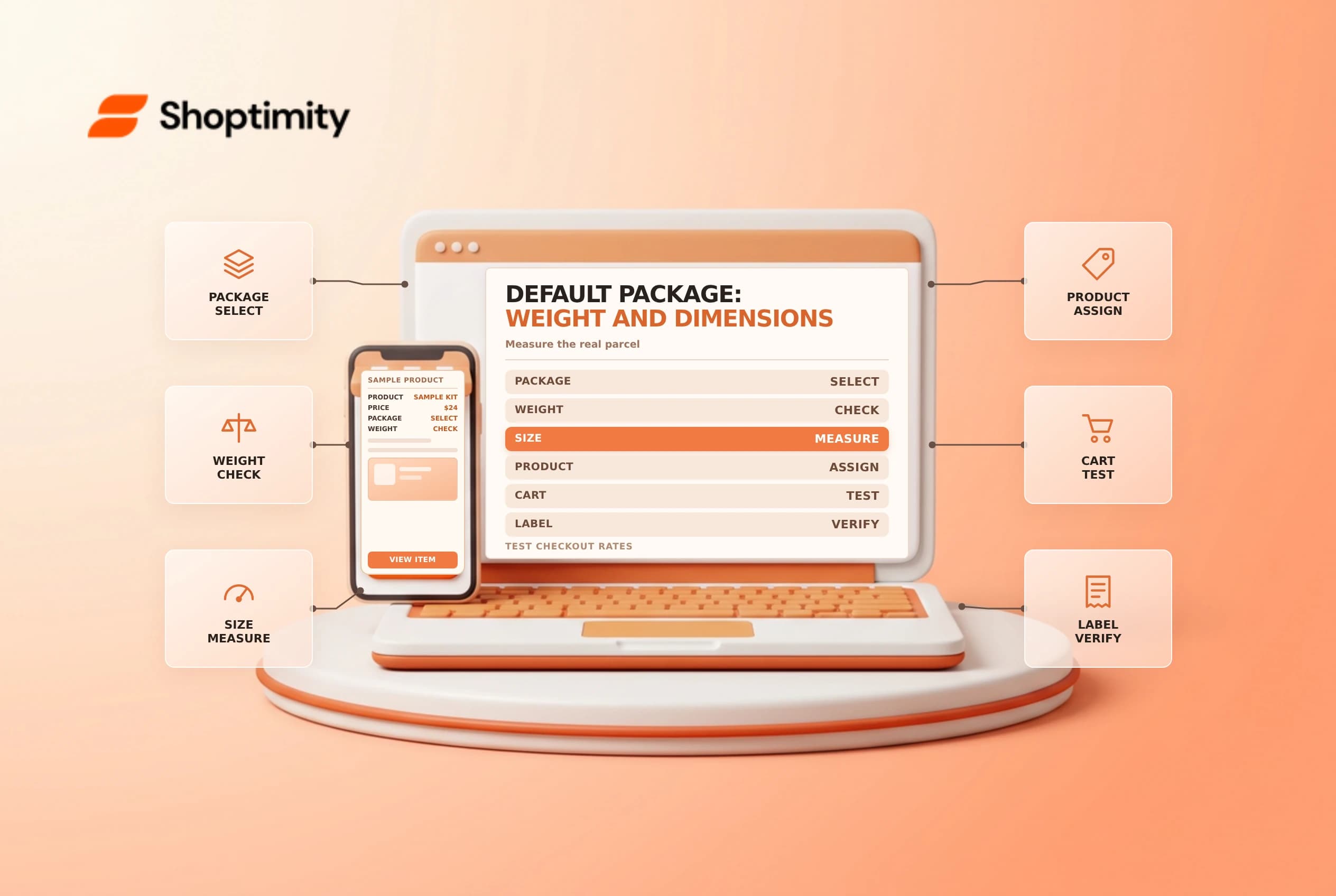
A Shopify default package is an input to shipping calculations, not a guarantee that every order fits one box. A realistic saved package can make weight-based or carrier-calculated checkout rates more useful, but the packed order and selected carrier service still need checking when you buy a label.
Set the package with real measurements
Measure the outside length, width and height of the package you actually use, and weigh the empty package. In Settings > Shipping and delivery, add or edit saved packages and select a store default. Shopify's package setup guide explains that a store has one default package and that its weight can affect weight-based rates.
For example, a cart weighing 4.9 kg plus a default package weighing 0.1825 kg totals 5.0825 kg. If a weight tier ends at 4.99 kg, that packaging weight can move the cart into the next tier. Check your own thresholds and units; this example is arithmetic, not a recommended rate.
Understand product assignments
A package assigned to a product variant can override the default for a single-item order. Shopify says the default is used for multi-item orders in that assignment workflow. The platform also documents packed-product size and saved-box selection for more accurate carrier calculations; check which settings are available and how they apply in your store.
| Situation | What to verify |
|---|---|
| Single item with assigned package | Product, variant and saved package match the item |
| Multiple items | Default package assumptions and actual packing |
| Carrier rates | Origin, destination, package dimensions and service limits |
| Label purchase | Measured packed parcel matches the selected package |
Carriers can use dimensional weight and their own measurement rules. A customer-facing rate is not necessarily the exact label price, especially if the actual package or service differs. See the dimensional weight guide and weight-based rate checks.
Test before changing the default
Record the existing package and rate settings. Test a small item, a heavy item and a mixed cart at representative addresses; compare the rate shown at checkout with a realistic package and label estimate. Check tier boundaries immediately below and above a threshold. If the outcome changes unexpectedly, inspect product weights, location, profile and carrier eligibility before adjusting rates.
Make changes during a controlled window and repeat the tests. Don't set package weight to zero merely to make the checkout number look lower unless that choice matches your actual rate strategy.
Build a repeatable test sheet
Use three representative orders: one product with its own assigned package, one without an assignment, and a multi-item order. For each, record the product weights, package weight and dimensions, destination, rate displayed and shipping service. Keep the same cart while changing one variable at a time. That makes it easier to distinguish a packaging issue from a destination, location or rate-condition issue.
At fulfillment, compare the saved package with the actual parcel. Measure the outside after packing, including any protrusions that the carrier requires you to count. Weigh the packed goods and packaging together. If the saved package is only an approximation, select an accurate package or update the values before buying the label. The checkout estimate may have been reasonable when shown but still differ from the actual carrier charge.
Review edge cases with operations: an unusually large item, a fragile product with extra padding, and a cart split across locations. Record the outcome and owner for each test. Packaging changes can affect several products, so make a planned adjustment and retest rather than repeatedly editing rates in response to one order.
Ready to build a faster, higher-converting store?
Every Shoptimity theme ships with conversion widgets built in — so you get speed and features without stacking apps.
7-day free trial · all themes included · cancel anytime
Continue Reading

Shopify B2B Company Locations: Give Buyers the Right Access
Configure Shopify B2B company locations, verify buyer permissions and test pricing, addresses and pa...

Shopify Checkout Contact Settings: Separate Email From Shipping Phone
Configure Shopify checkout contact settings and test email, phone and shipping address requirements ...

Shopify POS Recent Carts: Share a Sale Without Reserving Stock
Learn how Shopify POS recent carts work across devices, what they do not reserve, and how to hand of...