
Shopify Flow Troubleshooting: Runs, Errors and Safe Retries
title: Shopify Flow Troubleshooting: Runs, Errors and Safe Retries slug: shopify-flow-troubleshooting-errors-safe-retries meta_title: Shopify Flow Troubleshooting: Errors and Safe Retries meta_description: Use Shopify Flow troubleshooting to inspect workflow runs, distinguish errors, prevent duplicate actions and retry safely after fixing the cause. primary_keyword: Shopify Flow troubleshooting secondary_keywords:
- Shopify merchant guide
- ecommerce operations author: The Shoptimity Team date: 2026-11-03 category: Operations schema: BlogPosting, FAQPage
Shopify Flow Troubleshooting: Runs, Errors and Safe Retries
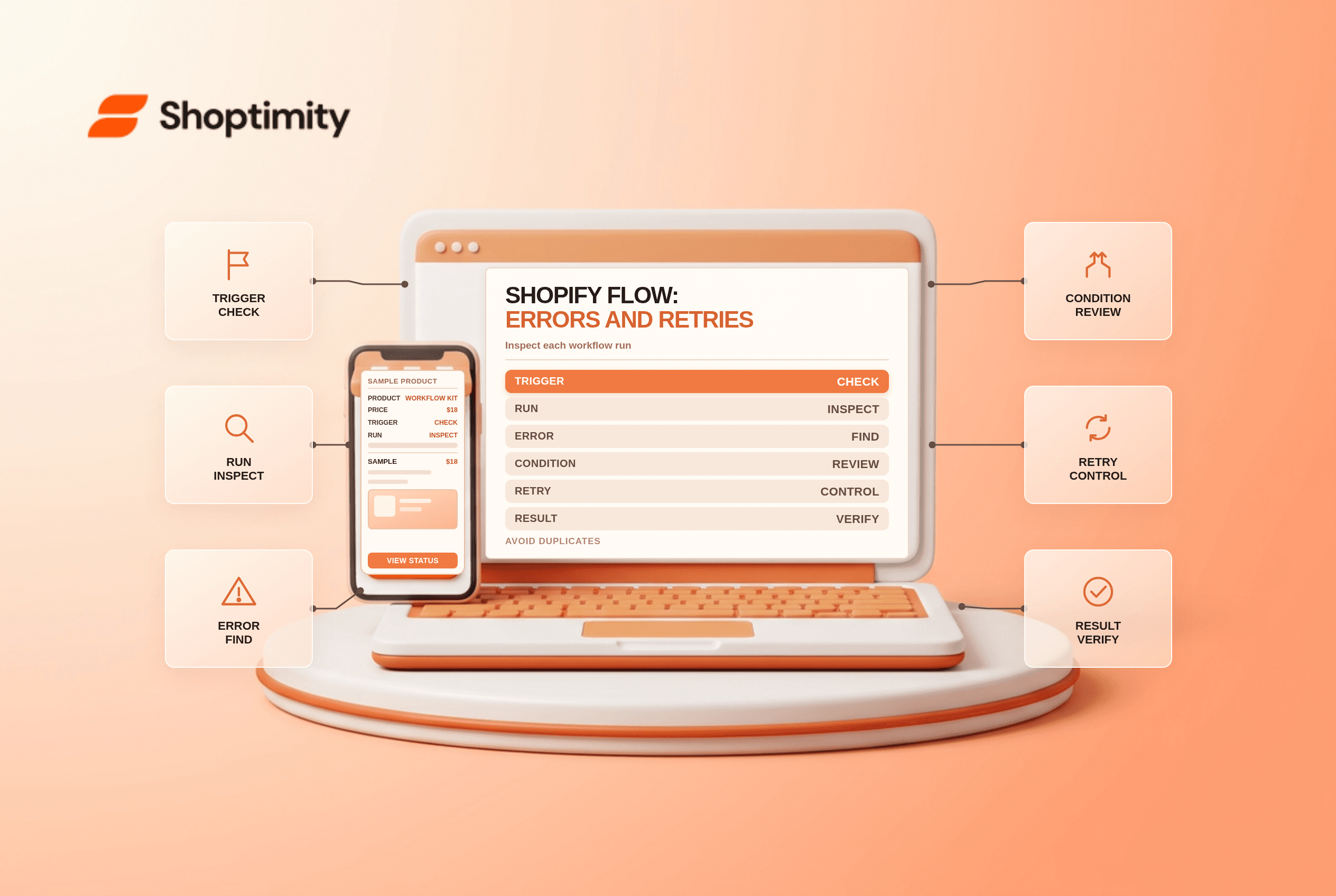
Shopify Flow troubleshooting starts with the individual workflow run, not a guess about what the automation should have done. Find the trigger, inspect each condition and action, correct the underlying problem, then decide whether a retry is safe. Retrying a workflow that already sent a message or changed an order can create duplicate effects.
Read the run before editing
Shopify's monitoring guide says completed workflow runs are retained for 14 days. The Recent runs page can take a few minutes to show a new result. Filter by workflow, time range, trigger type or run ID, then open the details.
| Observation | What to check | Next step |
|---|---|---|
| No run appears | Workflow active, correct trigger, time range and display delay | Verify the event and permissions |
| Condition followed an unexpected branch | Actual field values and condition logic | Compare the run data to the intended rule |
| Run is still in progress | Wait steps, transient retries or rate limits | Inspect the run before starting another |
| A step failed | Error message, inputs, permissions and connected app | Fix the cause before retrying |
| An action succeeded but outcome is wrong | Resource state and downstream systems | Reconcile before replaying |
A workflow marked completed may have taken a valid branch that did not match your business expectation. Completion alone is not proof of the intended outcome.
Separate temporary and permanent errors
Shopify's Flow error guide describes transient errors that retry with increasing delays and permanent errors that cannot be automatically retried. It notes a combined upper execution limit of 36 hours for a workflow section. A long-running workflow may still be retrying, so avoid launching a duplicate while it is in progress.
Repeated errors can signal an unavailable integration, a permission issue, overly complex loops or rate limits. Read the exact step and message. Check whether the connected app is installed and authorized, but do not broadly reinstall or grant extra permissions without identifying the failure.
Understand manual retry
Shopify's manual retry guidance says the workflow must be active, the original run must no longer be running or waiting, and the trigger must still match. A retry uses the original trigger data but fetches current data for Get data actions and uses up-to-date values in conditions and actions. The result can therefore differ from the original run.
Before retrying, check which actions already completed. If the workflow sends a message, creates a ticket or issues a benefit, confirm whether a duplicate would be harmful. Use a deduplication mechanism in the receiving system or a separate guard where appropriate; do not assume retries are automatically idempotent.
A safer recovery sequence
- Record the run ID, resource, failure message and completed actions.
- Determine whether the run is still retrying or waiting.
- Correct the configuration or dependency and test with a controlled example.
- Identify side effects already completed and decide whether a manual retry is appropriate.
- Retry a small set first, then compare original and new results.
- Escalate exceptions and monitor for recurrence.
For HTTP actions, Shopify documents a 30-second response wait and configurable handling for some error codes in its HTTP request reference. Design the receiving endpoint to handle duplicate requests safely.
The Flow versus Zapier guide covers tool selection; webhook reliability explains the related need for idempotent integrations.
Ready to build a faster, higher-converting store?
Every Shoptimity theme ships with conversion widgets built in — so you get speed and features without stacking apps.
7-day free trial · all themes included · cancel anytime
Continue Reading

Shopify B2B Company Locations: Give Buyers the Right Access
Configure Shopify B2B company locations, verify buyer permissions and test pricing, addresses and pa...

Shopify Checkout Contact Settings: Separate Email From Shipping Phone
Configure Shopify checkout contact settings and test email, phone and shipping address requirements ...

Shopify POS Recent Carts: Share a Sale Without Reserving Stock
Learn how Shopify POS recent carts work across devices, what they do not reserve, and how to hand of...