
Shopify POS Stock Counts: Review Variances Before Approval
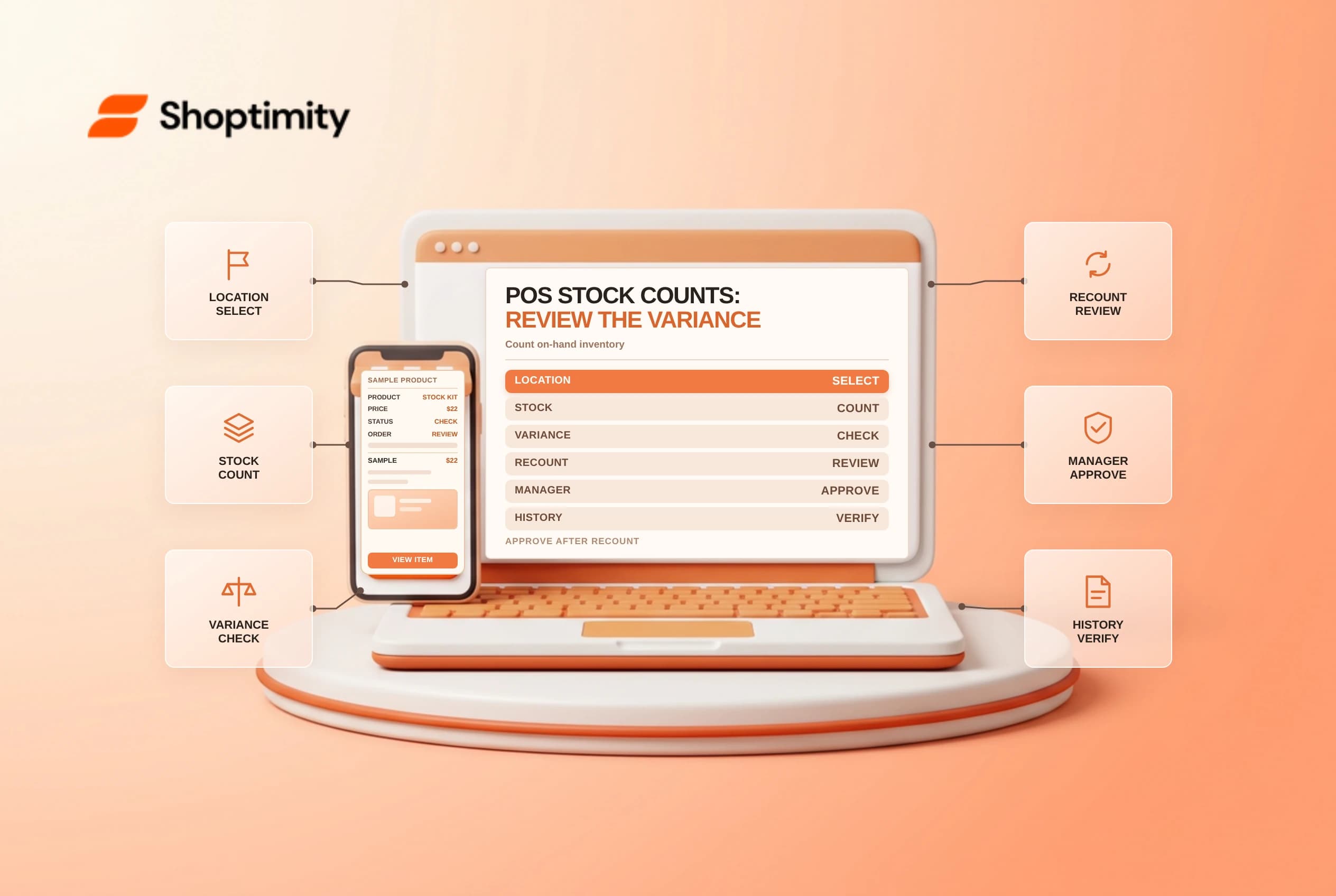
Shopify POS stock counts let retail staff count physical inventory and request a manager's review before quantities change. That is different from an immediate inventory adjustment. Prepare the location, understand on-hand stock and investigate discrepancies before approving a count that cannot be undone.
Choose a counting method
Shopify's inventory count planning guide distinguishes Quick count, scheduled stock counts and admin adjustments. Quick count is useful for a few products, while a stock count lets a manager review a delegated count. POS stock counts require POS Pro at the location and the appropriate staff permissions.
| Method | Best fit | Control to check |
|---|---|---|
| POS Quick count | A small in-store adjustment | Submission adjusts inventory |
| Stock count | Delegated or scheduled count with review | Request review before approval |
| Admin adjustment | Authorized correction in admin | Verify location, quantity and reason |
| Inventory CSV | Larger update | Avoid overwriting changes made since export |
Count on hand, not just available inventory. Shopify defines on hand as available, committed and unavailable units. Incoming stock is a different state; confirm whether goods have actually been received before including them in a physical count.
Prepare the location
Choose the location and products, assign a count owner and decide how to handle sales and incoming deliveries during the count. Shopify recommends completing pending movements, receiving shipments and syncing POS devices before starting. Organize shelves and back rooms so each unit is counted once. Confirm barcode identifiers and scan a few variants against their product details.
Shopify's stock count guide says counts can be performed in admin and, at eligible POS Pro locations, in the POS app. Check the permissions for creating, performing and reviewing a count. A person permitted to count should not automatically be assumed to have authority to approve adjustments.
Submit for review, then reconcile
Staff count the selected variants and request review. Compare expected and counted quantities at the same location and investigate material differences. Check for sales, returns, misplaced stock, unit-of-measure errors and transfers; the variance itself does not establish its cause.
Shopify says a product whose inventory changes during a POS stock count can become outdated and cannot continue to be counted in that session. Follow the current admin guidance and arrange a fresh count for affected items. Do not force an old number into inventory just to close the task.
| Exception | Safer response |
|---|---|
| Physical count differs | Recount and trace recent movements |
| Product becomes outdated | Exclude or recount through the supported process |
| Damaged stock found | Confirm the right unavailable state and policy |
| Unclear variant barcode | Verify SKU and option before recording |
| Reviewer needs more evidence | Reject that item's count and arrange a new count |
| Count appears correct | Approve only after authorized review |
Shopify's review instructions say rejected items are not updated when the rest of a count is approved. Completing a count without review updates inventory immediately, and completing or approving a count cannot be undone. Correct a mistake through a new authorized adjustment, not by assuming an undo exists.
Close the audit trail
Record the count date, location, staff, variances, recounts and approvals. Reconcile the adjustment history after approval and investigate any unexpected changes. Limit access to inventory controls and avoid publishing staff or customer information in training screenshots.
Related guides: inventory adjustment history and inventory CSV safeguards.
Decide in advance which variances need a second count and who may approve them. Record the discrepancy separately from the eventual correction so a reviewer can understand the original result.
Ready to build a faster, higher-converting store?
Every Shoptimity theme ships with conversion widgets built in — so you get speed and features without stacking apps.
7-day free trial · all themes included · cancel anytime
Continue Reading
Shopify Flow Fulfillment Order Moved: Location Alerts
Build an internal alert for moved fulfillment orders and verify location changes with your third-par...
ShopifyQL Timeseries: Show Missing Months in Sales
Use ShopifyQL TIMESERIES to expose empty reporting periods and compare them with GROUP BY results ca...
Shopify Flow Return Declined: Build a Review Handoff
Set up a cautious Shopify Flow return-declined review and distinguish internal reasons from customer...