
Shopify Inventory CSV: Update On-Hand Counts Without Overwriting Changes
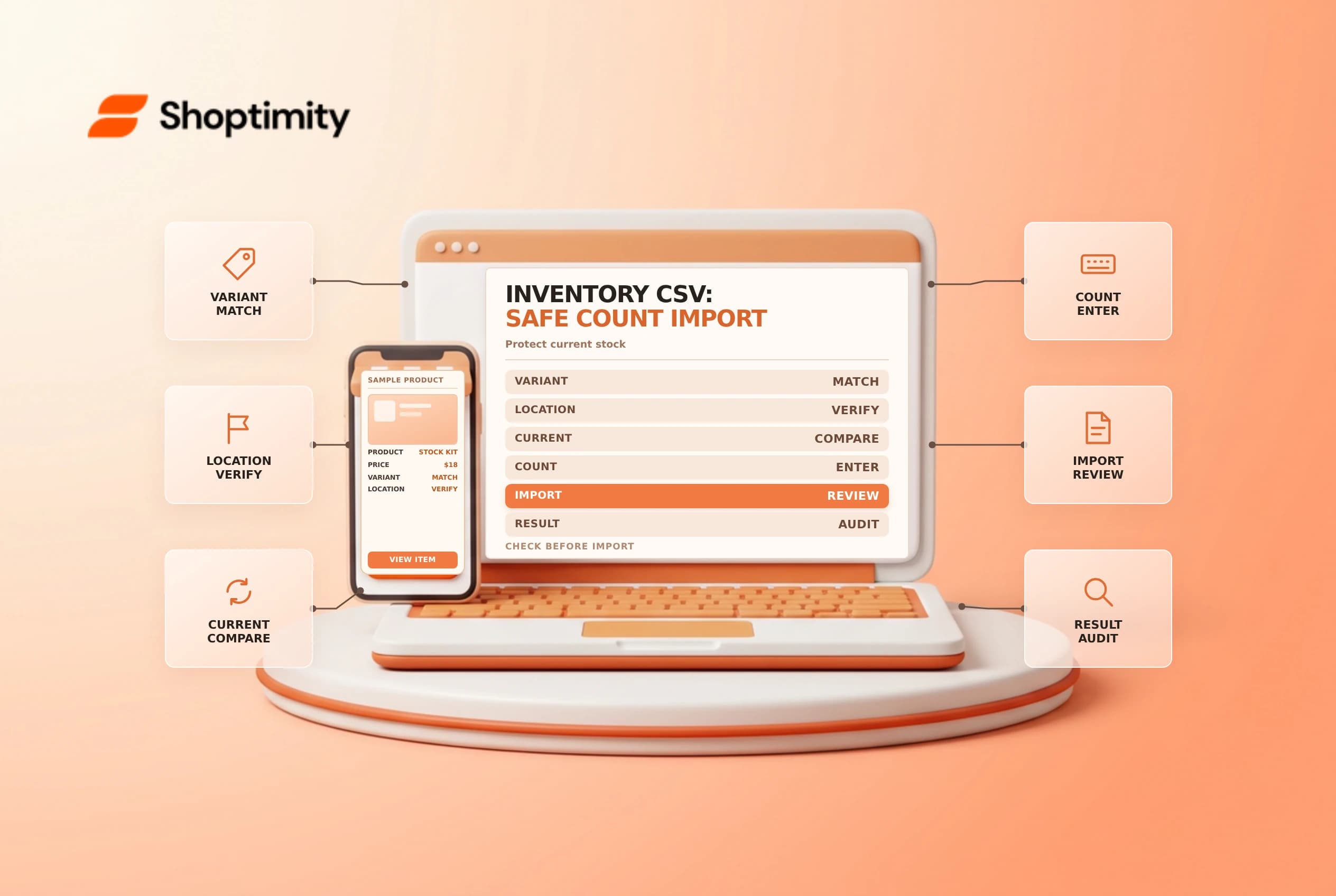
An inventory CSV can help a team update counts across variants and locations. It is also a snapshot: orders, receipts and other adjustments may change stock after export. Preserve the original file, make a controlled edit and resolve any mismatch instead of forcing a stale count into the store.
Export the right inventory file
From Products > Inventory, export the relevant variants and locations. Shopify's inventory CSV guide distinguishes this file from the product CSV. Location names are case-sensitive and must match the Shopify location exactly; include the appropriate row for each variant and location you intend to update.
| Column | How to treat it |
|---|---|
| Handle and option values | Identify the intended product variant |
| Location | Match the exact location name |
| On hand (current) | Snapshot used for a safety comparison |
| On hand (new) | Desired count; leave blank when not changing it |
| Available, committed, unavailable, incoming | Informational columns marked not editable |
The SKU column helps identify a variant but does not update its SKU through the inventory CSV. Use the documented product workflow for SKU changes instead. Protect identifiers from spreadsheet formatting changes and keep the original export untouched.
Count and prepare changes
Agree on a count window, location and owner with the warehouse. If sales or receiving continue during the count, record movements and decide how they will be reconciled. A physical count refers to the actual units at the location; on-hand includes available, committed and unavailable stock, while incoming units are not yet on hand. Do not simply replace on-hand with the number of units available for sale.
Enter the intended count in On hand (new) only for the rows you mean to change. Keep the exported current value for Shopify's safety comparison. Shopify says that when both current and new on-hand values are imported, the system compares the current store quantity with the exported snapshot to help prevent accidental overwrites. Review Shopify's current import instructions and error messages for the exact resolution.
Check packed dimensions as well as quantities
The inventory CSV can also contain variant packed-dimension fields. Shopify says all four packed columns must be completed together or left blank; leaving all four blank clears existing packed dimensions. A variant appearing in multiple location or bin rows must repeat consistent values or its rows can fail validation. Before importing a file that contains these fields, decide explicitly whether to preserve, change or clear them; don't assume blank means “leave unchanged” for every column.
Test a small batch and reconcile
Start with a small, authorized sample, then review the import result and actual admin quantities. If the current value has changed since export, investigate the transaction or stock movement and prepare a fresh, accurate update. Keep the count evidence, original CSV, edited CSV and import log as an audit trail. Follow your access and retention policies because operational files can expose sensitive business information.
See inventory history and inventory adjustments for follow-up investigation.
When reviewing a spreadsheet, watch for duplicate variant-location rows, accidental changes to option values and location spelling, and numbers converted into dates or scientific notation. Have a second person verify a sample against the physical count. Do not treat a successful upload message as the end of the process: open representative rows in the admin and check the resulting state.
Ready to build a faster, higher-converting store?
Every Shoptimity theme ships with conversion widgets built in — so you get speed and features without stacking apps.
7-day free trial · all themes included · cancel anytime
Continue Reading

Shopify B2B Company Locations: Give Buyers the Right Access
Configure Shopify B2B company locations, verify buyer permissions and test pricing, addresses and pa...

Shopify Checkout Contact Settings: Separate Email From Shipping Phone
Configure Shopify checkout contact settings and test email, phone and shipping address requirements ...

Shopify POS Recent Carts: Share a Sale Without Reserving Stock
Learn how Shopify POS recent carts work across devices, what they do not reserve, and how to hand of...