
Shopify Inventory History: Trace a Quantity Change by Location
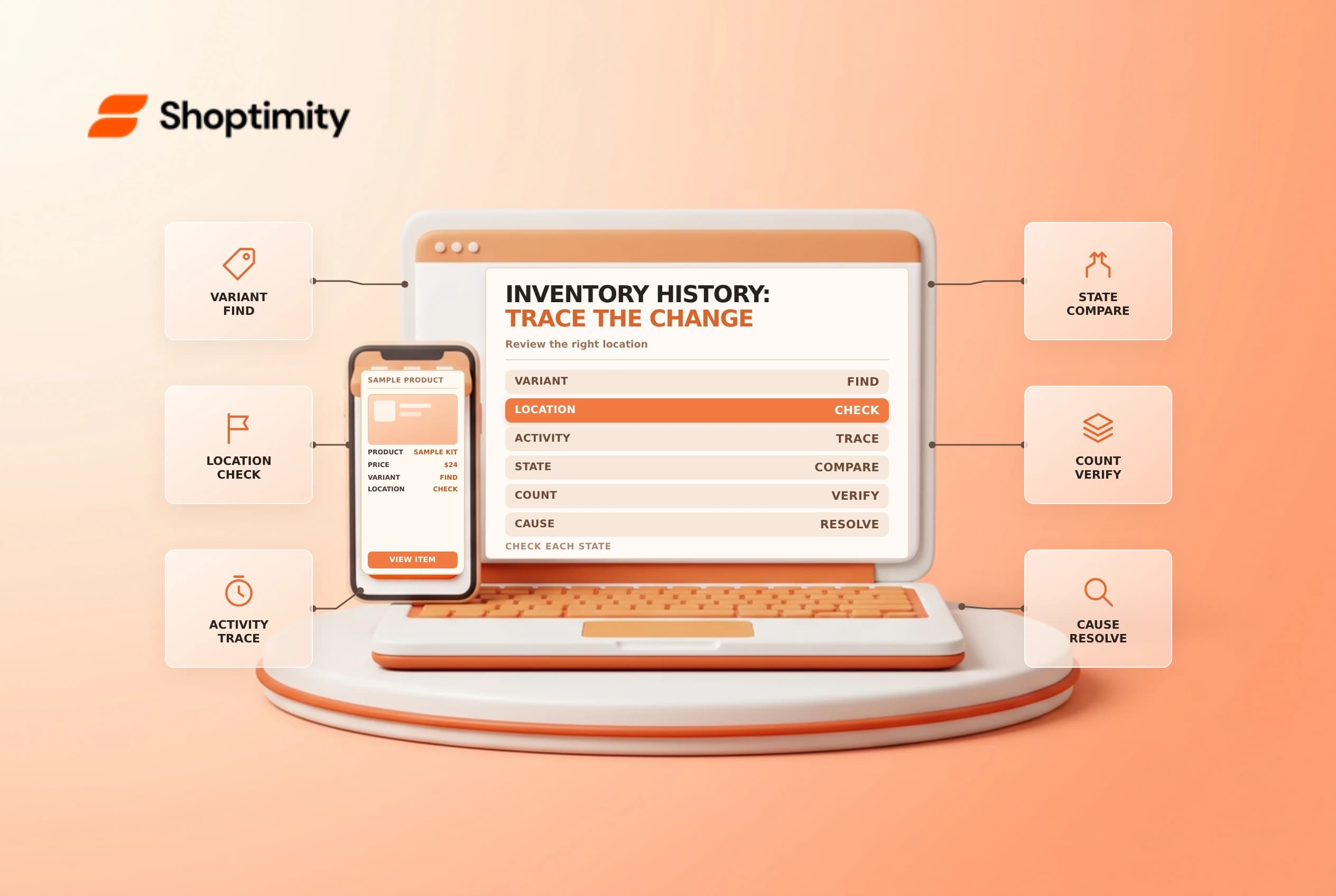
When a quantity changes unexpectedly, start with the exact variant, location and inventory state. A drop in available units is not necessarily a physical loss: an order, reservation, transfer or manual correction may move units between states.
Open the right history
For a tracked product, open Products, select the product and variant if applicable, then choose View adjustment history in the Inventory section. Shopify's adjustment history guide explains the activity, creator and quantity columns. Check the relevant location before comparing the record with a warehouse count.
The individual product or variant view covers the last 180 days. Shopify points to the Inventory adjustment changes report for older adjustments; check its availability and filters in your store. If tracking wasn't enabled, don't assume a complete history exists for the earlier period.
Read the change and the resulting balance
Each affected state shows the change and the new total. A dash means that state wasn't affected by the event. For example, an order committing five units can show available decreasing by five and committed increasing by five, while on-hand stock remains unchanged. Incoming stock is different from stock physically available for sale.
| Column | Diagnostic question |
|---|---|
| Available | Can these units be sold at this location? |
| Committed | Are units allocated to an order, draft order or transfer? |
| Unavailable | Are units held, damaged or otherwise set aside? |
| On hand | What is the sum of available, committed and unavailable? |
| Incoming | What is expected from a transfer, not yet received? |
Check the timestamp, activity and actor together. An app or sales channel can be the creator; don't attribute every change to a staff member. A third-party app reservation can appear as unavailable, while draft-order reservations appear as committed.
Investigate before correcting
- Identify the SKU, variant, location and exact time window.
- Compare the history with order, transfer and physical count records.
- Ask the named team or integration owner about unexplained changes.
- Document the evidence and choose the appropriate adjustment reason only after confirming the count.
- Recheck availability and connected systems after the correction.
A count adjustment can hide the underlying cause if an integration repeats the error. For adjacent workflows, see inventory adjustments and inventory transfers.
A practical reconciliation example
Imagine a warehouse counts 20 units of a variant while the admin shows 12 available and 8 committed at that location. Those figures can be consistent: the 20 physical units include eight already set aside for orders or another supported commitment. Review the related orders before adding eight available units; doing so without understanding the reservation could overstate sellable stock.
Now imagine the history instead shows an unexplained removal by an app. Note the timestamp and location, then compare the app's logs, physical count and any recent transfer. Ask the integration owner whether the app might repeat the change. Correct the cause before making a new adjustment, and record the reason so another person can follow the investigation.
If a count differs across locations, reconcile each location separately. Moving stock between locations and correcting a count are different activities. A transfer may introduce an incoming quantity before receipt; don't treat expected units as physically counted stock. Document the exact event and resulting states rather than copying an unexplained total into a spreadsheet.
Ready to build a faster, higher-converting store?
Every Shoptimity theme ships with conversion widgets built in — so you get speed and features without stacking apps.
7-day free trial · all themes included · cancel anytime
Continue Reading

Shopify B2B Company Locations: Give Buyers the Right Access
Configure Shopify B2B company locations, verify buyer permissions and test pricing, addresses and pa...

Shopify Checkout Contact Settings: Separate Email From Shipping Phone
Configure Shopify checkout contact settings and test email, phone and shipping address requirements ...

Shopify POS Recent Carts: Share a Sale Without Reserving Stock
Learn how Shopify POS recent carts work across devices, what they do not reserve, and how to hand of...