
Shopify Return Labels: Choose, Send and Track the Return
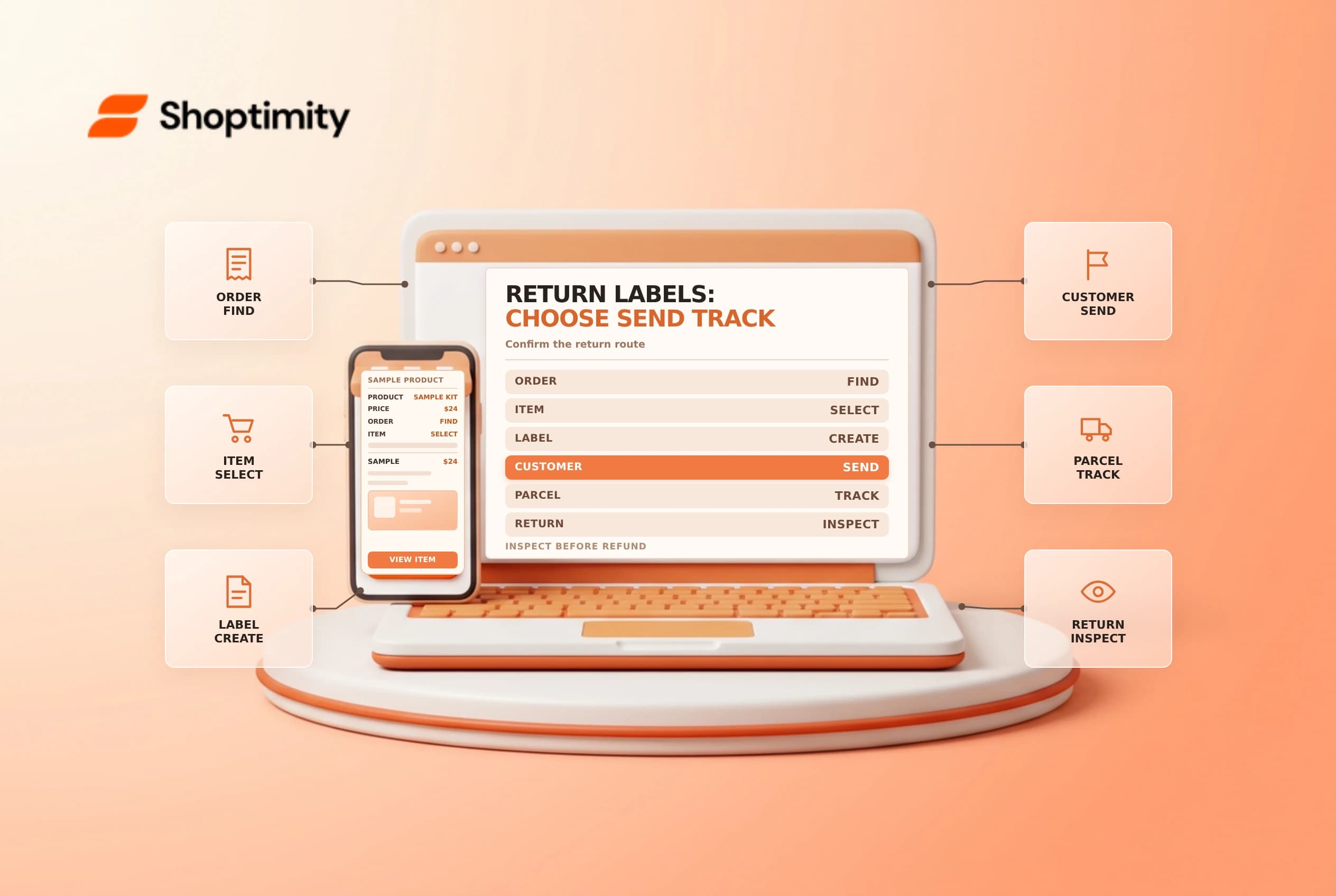
A return label gives a customer a route back to your store; it doesn't prove the parcel has arrived or that a refund has been issued. Confirm eligibility, the return address and the customer's instructions before sending one.
Choose the label route
Shopify's return and exchange guide describes creating a return and choosing a shipping option. Depending on the order and available setup, you may create a label in Shopify, upload a carrier label, provide shipping instructions or select no shipping required.
Shopify documentation distinguishes availability by workflow and location. Its self-serve return guide describes label creation when the customer address and a store location are in the same eligible country, the US or Canada. Carrier, address and service restrictions still apply. Check the actual options shown for the return rather than promising every customer a label.
| Option | Before sending |
|---|---|
| Create in Shopify | Confirm eligibility, carrier, return address and cost |
| Upload a label | Confirm the file or URL and enter tracking where available |
| Shipping instructions | Explain address, packaging and who pays |
| No shipping required | Confirm the business has approved keeping the item |
Build the return carefully
Open the order and choose the items and quantities actually being returned. Review the reason, return shipping and any restocking fees, then select the agreed return destination. A return can include exchange items; confirm stock and customer expectations separately. Check the customer's email and send the label or instructions through the supported workflow.
Record the label or tracking reference against the return. Tell the customer whether they must print it, when to hand over the parcel and what happens after inspection. A created label is not an acceptance scan. If your carrier supplies an expiration date or charges on use, verify those terms for that label rather than assuming the same rules across carriers.
Inspect, then complete the financial step
Track the parcel through receipt, match its contents to the return, and inspect the items before deciding whether to restock. Review the actual order and approved amount before refunding or completing an exchange. A refund and a return are related but distinct records; see store credit versus refunds and return status updates.
Example: a customer returns one of two items
Start by confirming which item and quantity the customer intends to return. Check the return policy, the original order and whether the item has been fulfilled. Then confirm the destination and select the available label or instruction option. If a label is uploaded, review the carrier and tracking information and make sure the file is legible before sharing it.
Tell the customer that sending the parcel is the next step, not confirmation of a completed refund. Give a support contact and explain any agreed shipping fee. If the business uses an estimated refund, distinguish that estimate from the final amount after inspection. Don't promise an exact timing unless it matches the store's policy and payment process.
When the parcel arrives, record the tracking reference and compare its contents with the return record. A damaged or different item may need a separate review; don't mark it restocked simply because a delivery scan exists. If an exchange is involved, check the replacement's availability and confirm any price difference before completing the exchange workflow.
Ready to build a faster, higher-converting store?
Every Shoptimity theme ships with conversion widgets built in — so you get speed and features without stacking apps.
7-day free trial · all themes included · cancel anytime
Continue Reading

Shopify B2B Company Locations: Give Buyers the Right Access
Configure Shopify B2B company locations, verify buyer permissions and test pricing, addresses and pa...

Shopify Checkout Contact Settings: Separate Email From Shipping Phone
Configure Shopify checkout contact settings and test email, phone and shipping address requirements ...

Shopify POS Recent Carts: Share a Sale Without Reserving Stock
Learn how Shopify POS recent carts work across devices, what they do not reserve, and how to hand of...