
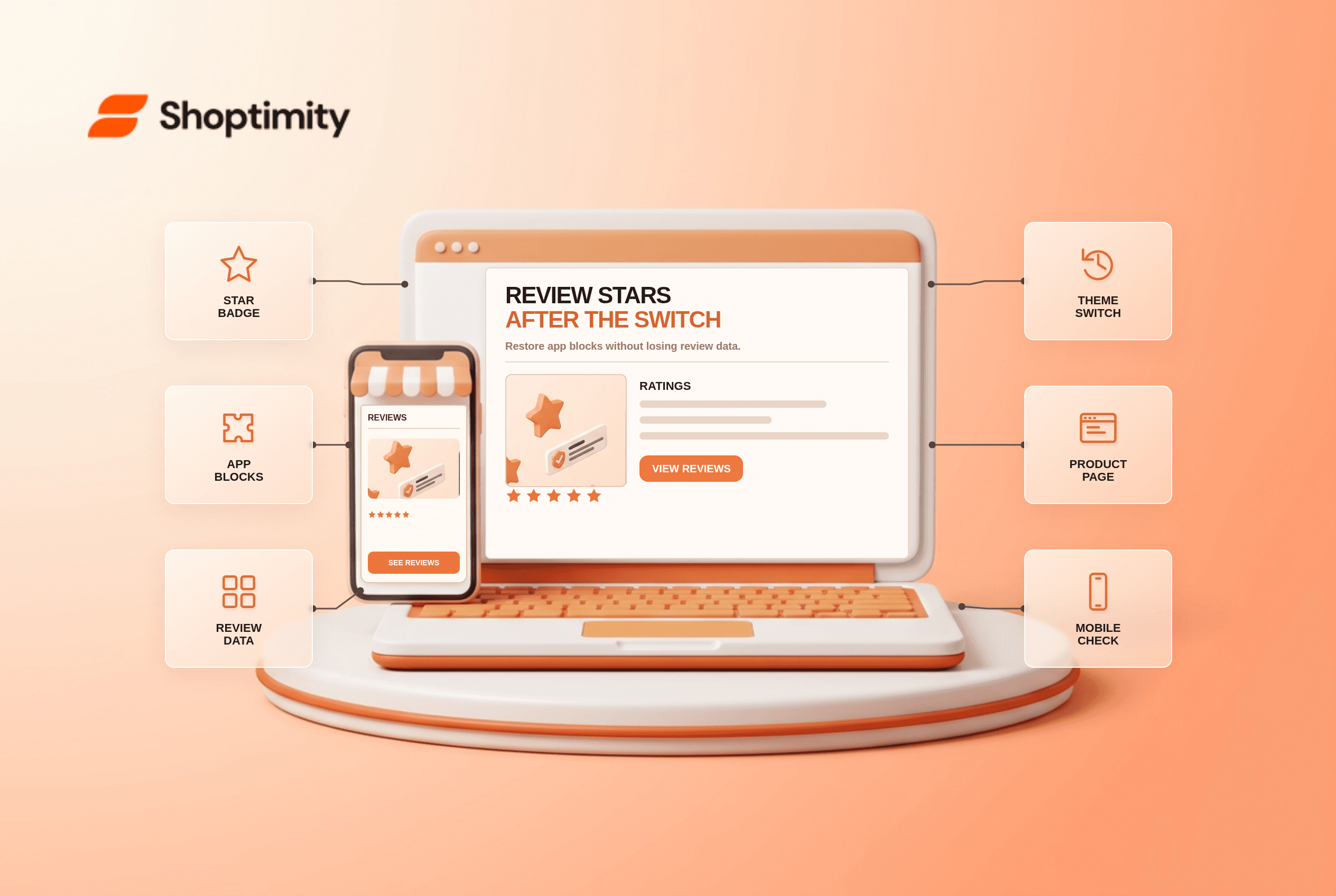
If Shopify review stars are missing after a theme change, the reviews may still be in your review app while its display block is absent from the new theme. Re-add the app block on the product template, check whether an app embed also needs activation, and test a product with known reviews. Do not uninstall the review app until you know where the underlying review data lives.
Why did review stars disappear after switching themes?
A new theme does not automatically inherit every app placement from the old one. According to Shopify, a theme switch calls for reactivating app integrations in the replacement theme. Shopify's theme-app guide says apps need to be reactivated after you change the published theme. An app block might have been placed beside the old product title; the new product template is a different layout and needs its own placement. The review data and the visible stars are separate things. In October 2026, verify both before declaring the migration complete.
This distinction matters because “reviews” can mean a rating badge, a list of written comments, photo reviews, or the collection workflow that emails purchasers. A theme may display some of these, while an app stores or manages others. Shopify's theme app extension documentation uses star ratings and review comments as separate app-block examples.
How do you restore review stars without losing data?
Restore the display before you touch the storage system. Use this order on a draft theme so customers do not see a half-finished product page:
- Identify the review provider. Open the installed app and find a product with several known reviews. Record where those reviews are managed and whether export is available.
- Open the new theme editor. Go to Online Store → Themes → Edit theme on the draft theme, then select a product template used by that reviewed product.
- Add the rating block. In a compatible section, use Add block → Apps and choose the review or rating block. Shopify's help page describes this exact app-block workflow.
- Check the full-review section. A small star badge near the title and a detailed reviews list lower on the page may be separate blocks. Add both when the app provides both.
- Check app embeds. Some apps use an embed for floating or site-wide behavior. Verify its activation on the new theme instead of assuming the old toggle carried over.
- Test multiple templates and devices. A default product template can look correct while a custom product template still lacks its blocks. Check desktop and mobile.
- Publish only after a comparison. Run 2 tests: compare a product with reviews and a product without them. Confirm the empty state is sensible and the rating links to the correct product's reviews.
Avoid pasting a star string into a product title to make the page look fixed. That would display a claim disconnected from your review source, and the stars would not update when new reviews arrive or old ones are moderated.
What if the app block is unavailable?
The new theme section may not accept that app block. Shopify says app blocks need a compatible theme and a section that supports them. If the block is missing from the picker, check the app's installation and compatibility instructions, then try an Apps section in the template if supported. Shopify also distinguishes app blocks from app embeds; an embed may be managed in a different part of the editor.
Some older integrations inject code directly into theme files. In that case, the old custom snippet may not move with the new ZIP. Ask the app vendor and theme developer how the current integration works rather than copying old code into a new theme without checking compatibility. Shopify's documentation identifies custom-code integrations as a separate app method.
Do the customer reviews move with the theme?
Do not infer data ownership from what appears on the page. A review app can store submissions and expose them through blocks or metafields; a theme can render that data without owning the collection process. If you remove the app, your migration options depend on that provider's export and data model. First export whatever you are entitled to export, document your current settings, and make a rollback plan.
We checked Shopify's published app-block instructions and Shoptimity's public theme pages. That research does not tell us which review app your store uses or whether a specific Shoptimity preset contains its own review database. The safe promise is narrower: a compatible theme can make room for review blocks and star displays. See the theme-versus-app decision table before replacing a specialized service, and the theme-changing guide for broader migration checks.
When should you contact support?
Escalate when you can prove the data exists but the new theme cannot render it. Send the support team the theme name, template name, review app name, affected product URL and a screenshot of the block picker. Say whether the block is missing, present but empty, or present on the wrong product. That is enough context to distinguish integration, data and template problems without giving anyone access to customer information.
A healthy migration ends with two verified outcomes: the old reviews appear under the right products, and the app can still collect new reviews. One visible five-star example in a theme demo proves neither outcome for your own catalog.
Ready to build a faster, higher-converting store?
Every Shoptimity theme ships with conversion widgets built in — so you get speed and features without stacking apps.
7-day free trial · all themes included · cancel anytime
Continue Reading
Top Shopify Theme for Wholesale: A 2026 Buyer's Guide
You've just spent weeks sourcing inventory and building supplier relationships. But when you launch ...
Ecommerce Return Status Updates: Separate Request and Refund
Ecommerce return status updates should separate request, label, receipt, inspection and refund so sh...
Ecommerce Delivery Delay Updates: Show the New Reality
Ecommerce delivery delay updates should replace stale promises with a dated revised estimate, clear ...