
Add Shopify Product Variants: Verify Options, Prices and Stock
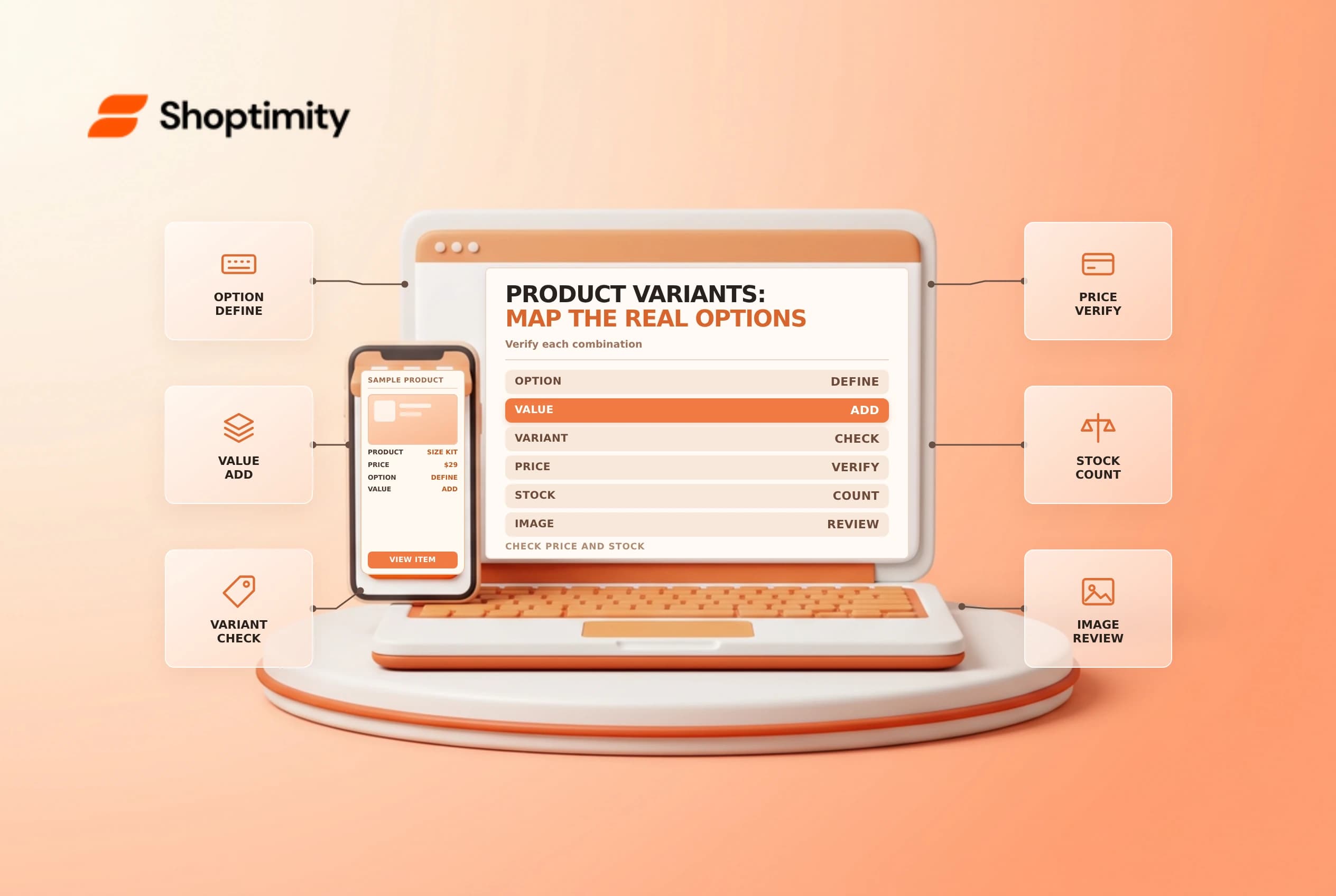
Adding Shopify product variants lets customers choose different options such as size or color. Each sellable combination needs accurate information, not just a label. Before adding options to an existing product, plan which combinations exist and verify prices, inventory, images and downstream integrations.
Map options and real combinations
Shopify's adding variants guide describes options such as size with values such as small and large. A variant is a particular combination of option values. Shopify's editing guide says a product can have up to three options; review current platform and app limits before a large change.
| Layer | Example |
|---|---|
| Product | A shirt style |
| Option | Size or color |
| Option value | Medium or blue |
| Variant | Medium blue shirt |
| Variant details | Price, SKU, inventory, image and shipping data |
Not every possible combination necessarily exists physically. Build an approved matrix with the catalog owner and identify which combinations should be offered. Do not create a purchasable option for inventory the business cannot actually supply.
Add a controlled sample
Open the product in Products, choose the supported option or variant action, and enter clear option names and values. Shopify also documents duplicating an existing variant and editing an option value to create a unique variant. Review what was copied instead of assuming every field is correct for the new item.
For each new variant, check price, SKU, barcode where applicable, inventory tracking, stocked locations, weight, tax and image. Confirm that any category-metafield connection uses the intended shared values. Shopify notes that an added option's default value is applied to existing variants; preview the effect before saving a change to a live product.
Test the complete selection journey
| Check | Expected result |
|---|---|
| Option labels | Shoppers can distinguish the actual choices |
| Variant price | The selected combination displays the correct amount |
| Inventory | Quantity and location match the physical item |
| Image | The correct variant image or gallery appears |
| Cart | The selected option and quantity carry through |
| Channel or app | The integration recognizes the new variant |
Test an in-stock variant, an out-of-stock variant and a combination that should not be offered. Review mobile and desktop behavior and the actual product status and sales-channel availability. If the product uses a custom selector or third-party app, check its behavior separately; adding a variant in the admin does not guarantee every integration has updated.
Manage dependencies before edits or deletion
A variant's SKU or identifier can be used by fulfillment, purchasing, analytics and external systems. Coordinate changes with those owners. Deleting or reorganizing variants can affect links, inventory records or integrations; keep a mapping and follow an approved migration plan rather than treating it as a cosmetic edit.
For a shared metafield entry, a label change can affect more than one product. Review its usage before changing it. After the update, compare the admin record, storefront selection and physical inventory. Have a second person check a sample and retain the prior values needed for investigation.
See SKU versus barcode and variant images for adjacent checks.
When a new size or color changes the range of available combinations, check the inventory source and customer-facing images for each one rather than copying a single default to the whole grid. Give the fulfillment team the approved SKU mapping and ask it to verify a physical sample. If a channel still shows an old option, investigate its sync and mapping before editing the catalog again.
Ready to build a faster, higher-converting store?
Every Shoptimity theme ships with conversion widgets built in — so you get speed and features without stacking apps.
7-day free trial · all themes included · cancel anytime
Continue Reading

Shopify B2B Company Locations: Give Buyers the Right Access
Configure Shopify B2B company locations, verify buyer permissions and test pricing, addresses and pa...

Shopify Checkout Contact Settings: Separate Email From Shipping Phone
Configure Shopify checkout contact settings and test email, phone and shipping address requirements ...

Shopify POS Recent Carts: Share a Sale Without Reserving Stock
Learn how Shopify POS recent carts work across devices, what they do not reserve, and how to hand of...