
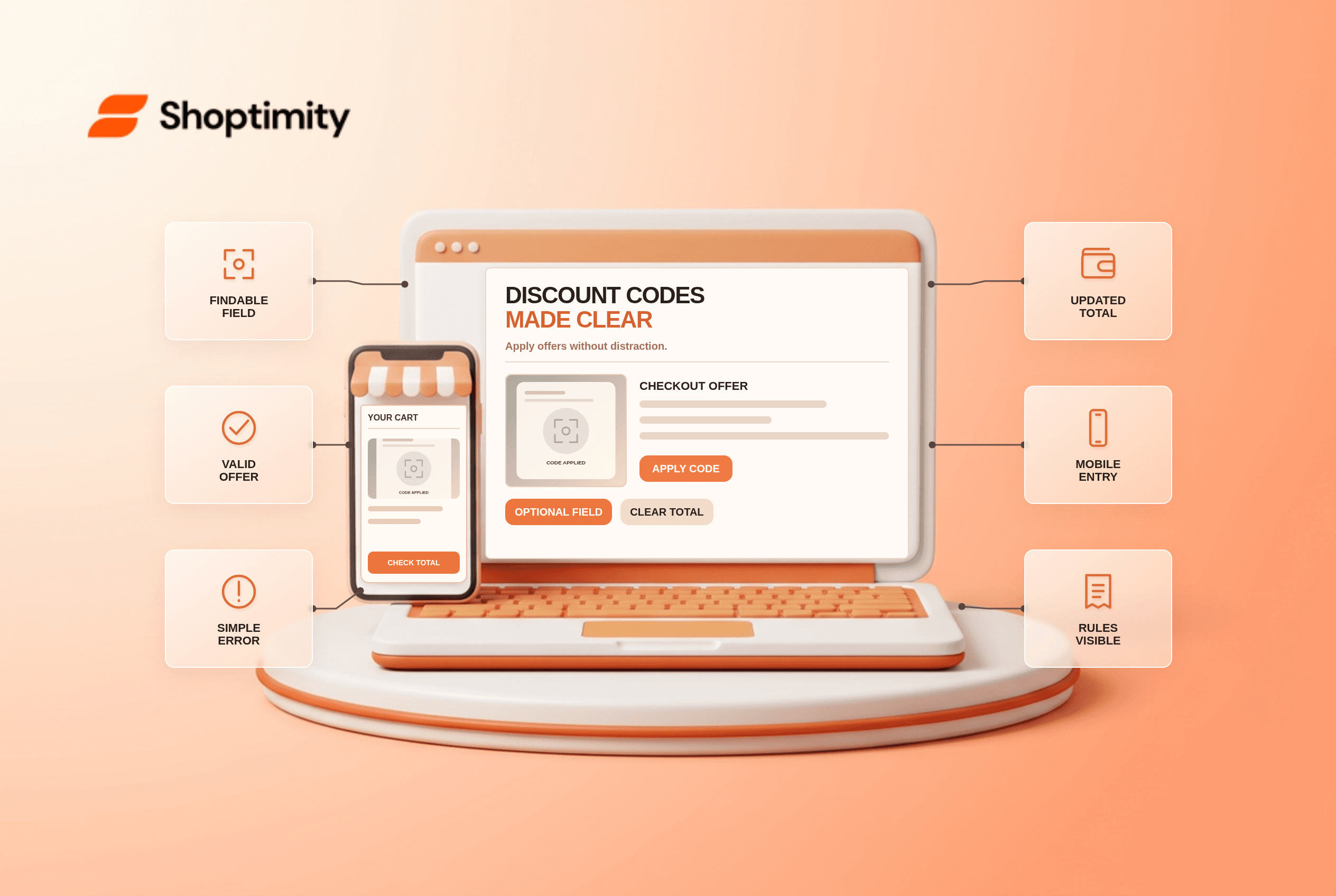
A checkout coupon code field should be available to a shopper who has a code without suggesting to everyone else that they are overpaying. Keep it behind a clear secondary link, apply eligible offers automatically where possible, and show the updated order total when a code succeeds. If a code fails, explain why without erasing other checkout details or implying the order was placed.
Where should a checkout coupon code field appear?
Make it findable but visually secondary. A collapsed “Have a discount code?” control in the cart or checkout is clearer than a prominent empty input competing with address and payment fields. A customer with a code can open it; a customer without one can complete the purchase without being sent away to look for a coupon.
According to Baymard's checkout-form research, 70% of benchmarked sites offered promotional code fields and 35% of those sites showed the field by default. Its research observed coupon hunting when shoppers noticed the field. Those figures concern its benchmark, not a measured abandonment rate for Shoptimity customers.
How should a code affect the total?
Show the order change where it happens. When a valid code is applied, display the discount line, new total and any effect on shipping eligibility. If the code only applies to certain products, label the scope. Do not briefly show a discounted total that later disappears at payment without an explanation.
Baymard's guidance on checkout Apply buttons treats promo codes as an exception where an Apply action can make sense, but calls for visible feedback when a code changes the order. Confirm whether the code was applied before a customer submits payment. A failed code should leave the cart and contact fields intact.
- Check whether an eligible automatic promotion already exists before showing a manual code prompt.
- Place the optional input behind a plainly worded control that can be reached by keyboard.
- Enter a valid code and verify the discount, subtotal, tax and shipping eligibility update as intended.
- Enter expired, mistyped and ineligible codes and write distinct, safe recovery messages.
- Test two codes together and show whether stacking is allowed before checkout submits the order.
- Refresh, navigate backward and change cart quantity; make the resulting discount state explicit.
- Check mobile focus and screen-reader announcement of the revised total and any error.
What if a code is invalid or unavailable?
Explain the condition you can verify. “This code expired on [date]” or “This offer does not apply to these items” is better than a generic failure. Avoid claiming a customer is ineligible if the system is temporarily unavailable. Check whether the attempted offer may be combined with an automatic discount, and whether changing quantity alters qualification.
A useful exception test is a cart that earns free shipping before a coupon, then falls below the threshold after the discount. If the checkout total adds shipping, explain why near both the offer and shipping line. The code may be valid while the final charge still changes; hiding that interaction harms trust.
We checked public Baymard sources, not the store's promotion rules or platform checkout controls. Our advice is to verify the calculation first, then style the field. Shoptimity themes can affect storefront presentation, while the commerce platform may control hosted checkout. See the free-shipping threshold guide and contribution-margin guidance for promotion economics.
How should you judge the result?
Track failed-code reasons and support contacts, not just input usage. A lower number of opened coupon fields does not prove the design helped; confirm that customers who have valid codes can apply them. Review cases where the confirmation total does not match the displayed checkout total. Never promise a conversion increase based solely on a collapsed input.
Ready to build a faster, higher-converting store?
Every Shoptimity theme ships with conversion widgets built in — so you get speed and features without stacking apps.
7-day free trial · all themes included · cancel anytime
Continue Reading

Shopify B2B Company Locations: Give Buyers the Right Access
Configure Shopify B2B company locations, verify buyer permissions and test pricing, addresses and pa...

Shopify Checkout Contact Settings: Separate Email From Shipping Phone
Configure Shopify checkout contact settings and test email, phone and shipping address requirements ...

Shopify POS Recent Carts: Share a Sale Without Reserving Stock
Learn how Shopify POS recent carts work across devices, what they do not reserve, and how to hand of...