
How to Add Trust Badges to Shopify Without Apps
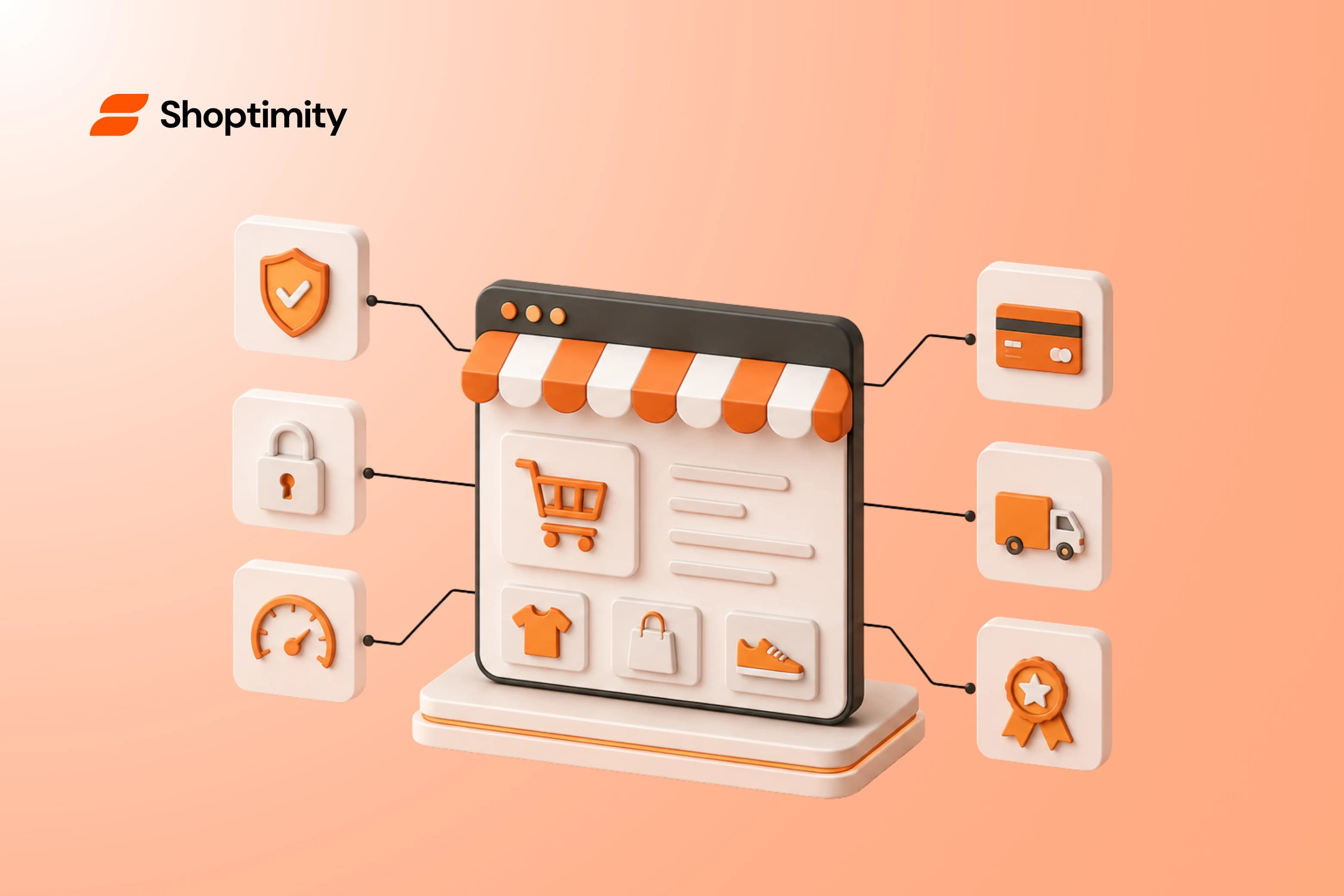
Many store owners pay monthly app fees just to display a tiny payment icon. Loading up your store with third-party apps for basic visual elements slows down your page speed. It also drains your budget. You can completely avoid these fees. Just insert these badges using basic code or native theme features.
- You do not need a paid app to display payment or security icons on your store.
- Standard Shopify plans cannot edit the checkout page, so place badges directly on product and cart pages instead.
- Use the basic HTML
<img>tag in your theme code to display badges natively without page-speed penalties. - Built-in theme features are the fastest way to show trust signals without touching code.
What Are Trust Indicators in Ecommerce?
Before digging into code, we need to define what actually makes a buyer feel secure. Trust indicators are visual signals. They tell visitors their data is safe, their payment is secure, and your business is legitimate.
These indicators typically fall into three categories. First, you have payment badges like Visa, Mastercard, and PayPal. Second, security seals like Norton or McAfee show that the connection is encrypted. Finally, store guarantees like "Free Returns" promise lower risk for the buyer.
Slapping a blurry icon on your site will hurt your sales rather than help them. You must choose high-quality, legitimate images. Using fake or poorly designed badges will harm your credibility instantly. Buyers are highly sensitive to anything that looks amateurish right before they hand over their credit card details.
Where to Place Your Free Trust Badges
Placement dictates performance. Store owners constantly try to wedge custom images directly inside the final checkout flow. This almost always leads to frustration.
Unless you pay for the enterprise-level Shopify Plus plan, the actual checkout page is locked down for security reasons. Standard plans cannot edit the checkout code.
Instead, place the free trust badges shopify users look for where hesitation actually occurs. Put them right below the Add to Cart button on your product pages.
The cart page is your second best location. A simple row of recognized payment icons here helps tremendously. It acts as a subtle push to complete the purchase. Instead of overpaying for Shopify apps to do this, you can drop a single line of text into your layout files.
The HTML Method to Add Trust Badges to Shopify
If you want a lightweight store, manual insertion is the answer. Adding images directly into your template requires zero monthly fees. It also puts zero strain on your server load time.
Always duplicate your live theme before editing liquid files.
First, find a clean, transparent PNG or SVG of the badge you want to use. Go to your Shopify admin dashboard, navigate to Content > Files, and upload your image. Once uploaded, click the link icon to copy the image URL.
Next, go to Online Store > Themes. Click the three dots next to your active theme and select Edit code.
You are looking for the exact file that controls your product page or cart. In Online Store 2.0 themes, this is usually main-product.liquid or a specific snippet like buy-buttons.liquid.
Find the block of code that renders your add-to-cart button. Right below it, paste this specific Shopify trust badges code:
Replace the placeholder text with your actual image link. Click save and refresh your live product page. The badge will render cleanly below the button without calling any external scripts.
The App-Free Alternative for High Conversions
Manually placing HTML tags works well for a single icon. However, building a genuinely high-converting store requires dynamic trust signals across every page. Adding code to a dozen different template files gets messy fast. If you update your layout or attempt changing Shopify themes later, you lose all your hard-coded customizations.
This is why many modern stores rely on themes with native conversion tools built directly into the architecture. Alternatively, you can use reliable third-party options like Essential Trust Badges or ShopClimb. These apps offer free options and let you visually customize your layout.
Using native theme blocks keeps your site faster by avoiding app bloat. You simply toggle your trust indicators on or off directly inside the visual theme editor. No liquid coding is required. A native approach keeps your pages loading instantly. It ensures professional trust signals display uniformly on every device.
Ready to build a faster, higher-converting store?
Every Shoptimity theme ships with conversion widgets built in — so you get speed and features without stacking apps.
7-day free trial · all themes included · cancel anytime
Continue Reading

The Right Dropshipping Shopify Theme Saves You Thousands in Wasted Ad Spend
When a cold visitor lands on your dropshipping store, they have seconds to decide if you're legitima...
Mobile First Design for E-Commerce: Why Your Shopify Store's Conversion Rate Depends On It
This approach isn't a nice-to-have in 2026, it's the difference between a store that sells and one t...
98.9 Speed Score: Why High-Ticket Dropshippers Need Lightning-Fast Shopify Themes
Every second your store takes to load costs you money. For high-ticket dropshippers selling products...