
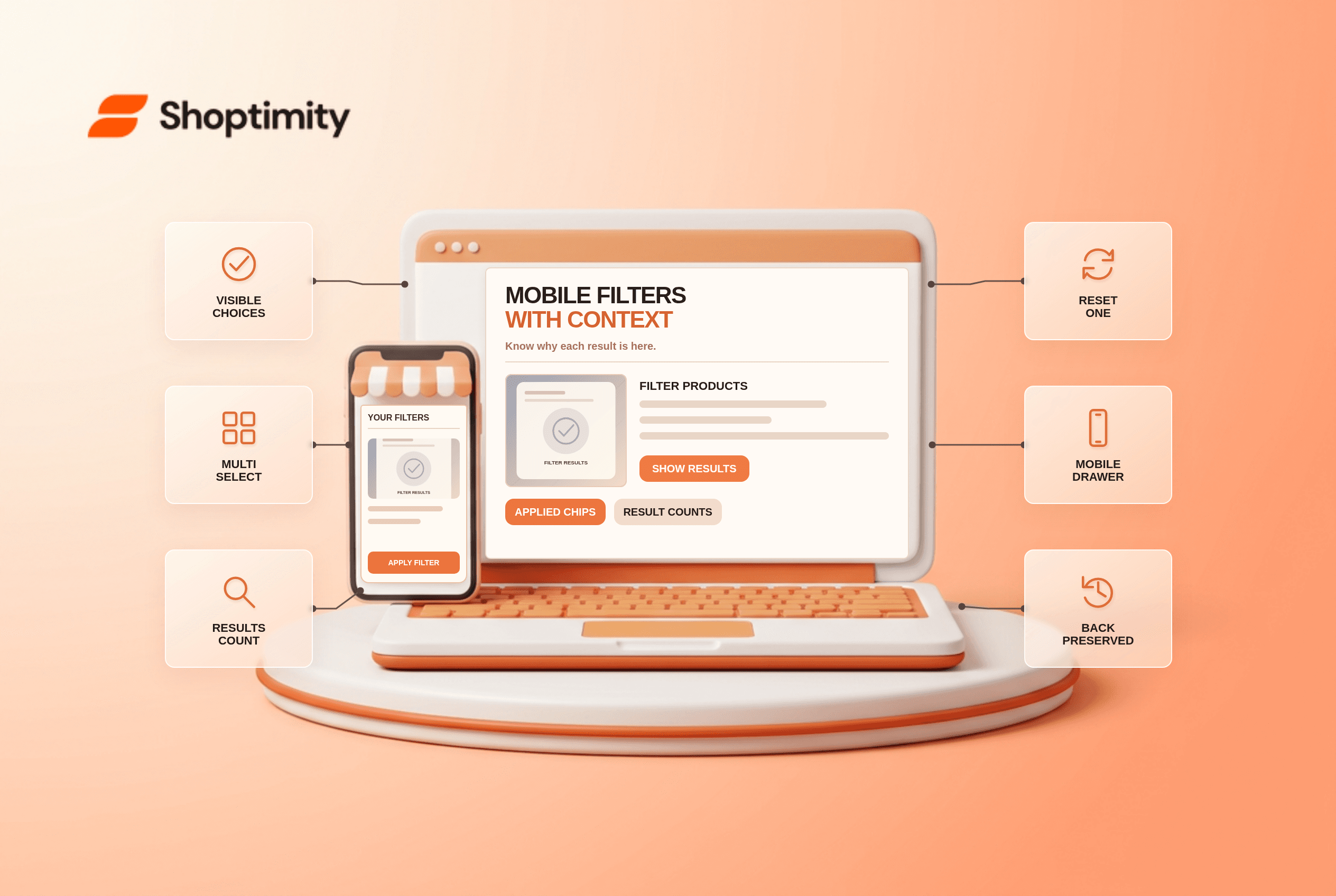
Mobile ecommerce filters should help shoppers narrow a product list without losing track of what remains. Use a clearly labeled Filter control, show selected values above the results, make each value removable and display a meaningful result count before applying a mobile drawer. Avoid silently returning zero products. Keep sorting separate from filtering so shoppers understand which choice changed the list.
What should mobile ecommerce filters show?
Show both the selection and its effect. A chip such as “Size: M ×” above the grid explains why some items disappeared and gives a one-tap way to undo that choice. But a chip without a readable label does not explain the selection. “Filters (3)” alone does not reveal whether a stale color or price range is restricting results. Preserve filters when a shopper opens a product and comes back.
According to Baymard's 2026 applied-filter study, 28% of its benchmarked sites lacked an overview of active choices, while 72% provided one. Its research describes how hidden filters make people misread the available catalog. Those figures describe the tested sites, not this store's mobile abandonment rate.
When should filters be applied?
Design for the viewport rather than copying a desktop sidebar. Baymard's mobile filter guidance recommends a distinct mobile drawer or sheet with a clear “Show X results” action, while a desktop sidebar can update more immediately. On mobile, changing results behind a still-open drawer can disorient shoppers. Keep the apply action accessible when the list of options is long.
A common failure case is selecting blue and navy shoes, then discovering the filter permits only one color. Some filter types should support multiple values within a group. Baymard's research on combining values notes the extra comparison work created by mutually exclusive options where they do not belong. Price brackets and other truly exclusive choices can follow different rules.
- Open a collection on a narrow phone and locate the Filter control without searching the page header.
- Select two relevant values within one attribute, plus a choice from a different attribute.
- Verify the result count and any zero-result warning before applying the selection.
- Apply and confirm that every selected value appears above or beside the product results.
- Remove one chip and check that the remaining selections persist.
- Open a product and use Back; verify filters, sort state and useful scroll position remain.
- Repeat with no matching products and offer a specific reset path instead of an empty grid.
What if a combination yields zero products?
Prevent an unexplained dead end. Show the number of matching items as filters change and allow the shopper to clear an individual restrictive choice. If a selection has no matches, explain which combination was used rather than suggesting unrelated products were found. A zero-result view cannot repair inaccurate catalog attributes; fix those separately. A disabled zero-count option can be helpful when its meaning stays readable to keyboard and screen-reader users.
We checked Baymard's public research, not the site's collection analytics or filtering implementation. Our advice is to fix misleading counts before styling chips. Shoptimity themes can display a drawer, while the platform's catalog data determines available facets. See our category page checklist for broader browse-page structure and no-results search guide for query recovery.
How should you judge the change?
Look for successful refinements, not simply more filter taps. Watch whether shoppers open relevant products after applying a filter, whether they repeatedly clear the same choice, and whether zero-result states persist. Without first-party measurement, a polished drawer is only a hypothesis. Test actual catalog values before attributing any sales change to the controls.
Ready to build a faster, higher-converting store?
Every Shoptimity theme ships with conversion widgets built in — so you get speed and features without stacking apps.
7-day free trial · all themes included · cancel anytime
Continue Reading

Shopify B2B Company Locations: Give Buyers the Right Access
Configure Shopify B2B company locations, verify buyer permissions and test pricing, addresses and pa...

Shopify Checkout Contact Settings: Separate Email From Shipping Phone
Configure Shopify checkout contact settings and test email, phone and shipping address requirements ...

Shopify POS Recent Carts: Share a Sale Without Reserving Stock
Learn how Shopify POS recent carts work across devices, what they do not reserve, and how to hand of...