
Shopify Bulk Editor: Safer Product Changes Across Variants
title: Shopify Bulk Editor: Safer Product Changes Across Variants slug: shopify-bulk-editor-safer-product-variant-changes meta_title: Shopify Bulk Editor: Safer Product Changes meta_description: Use the Shopify bulk editor carefully across products and variants, with a sample-first workflow, inventory caveats and verification steps for store teams. primary_keyword: Shopify bulk editor secondary_keywords:
- Shopify merchant guide
- ecommerce operations author: The Shoptimity Team date: 2026-11-04 category: Operations schema: BlogPosting, FAQPage
Shopify Bulk Editor: Safer Product Changes Across Variants
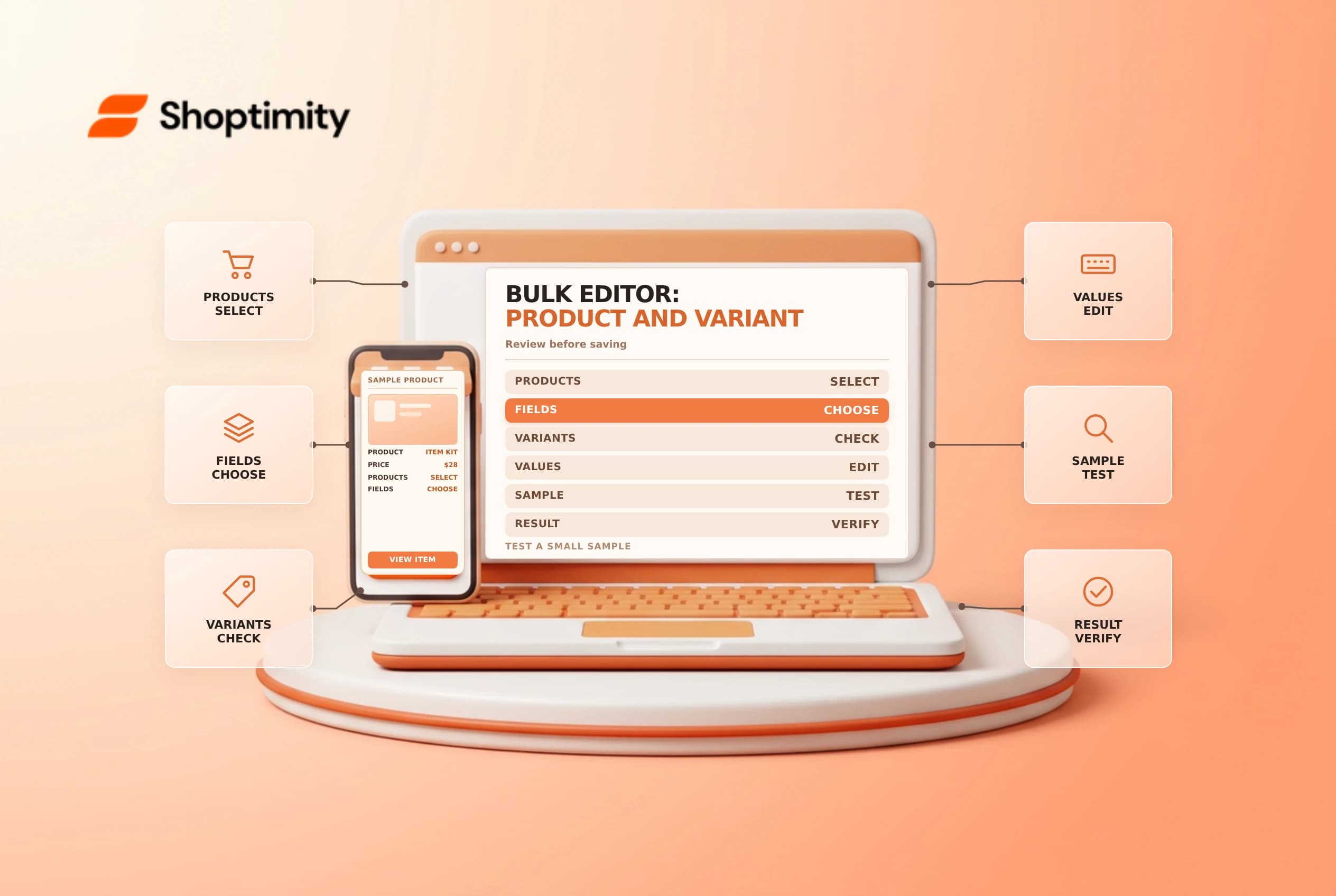
The Shopify bulk editor can update selected product and variant fields in a table, saving time when a catalog needs coordinated changes. The same convenience can spread a mistake across many variants. Define the intended rows and columns, test a small sample and verify the storefront after saving.
Choose the right tool
| Tool | Best for | Main risk |
|---|---|---|
| Product bulk editor | Editing visible fields across selected products or variants | Applying one value to the wrong rows |
| Metafield bulk editor | Editing supported custom fields in a table | Confusing similar definitions or value types |
| Product CSV | Structured import or export at larger scale | Overwriting the wrong product or variant fields |
| Inventory workflow | Recording stock changes at a location | Treating an absolute count as a movement |
Shopify's metafield bulk-edit guide describes selecting products, choosing columns, editing fields and saving. Its inventory bulk-edit guide warns that the bulk editor sets absolute quantities without origin and destination, so it does not provide the same movement trail as a dedicated inventory workflow.
Define the change before opening the editor
Write down the affected products, variants, locations, fields and expected values. Export or otherwise preserve the current data under your store's backup policy, and assign a reviewer for sensitive changes such as prices. A product export can help reconstruct values, but it is not a complete store backup or a guaranteed one-click rollback.
If a product has several variants, identify whether the field belongs to the product or the variant. A new title might apply to the product; a SKU, price or weight may differ by variant. Confirm exactly which rows are selected before pasting or using the fill handle.
Run a small controlled edit
- Filter the intended products and select a small representative sample.
- Click Edit products, then choose only the needed columns.
- Check the product and variant identifiers beside each editable value.
- Enter or paste the intended changes; inspect several rows before saving.
- Save and resolve any validation errors shown in the editor.
- Open the affected products and verify the values and storefront behavior.
- Expand to the rest of the batch only after the sample is correct.
The editor supports shortcuts for selecting multiple cells and filling values. These can be useful, but a shortcut is not a substitute for reviewing each selected row. Keep other staff informed during a large edit so concurrent changes are not overwritten unintentionally.
Treat inventory and prices as high-impact fields
A price change can affect live shoppers and connected channels. Test a variant with different options, check compare-at pricing where used, and review market-specific prices separately. Do not assume a base price edit changes every catalog or market price in the same way.
For stock, compare the displayed location and state with the physical count. Shopify says bulk inventory editing sets absolute quantities without specifying origin and destination. For a real movement or a discrepancy, choose the appropriate transfer or adjustment process and preserve the reason rather than obscuring it with a blanket overwrite.
Verify and recover
After saving, compare a sample of changed records against the approved change list. Test search, collection membership, availability and a cart where relevant. If something is wrong, stop the batch and use the preserved values and current Shopify workflow to correct it. Do not promise that every bulk change has a universal undo button.
For related procedures see product CSV imports and inventory adjustment reasons.
Ready to build a faster, higher-converting store?
Every Shoptimity theme ships with conversion widgets built in — so you get speed and features without stacking apps.
7-day free trial · all themes included · cancel anytime
Continue Reading

Shopify B2B Company Locations: Give Buyers the Right Access
Configure Shopify B2B company locations, verify buyer permissions and test pricing, addresses and pa...

Shopify Checkout Contact Settings: Separate Email From Shipping Phone
Configure Shopify checkout contact settings and test email, phone and shipping address requirements ...

Shopify POS Recent Carts: Share a Sale Without Reserving Stock
Learn how Shopify POS recent carts work across devices, what they do not reserve, and how to hand of...