
Shopify Dynamic Sources: Show the Right Metafield on Each Product
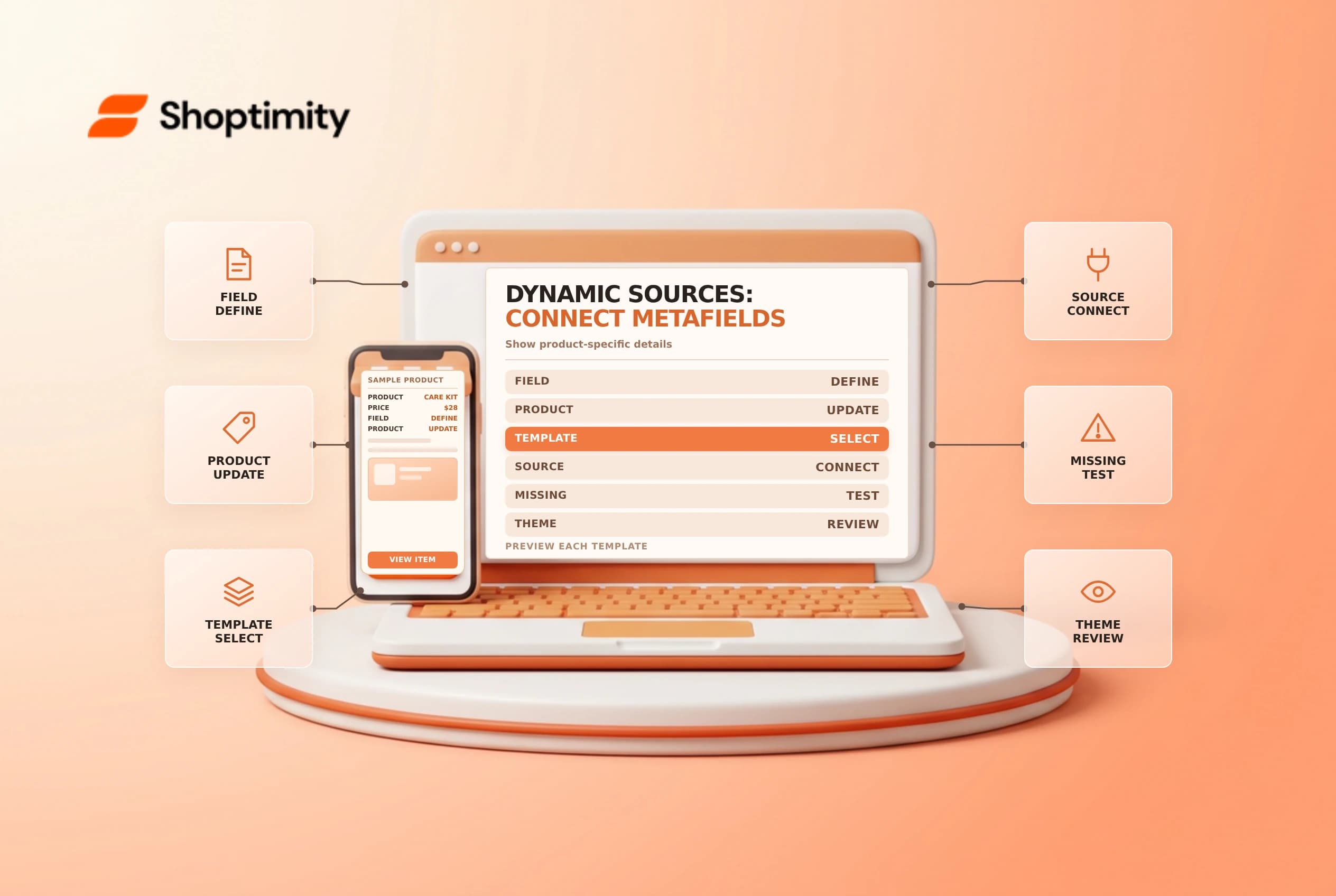
Shopify dynamic sources connect a supported theme setting to data such as a product metafield. They can display different care instructions or specifications on products that share a template. A connection is not a substitute for accurate product data, a compatible theme or a preview of missing values.
Separate the value from the template
A metafield definition specifies the kind of information stored; each product can then have its own value. The theme template determines where that value appears. Shopify's metafield display guide says compatible sections and blocks can connect to dynamic sources through the theme editor.
| Layer | Example |
|---|---|
| Definition | A product metafield for care instructions |
| Product value | Wash cold for one item; wipe clean for another |
| Template | A collapsible row shared by those products |
| Dynamic source | The row content connected to the metafield |
| Preview | Each product displays the appropriate value |
Typing “wash cold” directly into a shared template is different from connecting a product-specific field. Depending on the template, hard-coded text can appear on every product using it. Shopify's care-instructions example shows how a connected value varies by product.
Prepare data and a safe theme
Choose a clear definition and a content type supported by the setting you intend to use. Add accurate values to a few representative products: one with a short value, one with a longer value and one intentionally empty. Verify any translations and product-specific claims with the catalog owner. If information is legally required, decide how missing data will be handled before relying on a hidden empty section.
Work in an unpublished theme copy where possible. In the theme editor, open the appropriate product template, add or select a supported block, and use the connect dynamic source icon beside the relevant setting. Select the intended product metafield and preview the products. Shopify notes that the available sources depend on theme and setting support; not every field can be connected everywhere.
Preview more than one product
Test the template on products with different values and on a product without a value. Check desktop and mobile layout, line breaks, readability and translations. Confirm that each product uses the expected template; editing one template does not automatically change products assigned to a different one. If a block disappears when the value is empty, ensure that outcome matches the business requirement.
| Test | Watch for |
|---|---|
| Short value | Correct item and label |
| Long value | Clipping, poor wrapping or excessive height |
| Missing value | A blank or hidden section consistent with the plan |
| Alternative template | Whether it needs its own connection |
| Market or language | Accurate localized content and display |
If the source is unavailable, confirm the definition, content type, theme support and the context of the selected setting. Avoid editing Liquid without the appropriate skills and a rollback plan. Shopify recommends qualified assistance where a theme needs code changes.
Release and maintain
Have a second reviewer compare the data with source documentation, then approve the theme change through the normal release process. Check live pages after publication of the theme change; the theme preview is not evidence that every storefront and market is correct. Changes to the underlying product values should follow a separate content review.
Related guides: metafield definitions and theme rollback.
Ready to build a faster, higher-converting store?
Every Shoptimity theme ships with conversion widgets built in — so you get speed and features without stacking apps.
7-day free trial · all themes included · cancel anytime
Continue Reading

Shopify B2B Company Locations: Give Buyers the Right Access
Configure Shopify B2B company locations, verify buyer permissions and test pricing, addresses and pa...

Shopify Checkout Contact Settings: Separate Email From Shipping Phone
Configure Shopify checkout contact settings and test email, phone and shipping address requirements ...

Shopify POS Recent Carts: Share a Sale Without Reserving Stock
Learn how Shopify POS recent carts work across devices, what they do not reserve, and how to hand of...