
Shopify Flow Scheduled Workflows: Bound the Data Before Acting
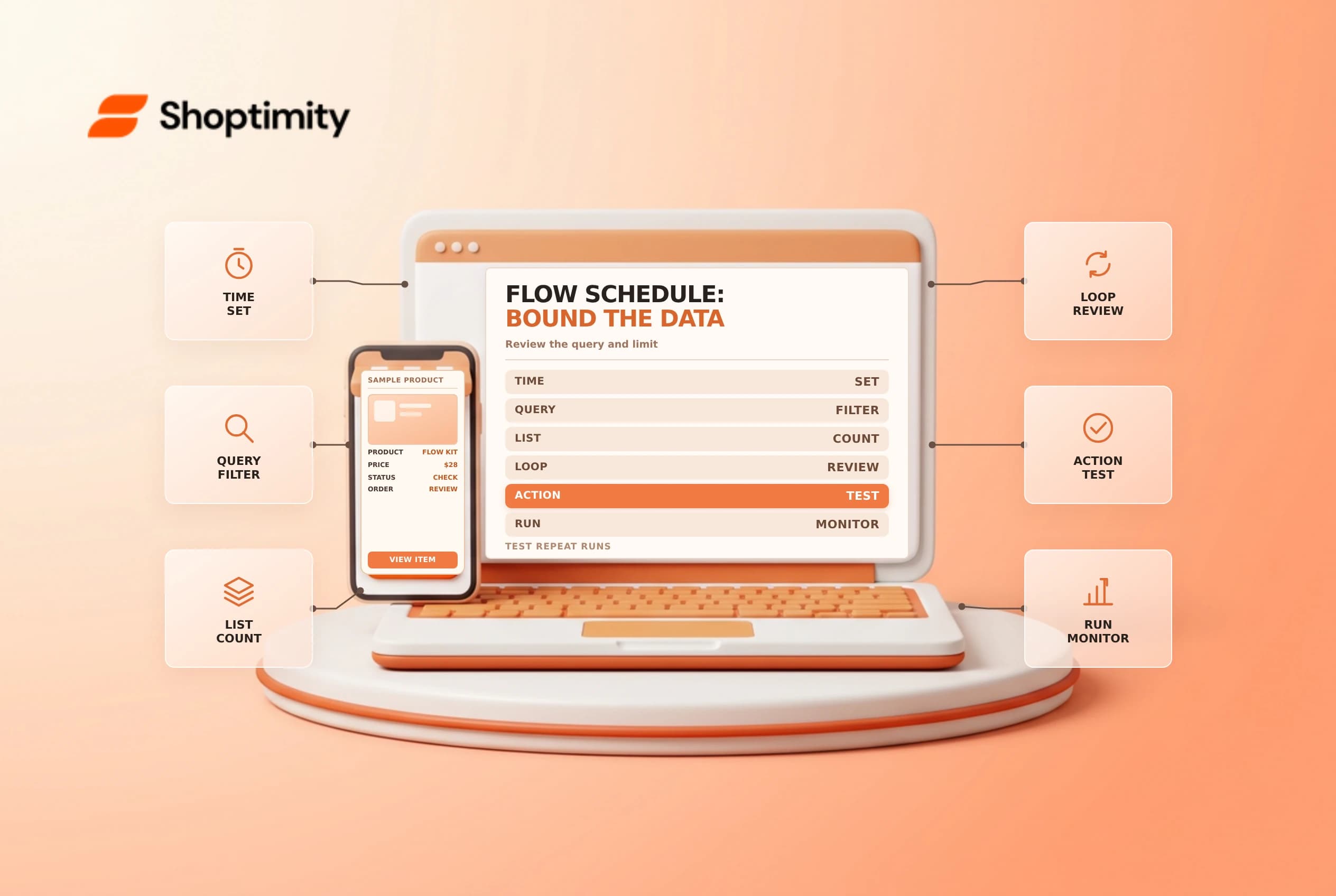
A Shopify Flow scheduled workflow runs at a chosen time instead of starting from a single store event. It can produce a daily queue or summary, but the schedule does not automatically provide a complete list of orders or products. Define the query, its limits and the consequences of each action before turning the workflow on.
Choose schedule or event
Shopify's scheduled workflows guide says the Scheduled time trigger can run once or recur on a schedule, as often as every 10 minutes. Because a scheduled trigger is not tied to one order or customer, the workflow needs a Get data action to retrieve the relevant store records.
| Component | Role |
|---|---|
| Scheduled time | Starts the workflow on the configured schedule |
| Get data | Retrieves records matching the query |
| For each | Processes individual returned items |
| Count or Sum | Aggregates the returned list |
| Action | Sends a message or makes a supported change |
A daily email about older unfulfilled orders is a different process from an immediate automation triggered when one order is created. Choose the timing that fits the business and verify which data is available at that point.
Bound and inspect the query
Shopify says Get data actions return lists of up to 100 items. A report built from a list can therefore be incomplete if more records match than the action returns. Set an appropriate scope, consider how to detect or handle a full list, and use another reporting or integration approach if the workflow cannot cover the population reliably. Never describe a capped result as “all orders” without verification.
Shopify's Get order data guide describes querying order information and using the resulting list in later actions. Agree on the status, date window, timezone and exclusions. For example, a fulfillment queue should define whether holds, partial fulfillments and cancelled orders are included. Ask the operational owner to review the query and compare a sample with the admin.
Test before making changes
Use Flow's documented test mode and safe representative data. Test zero matches, one match, a nonmatching order and a result set near the supported limit. Check the selected branch, recipient and message content. A test that stops before a live-changing action is not proof that a real notification or external service will execute correctly.
| Test case | What to inspect |
|---|---|
| No matches | No misleading “all clear” message |
| One match | Correct record, fields and branch |
| Excluded order | A hold or cancellation is handled as intended |
| Full result list | The 100-item limit is visible to the owner |
| Repeated run | No duplicate or harmful action on the same record |
When a workflow adds tags, sends messages or changes orders, consider idempotency and repeat runs. A daily query can return the same item more than once on different days. Design an approved condition or handoff so a repeated run does not create duplicate work or customer messages.
Release and monitor
Record the schedule, query, owner, data limit and escalation path. Keep customer data in internal messages to the minimum necessary. After activation, review activity and compare results with an independent sample. If the run fails or approaches its limit, alert the owner rather than silently assuming an empty report means no work.
Related guides: Flow troubleshooting and order views.
Ready to build a faster, higher-converting store?
Every Shoptimity theme ships with conversion widgets built in — so you get speed and features without stacking apps.
7-day free trial · all themes included · cancel anytime
Continue Reading

Shopify B2B Company Locations: Give Buyers the Right Access
Configure Shopify B2B company locations, verify buyer permissions and test pricing, addresses and pa...

Shopify Checkout Contact Settings: Separate Email From Shipping Phone
Configure Shopify checkout contact settings and test email, phone and shipping address requirements ...

Shopify POS Recent Carts: Share a Sale Without Reserving Stock
Learn how Shopify POS recent carts work across devices, what they do not reserve, and how to hand of...