
Shopify Gift Card Recipient Scheduling: Test the Customer Journey
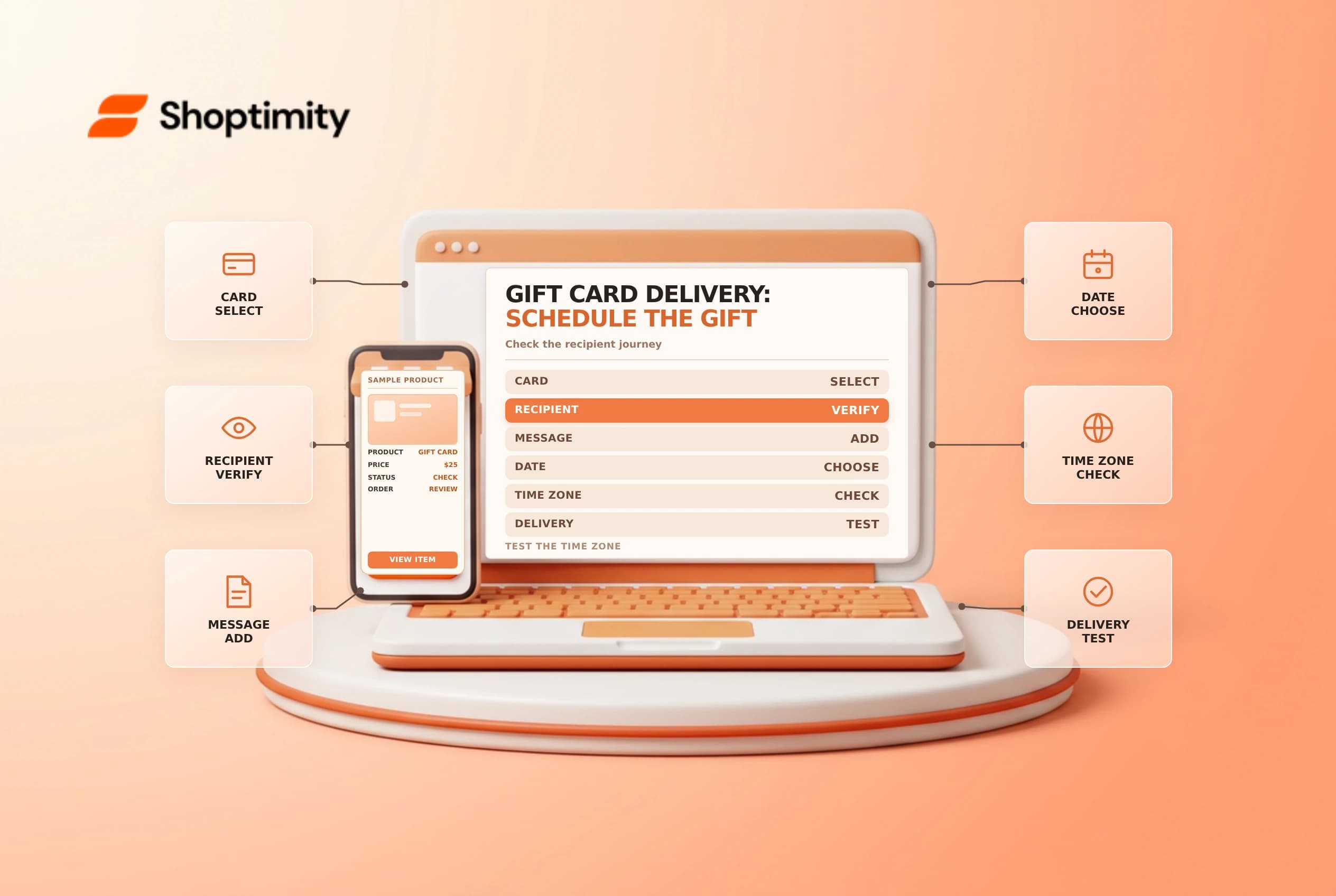
Shopify gift card recipient fields can let the buyer send a recipient a personal message and choose a delivery date. This is not the same as sending the purchaser a normal order confirmation. Verify theme support, notification templates, time-zone expectations and the full checkout flow before advertising scheduled delivery.
Check theme and product eligibility
Shopify's gift card recipient fields guide describes a recipient email, optional message and send-on date for supported themes. It notes that gift card recipient information is supported in free Shopify themes and third-party themes that have the feature. Check the published theme and gift card product template rather than assuming an installed theme includes it.
| Element | What to verify |
|---|---|
| Gift card product | Correct denominations and product setup |
| Recipient fields | Email, optional message and date where supported |
| Buyer contact | The purchaser receives the appropriate order communication |
| Recipient delivery | Correct notification and redeemable code |
| Timing | The date and buyer time zone are explained accurately |
| Notification template | Custom code includes the required recipient information |
Shopify says scheduled gift cards send approximately between 4 a.m. and 10 a.m. in the purchaser's time zone. Do not promise a precise minute or assume the recipient's time zone controls delivery. Make any timing expectations clear to buyers, particularly for cross-border gifts.
Enable and inspect the fields
Open the theme editor, navigate to the gift card product template and review the recipient-information setting where the theme supports it. Save only after checking the live theme and change-control process. If the option is absent, contact the theme developer or use a supported customization rather than assuming the storefront will collect recipient details.
Shopify warns that customized gift card notifications might require updated code to support recipient information. Compare the store's notification with Shopify's current instructions, preserve a backup and test the change. Do not remove required redemption information or expose a live gift card code in screenshots.
Test end to end
Use approved test addresses for both purchaser and recipient. Test immediate delivery and, separately, a future date; confirm the purchaser's time zone and expected delivery window. Review both messages, the personal message, the redemption link and the behavior when no recipient information is supplied. Actual delivery can depend on email filtering and other services, so investigate spam and delivery logs before issuing another card.
| Scenario | Check |
|---|---|
| Immediate gift | Recipient receives the intended gift card notification |
| Future date | Date and purchaser time zone match the promise |
| Missing recipient fields | The default purchaser flow is understood |
| Custom notification | Recipient details and redemption content render correctly |
| Incorrect email | Identity and order verified before an approved correction |
Follow the store's test and refund policy; do not create uncontrolled real-value cards. If a recipient says the message is missing, verify the order, scheduled date and address without disclosing the code to an unauthorized person.
Maintain a support handoff
Document who can correct a recipient email, resend a notification or deactivate and replace a card under the store's rules. Record the action and protect gift card codes like payment credentials. Retest after changing the theme, notification language, app or gift card template.
Related guides: gift card support and notification templates.
A scheduled test is particularly useful when buyer and recipient are in different regions. Record the date selected at checkout, the purchaser time zone and the actual notification arrival without storing a live code in the test notes.
Ready to build a faster, higher-converting store?
Every Shoptimity theme ships with conversion widgets built in — so you get speed and features without stacking apps.
7-day free trial · all themes included · cancel anytime
Continue Reading

Shopify B2B Company Locations: Give Buyers the Right Access
Configure Shopify B2B company locations, verify buyer permissions and test pricing, addresses and pa...

Shopify Checkout Contact Settings: Separate Email From Shipping Phone
Configure Shopify checkout contact settings and test email, phone and shipping address requirements ...

Shopify POS Recent Carts: Share a Sale Without Reserving Stock
Learn how Shopify POS recent carts work across devices, what they do not reserve, and how to hand of...