
Shopify Order Notifications: Edit and Test Email Templates
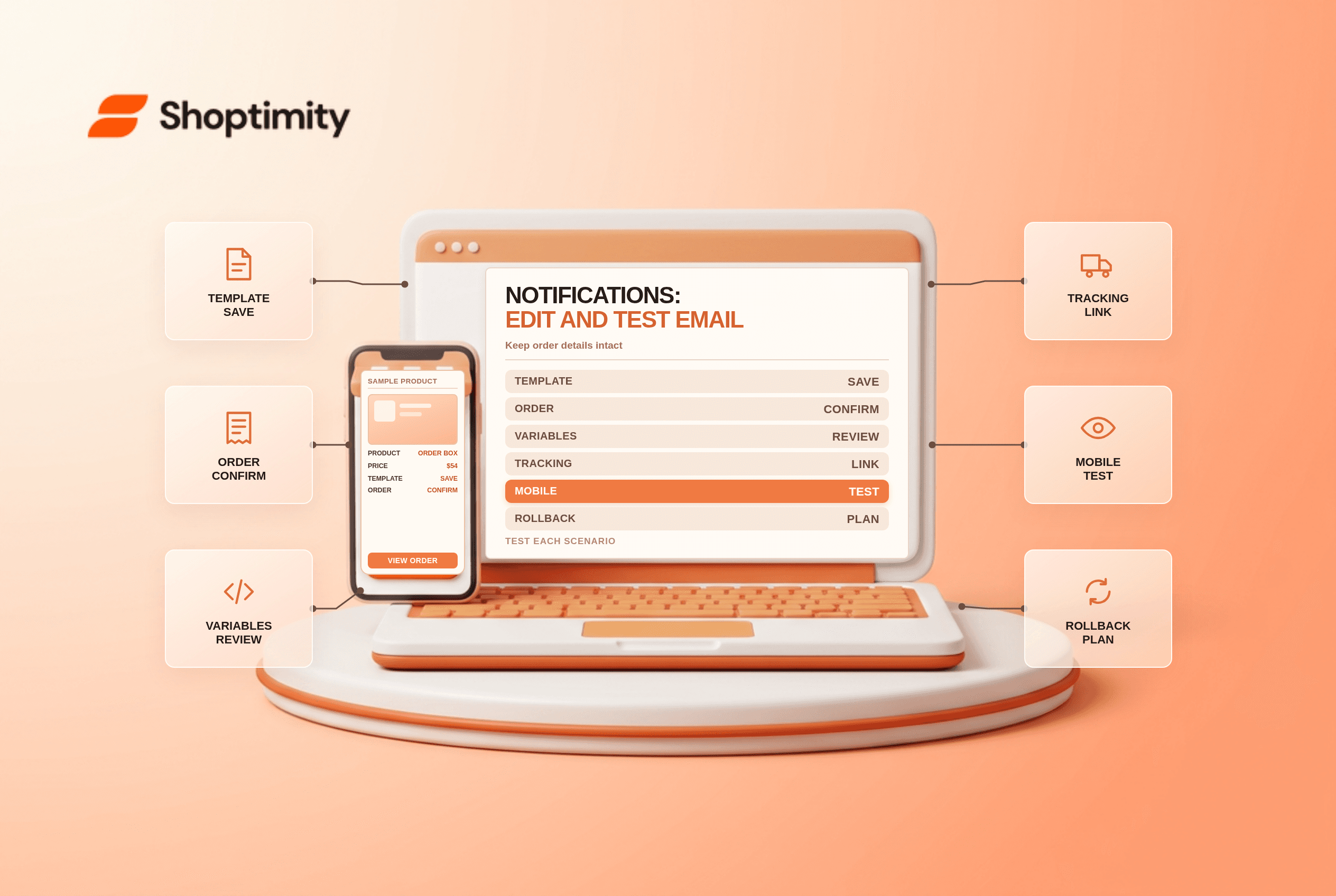
title: Shopify Order Notifications: Edit and Test Email Templates slug: shopify-order-notifications-template-testing meta_title: Shopify Order Notifications: Edit and Test Emails meta_description: Edit Shopify order notifications safely: preserve Liquid variables, test shipping scenarios, review links and keep a rollback copy for store teams. primary_keyword: Shopify order notifications secondary_keywords:
- Shopify merchant guide
- ecommerce operations author: The Shoptimity Team date: 2026-11-03 category: Operations schema: BlogPosting, FAQPage
Shopify Order Notifications: Edit and Test Email Templates
Shopify order notifications tell customers what happened after a purchase. A good template makes the order details, next step and support route easy to find, while preserving the dynamic information Shopify needs to render. Treat an email-template change like a production change: save a copy, test common order scenarios and plan a rollback.
Separate transactional and marketing messages
Order confirmations, shipping updates and refunds respond to specific events. Promotional campaigns have a different purpose and may have different consent requirements. Do not assume that a transactional email gives you permission to add unrelated marketing content. Review the rules that apply to your audience and message.
| Notification | Customer's main question | Check before launch |
|---|---|---|
| Order confirmation | Did my order go through? | Items, total, address and status link |
| Shipping confirmation | What shipped and how can I track it? | Partial shipment and tracking details |
| Shipping update | Has the delivery status changed? | Correct carrier and order link |
| Refund notification | What was refunded? | Amount, method and support contact |
| Local delivery | When and where will it arrive? | Delivery instructions and realistic timing |
Shopify's notification documentation explains that templates can use Liquid variables for dynamic order and customer information.
Make small, reversible edits
In Settings > Notifications, choose the customer notification and inspect its existing subject and HTML. Shopify says you must confirm your sender email address before editing subject and body content. You can also set common branding, such as a logo and accent color, across email templates. See customizing notifications.
Copy the original template to a secure change record before altering Liquid, links or conditional blocks. Do not paste a generic template over customized code until you understand what the existing logic handles. An order can include shipping, pickup, a gift card or a partial fulfilment; one unconditional sentence may be wrong for some of them.
Keep dynamic details intact
Check that item names, quantities, totals, discounts and addresses correspond to the order. Preserve the order-status link and applicable tracking links. Shopify's order-status guidance discusses the order_status_url variable for customized templates. Use Shopify's current variable reference for the particular notification rather than assuming every field exists everywhere.
Write copy around the actual event. An order confirmation should not promise that an unfulfilled item has already shipped. A shipping confirmation for one package should not imply all items shipped if the order is split. Link customers to support and any relevant policy without burying the essential information.
Preview, test and monitor
- Record the original template and change owner.
- Preview the edit and send a test email using Shopify's available controls.
- Use permitted test orders to exercise physical delivery, pickup, discounts, multiple items and partial fulfilment where relevant.
- Open messages on mobile and desktop, and check links, formatting and order details.
- Compare the message against the actual transaction and delivery status.
- Monitor customer questions and failed or unexpected messages after the change.
A test email can use sample data and may not exercise every conditional branch. Test representative real workflows safely as well. If the result is wrong, use the saved version or Shopify's revert options after checking what other changes would be lost.
Keep deliverability separate from template formatting: a well-written message still needs an authenticated sender domain. The email domain authentication guide and order confirmation page checklist cover those adjacent steps.
Ready to build a faster, higher-converting store?
Every Shoptimity theme ships with conversion widgets built in — so you get speed and features without stacking apps.
7-day free trial · all themes included · cancel anytime
Continue Reading

Shopify B2B Company Locations: Give Buyers the Right Access
Configure Shopify B2B company locations, verify buyer permissions and test pricing, addresses and pa...

Shopify Checkout Contact Settings: Separate Email From Shipping Phone
Configure Shopify checkout contact settings and test email, phone and shipping address requirements ...

Shopify POS Recent Carts: Share a Sale Without Reserving Stock
Learn how Shopify POS recent carts work across devices, what they do not reserve, and how to hand of...