
Shopify Manual Payments: Match Bank Transfers Before Marking Paid
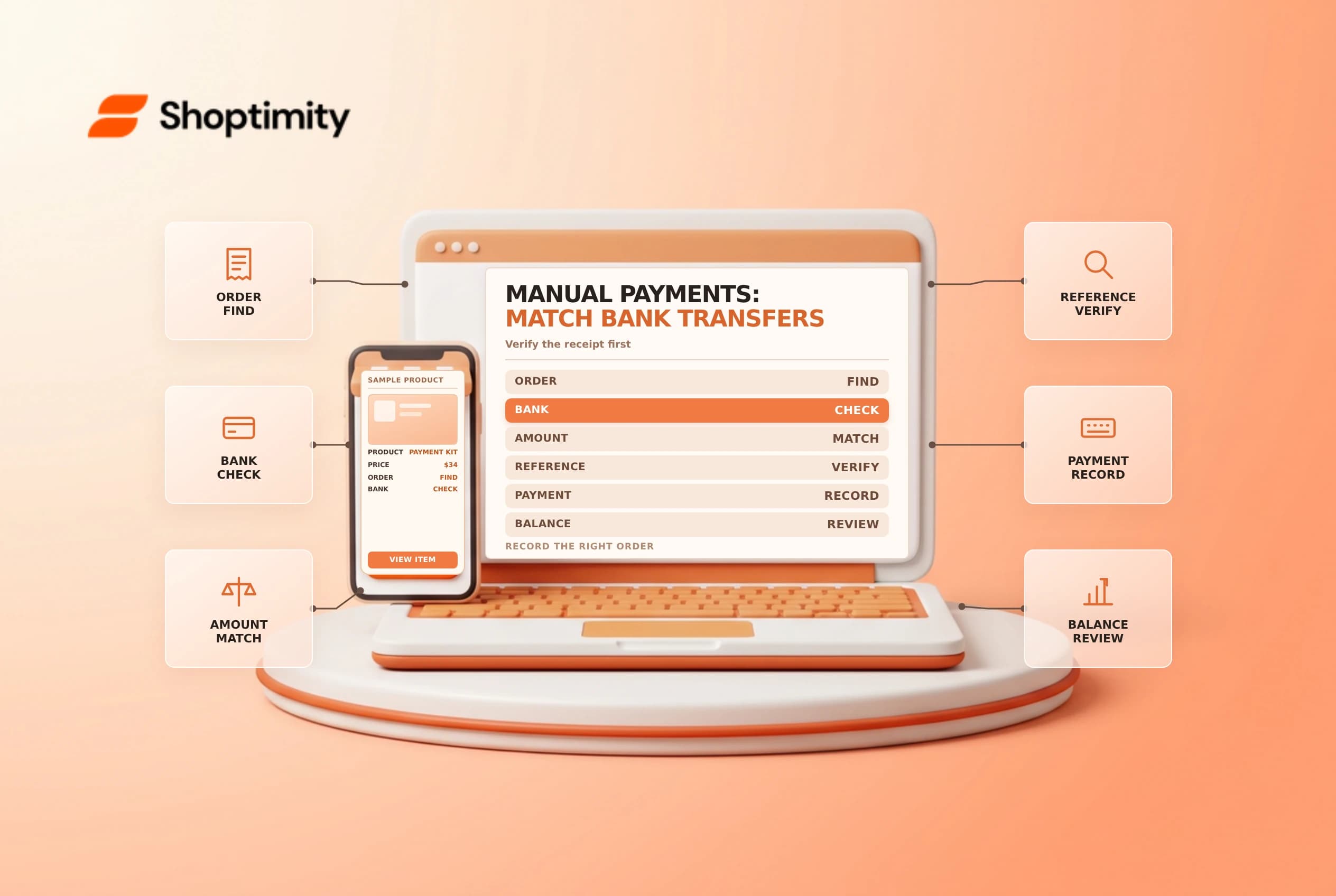
A manual payment method lets a buyer place an order and pay outside the usual online payment capture, for example by bank transfer or cash on delivery. An order confirmation is not proof that funds arrived. Build a matching process so the team records payment only after checking the actual receipt.
Set expectations at checkout
Shopify's manual payment guide describes bank transfers, money orders and cash on delivery as examples. Additional details appear alongside the payment method at checkout; payment instructions appear on the order confirmation page. Check with your bank or delivery service about the information the buyer needs, and keep credentials or confidential internal account access out of the instructions.
The feature has store-specific constraints. Shopify says US stores with Shopify-managed sales tax cannot accept manual payments unless they use the self-directed setting. That is a significant tax-service decision, not a quick workaround; review the consequences with the tax owner before changing it. Shopify says third-party transaction fees are not charged for manual payments, but your bank or external service may charge separately.
Reconcile each payment
Orders using manual payment methods are shown as pending or unpaid until the merchant records payment. Match the recipient account, currency, amount and reference against the correct order. Confirm that funds have actually been received under your bank's procedures; a screenshot or customer message is not by itself bank confirmation.
| Evidence | Check before marking paid |
|---|---|
| Order | Number, customer and amount due |
| Bank record | Recipient, amount, currency and transfer reference |
| Difference | Underpayment, excess payment or unidentified receipt |
| Decision | Authorized staff member and next action |
Use the order's payment action only after the receipt is verified. Marking an order paid records the payment in Shopify; it does not initiate a bank transfer or pull funds from the customer. For partial payments on eligible orders with payment terms, Shopify provides a separate partial payments workflow; check its requirements and remaining balance.
Handle exceptions deliberately
If the amount differs, don't force a match. Contact the buyer through an established channel, investigate fees or currency differences, and involve finance before recording a partial payment, issuing a refund or accepting an overpayment. An accidental duplicate payment needs its own documented resolution. Do not ask customers to send full card numbers through email or chat.
For cash on delivery, agree on when the carrier remits funds and what evidence is sufficient to mark payment. The parcel's delivery status and your receipt of funds are different events. Assign an owner for pending orders and review old unpaid orders against your cancellation and fulfillment policy.
Test the workflow before offering it
Create an approved test scenario: verify the checkout label, the confirmation instructions, the pending order status and the finance team's reconciliation record. Never mark a test order paid merely to make a dashboard look complete. Document the reversal or cleanup with finance and confirm whether the test created real inventory or fulfillment tasks.
See payment terms and payout reconciliation; a manual bank receipt is not the same thing as a Shopify Payments payout.
For a transfer without an identifiable reference, leave the order pending while finance investigates. Compare the payment date, recipient, currency and amount without exposing other customers’ bank details. Once the payment is matched, note the internal reference and the person who approved it. If funds are later reversed, follow the store’s established finance and order procedures rather than silently changing history.
Ready to build a faster, higher-converting store?
Every Shoptimity theme ships with conversion widgets built in — so you get speed and features without stacking apps.
7-day free trial · all themes included · cancel anytime
Continue Reading

Shopify B2B Company Locations: Give Buyers the Right Access
Configure Shopify B2B company locations, verify buyer permissions and test pricing, addresses and pa...

Shopify Checkout Contact Settings: Separate Email From Shipping Phone
Configure Shopify checkout contact settings and test email, phone and shipping address requirements ...

Shopify POS Recent Carts: Share a Sale Without Reserving Stock
Learn how Shopify POS recent carts work across devices, what they do not reserve, and how to hand of...