
Shopify Menu Management: Nest Links and Test Navigation
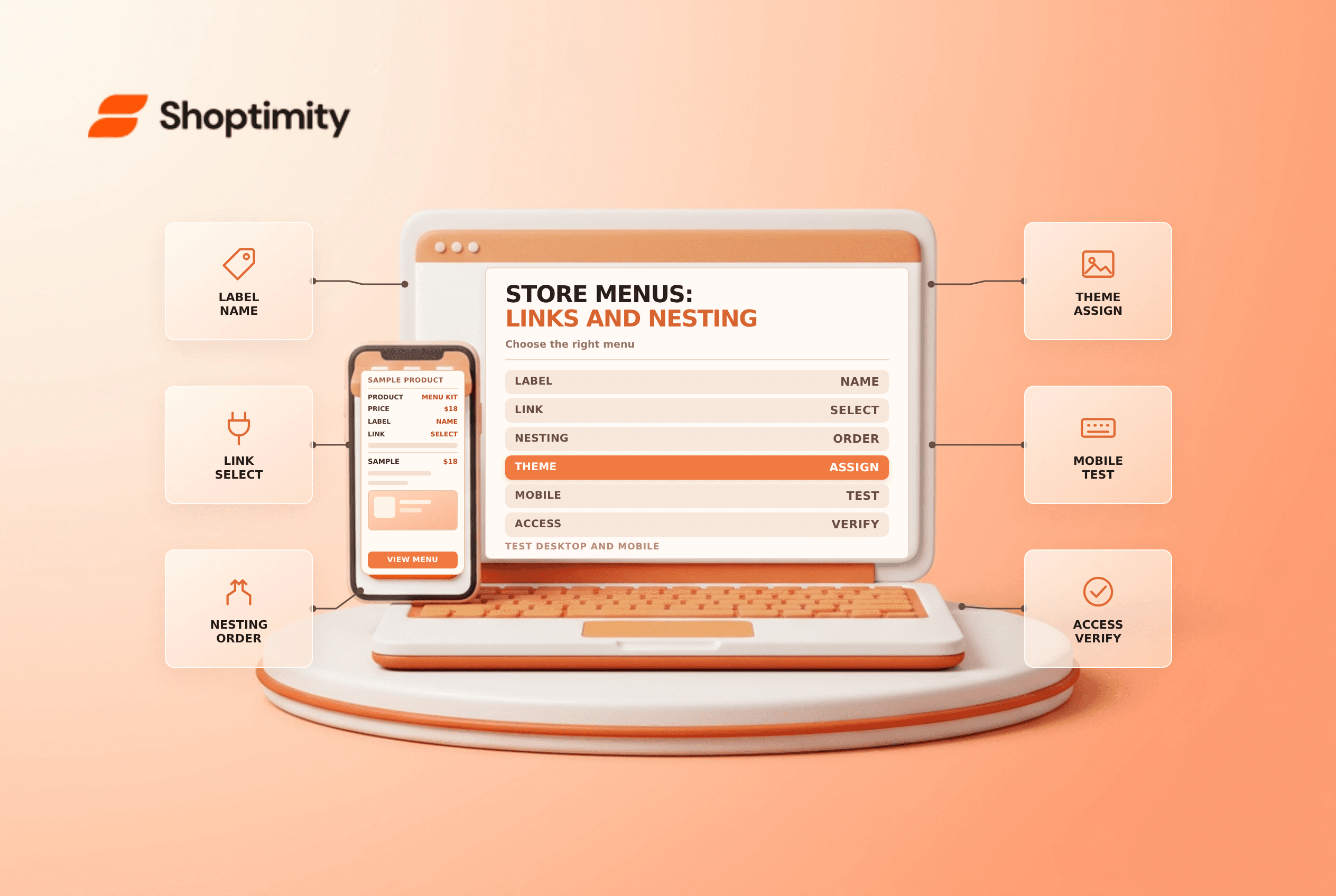
title: Shopify Menu Management: Nest Links and Test Navigation slug: shopify-menu-management-nested-links-testing meta_title: Shopify Menu Management: Nest Links and Test meta_description: Improve Shopify menu management with clear hierarchy, correct theme selection, nested links and desktop, mobile and accessibility testing for store teams. primary_keyword: Shopify menu management secondary_keywords:
- Shopify merchant guide
- ecommerce operations author: The Shoptimity Team date: 2026-11-04 category: Operations schema: BlogPosting, FAQPage
Shopify Menu Management: Nest Links and Test Navigation
Shopify menu management connects the labels shoppers see with products, collections and support pages. A correct menu in the admin can still be missing from the storefront if the theme points to a different menu. Plan the hierarchy, save the changes and test the actual desktop and mobile experience.
Separate menu data from theme placement
Shopify's menu-editing guide places menu management under Content → Menus. Menu items can link to products, collections, pages, policies and external sites. The theme determines where a chosen menu is displayed.
| Layer | What to check | Typical problem |
|---|---|---|
| Menu | The intended set of links exists | Editing a different menu from the one in use |
| Menu item | Label and destination match | A descriptive label points to the wrong collection |
| Nesting | Child items sit under the correct parent | A child is not fully indented |
| Theme section | Header or footer selects the intended menu | The storefront displays an older menu |
| Device interaction | Desktop and mobile controls are usable | A parent link opens instead of expanding as expected |
Plan a short, understandable hierarchy
Group links around customer tasks, not internal department names. Use labels that describe destinations and avoid placing essential support information behind several layers. A menu can link directly to a collection, while a parent can also act as a category heading depending on the theme's behavior.
Shopify's drop-down guide explains nesting items below a top-level item and supports up to two nested levels in the documented online-store menu structure. Theme support and presentation can differ, so test the specific theme rather than assuming every menu renders identically.
Edit and preview carefully
- Record the current menu structure and identify the theme section that uses it.
- In Content → Menus, open the intended menu.
- Add or edit a label and select the correct destination.
- Drag items into the intended order and indentation.
- Save the menu and confirm the theme selects it.
- Test every changed link on desktop and mobile, including keyboard navigation.
- Check the result in relevant markets and languages.
If a parent is intended only as a heading, Shopify documents using # in some menu arrangements. Verify how that choice behaves with your particular theme, keyboard and mobile interactions; an inert link can be confusing if shoppers expect it to open a category.
Handle changes to destinations
Shopify says deleting a resource used in a menu can also delete the associated menu item. Before deleting a collection or page, identify where it is linked and replace it with a useful destination. For changed URLs, review redirects separately; a redirect does not repair a misleading label or an inaccessible menu control.
When a menu looks wrong, check whether a navigation app controls the displayed menu and whether the theme's header or footer is connected to the intended menu. Review published and preview themes independently. For related guidance see mobile navigation and URL redirects.
Make one set of changes at a time and keep a record of the prior labels and destinations. If the test fails, restore the previous structure and investigate before trying another broad reorganization.
Ready to build a faster, higher-converting store?
Every Shoptimity theme ships with conversion widgets built in — so you get speed and features without stacking apps.
7-day free trial · all themes included · cancel anytime
Continue Reading

Shopify B2B Company Locations: Give Buyers the Right Access
Configure Shopify B2B company locations, verify buyer permissions and test pricing, addresses and pa...

Shopify Checkout Contact Settings: Separate Email From Shipping Phone
Configure Shopify checkout contact settings and test email, phone and shipping address requirements ...

Shopify POS Recent Carts: Share a Sale Without Reserving Stock
Learn how Shopify POS recent carts work across devices, what they do not reserve, and how to hand of...