
Shopify Order Document Templates: Test Invoices and Packing Slips
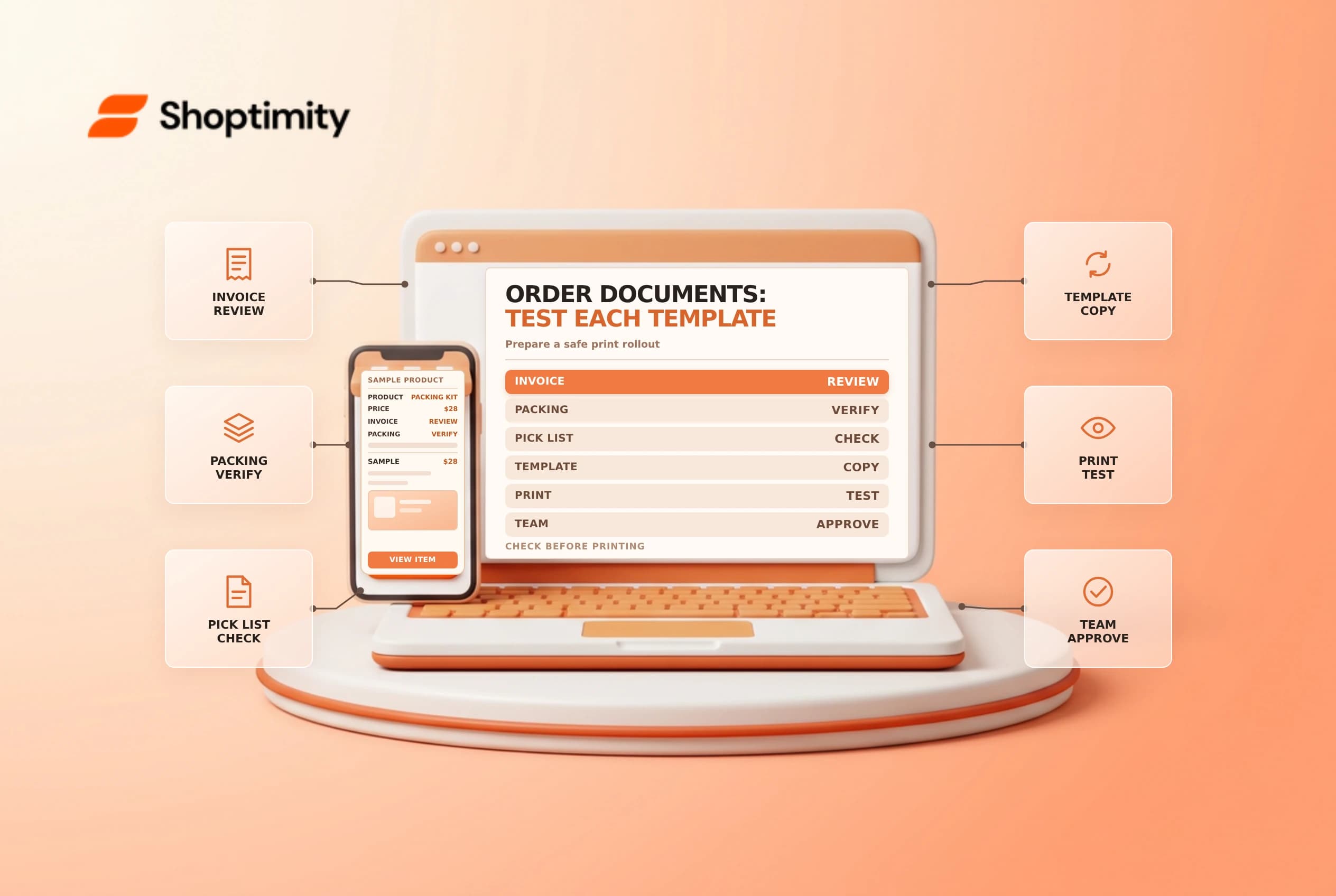
An invoice and a packing slip serve different purposes. One describes an order's charges for the customer; the other helps a fulfillment team identify what to pack. Shopify offers document templates and an Order Printer app, but editing the wrong template or deploying an untested change can disrupt a warehouse handoff.
Identify which template you use
Shopify's order document guide describes invoice, packing slip, pick list and blank templates in Shipping and delivery settings. The separate Shopify Order Printer guide describes templates in the app. Check the actual print action or batch workflow used by your team before editing: a change in one place should not be assumed to update every printed document.
| Document | Primary check |
|---|---|
| Invoice | Customer, line items, discounts, taxes and total are clear |
| Packing slip | Correct items and quantities are easy to pick and verify |
| Pick list | Product, variant and location information supports the workflow |
| Custom insert | Content matches the order and does not expose unnecessary data |
Document requirements vary by jurisdiction. Ask the finance or tax owner what an invoice must contain; a packing slip is not automatically a tax invoice.
Work on a safe copy
For order document templates, Shopify supports duplication so a copy can be changed without affecting the original. Record the active template and workflow, duplicate it where supported, and edit the copy. Invoice, packing slip and blank templates use HTML, CSS and Liquid; a pick list is configured through options. If the team is unfamiliar with the code, involve someone qualified instead of guessing at variables or deleting conditional sections.
Preview the copy with representative orders: a single item, multiple variants, a discount, a partial fulfillment and an order with shipping and tax. Confirm which items the print action is supposed to include. Test long names, missing optional fields and international characters. Check the paper size, margins and printer scaling as well as the screen preview.
Protect customer and payment data
Print only information necessary for the document's purpose. A packing slip included inside a package may be seen by someone other than the purchaser. Don't add full payment credentials or private staff notes just because a variable appears available. Agree on retention and secure disposal for test printouts and production documents.
If a template contains an external logo, verify that the asset is available to the printer and does not reveal private files. An image that looks correct in one browser can fail in a warehouse print environment. Keep the original source and a rollback plan under your team's normal change controls.
Roll out and monitor
Have a warehouse user test a real print workflow before making the revised template the default. Shopify warns that deleting a document template does not update batch workflows automatically and that batches already in progress can keep using an earlier workflow. Check active batches and dependent processes before changing or deleting a template.
See packing slips and order exports for related record-handling checks. A printed document is a snapshot: if an order changes after printing, recheck whether the paper copy must be replaced.
Before approving the change, ask the warehouse and finance owners to compare a sample print against the previous version. Verify the selected template and intended printer at each work station, not just on the editor screen. Keep the date, approver and rollback steps with the source copy. If an existing batch retains an older template, finish or restart it according to the documented workflow rather than assuming the change took effect mid-batch.
Ready to build a faster, higher-converting store?
Every Shoptimity theme ships with conversion widgets built in — so you get speed and features without stacking apps.
7-day free trial · all themes included · cancel anytime
Continue Reading

Shopify B2B Company Locations: Give Buyers the Right Access
Configure Shopify B2B company locations, verify buyer permissions and test pricing, addresses and pa...

Shopify Checkout Contact Settings: Separate Email From Shipping Phone
Configure Shopify checkout contact settings and test email, phone and shipping address requirements ...

Shopify POS Recent Carts: Share a Sale Without Reserving Stock
Learn how Shopify POS recent carts work across devices, what they do not reserve, and how to hand of...