
Shopify Packing Slips: Print, Customize and Check Shipments
title: Shopify Packing Slips: Print, Customize and Check Shipments slug: shopify-packing-slips-print-customize-check meta_title: Shopify Packing Slips: Print and Customize meta_description: Learn how Shopify packing slips support accurate fulfillment, how to print and customize them, and what to check for partial shipments for store teams. primary_keyword: Shopify packing slips secondary_keywords:
- Shopify merchant guide
- ecommerce operations author: The Shoptimity Team date: 2026-11-04 category: Operations schema: BlogPosting, FAQPage
Shopify Packing Slips: Print, Customize and Check Shipments
Shopify packing slips help a warehouse match the items in a shipment to the order. They are operational documents, not proof that payment was received or a substitute for a carrier label. Print the slip for the correct shipment and check it against the items actually packed.
What a packing slip does
Shopify's printing guide describes a packing slip as a document listing the products and quantities in a shipment. For partial fulfillment, the correct slip should reflect that shipment rather than every item on the original order.
| Document | Main purpose |
|---|---|
| Packing slip | Identify items included in a shipment |
| Shipping label | Route a parcel through a carrier |
| Invoice | Request or record payment under the applicable process |
| Pick list | Help staff collect items for one or more orders |
A shipment can require more than one of these documents. Review any gift instructions and local requirements before including pricing or personal information.
Print from an order
Open the order in Shopify admin and use Print → Print packing slips. Shopify also supports printing in bulk from the Orders page, with location selection when applicable. Review the current fulfillment and location before printing; a slip from the wrong location can mislead a picker.
Compare the order number, recipient, variants and quantities with the items on the packing bench. For split shipments, confirm which products belong in this parcel. If an item changes after printing, regenerate or clearly replace the outdated document instead of relying on a handwritten note alone.
Customize without breaking the template
Shopify's customization guide places the template under Settings → Shipping and delivery → Documents. Templates use HTML, CSS and Liquid. Shopify provides a preview against an order and a way to revert to the default template.
Before editing, save the existing template in an approved location and identify who owns it. Make small, reviewable changes: for example, add a support contact, clarify gift messaging, or improve SKU visibility. Preview multiple representative orders, including a partial shipment, a multi-variant order and a gift. Print test pages on the actual printer to check line breaks and legibility.
Avoid displaying payment details, internal notes or unnecessary personal data. The template is handled by warehouse staff and may travel with the parcel, so include only what is needed. A customization that works in a preview may still wrap poorly at a different paper size.
A practical packing check
- Verify the order and destination location.
- Pick the correct variants and quantities.
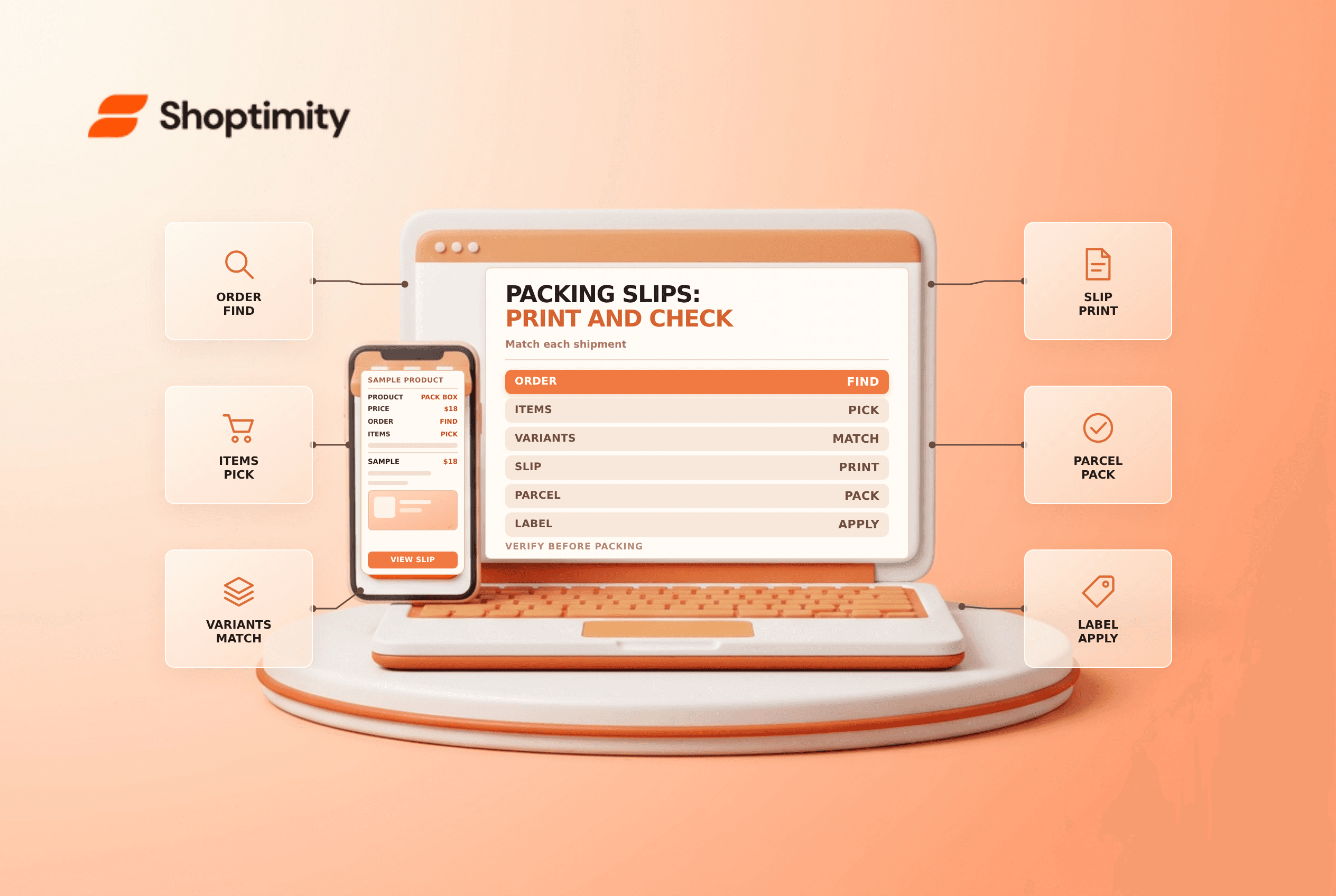
- Match the physical items to the shipment-specific slip.
- Check special instructions and remove unnecessary private information.
- Place the correct slip in the parcel and apply the carrier label outside.
- Record fulfillment and tracking through the established workflow.
If goods are missing or damaged later, the slip may help reconstruct the shipment but does not itself prove carrier possession. Keep tracking and packing evidence as appropriate. See fulfillment holds and order cancellation requests.
If staff use several document templates, name and version them clearly. A short review after a template change can catch a missing variant or a clipped address before parcels leave the warehouse.
Ready to build a faster, higher-converting store?
Every Shoptimity theme ships with conversion widgets built in — so you get speed and features without stacking apps.
7-day free trial · all themes included · cancel anytime
Continue Reading

Shopify B2B Company Locations: Give Buyers the Right Access
Configure Shopify B2B company locations, verify buyer permissions and test pricing, addresses and pa...

Shopify Checkout Contact Settings: Separate Email From Shipping Phone
Configure Shopify checkout contact settings and test email, phone and shipping address requirements ...

Shopify POS Recent Carts: Share a Sale Without Reserving Stock
Learn how Shopify POS recent carts work across devices, what they do not reserve, and how to hand of...