
Shopify Partial Return Processing: Track Fees and Outstanding Items
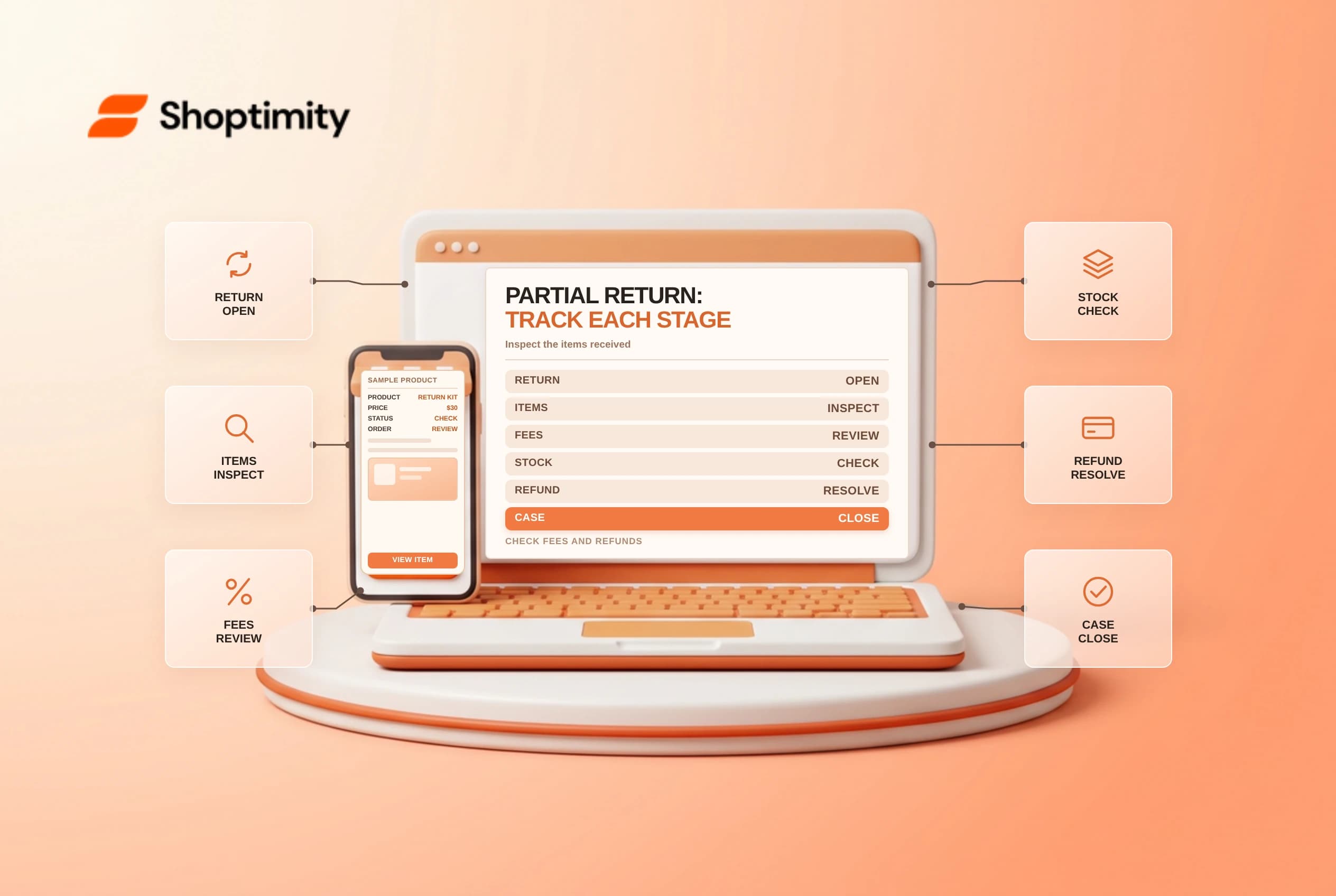
Shopify partial return processing lets a merchant handle returned items in stages. The return, the financial outcome and restocking are related but separate tasks. Review which items arrived, how fees are applied and whether an exchange or refund remains outstanding before closing the case.
Understand the stages
Shopify's return processing guide says a merchant can process a return after receiving and inspecting items. Staff select which items to process, choose whether and where to restock them, and review any exchange items or financial balance. A return can remain open while other items or tasks are outstanding.
| Stage | Question |
|---|---|
| Return created | What items and fees were agreed? |
| Items received | Which physical units actually arrived? |
| Inspection | Are they suitable for restocking? |
| Partial processing | Which selected units are being processed now? |
| Financial settlement | Is a refund owed or a balance due? |
| Closure | Are remaining items and tasks resolved? |
Do not mark an item received solely because a tracking label was created. Follow the store's inspection and fraud controls, and keep evidence of discrepancies without exposing customer information unnecessarily.
Review fees and the financial outcome
Shopify says the restocking fee is calculated based on how many items are selected for processing, and the return shipping fee is applied the first time the return is processed. Check the summary before processing the first batch so the fee is not a surprise to the customer. Return rules, fee overrides and consumer-law requirements can vary; follow the approved policy and obtain legal advice when needed.
Shopify's creating returns guide says the financial result takes returned items, exchange items and return fees into account. If the merchant owes money, the return must be processed and the refund issued immediately or later. If the customer owes a balance, use the supported collection or invoice process. An even exchange can have no additional balance.
Process only what is ready
Open the order's return in progress, review the items received and select the quantities being processed. Inspect the selected restock location and any exchange items being released. Review shipping refunds, fees, tax and the final balance before confirming. A damaged item may need a different inventory treatment from an unopened item; do not restock it as sellable automatically.
| Situation | Action to review |
|---|---|
| First parcel arrives | Process only received items and review the first shipping fee |
| Second parcel is delayed | Leave the remaining task visible and follow up |
| Item fails inspection | Apply the approved restock and customer-service policy |
| Exchange is more expensive | Explain and collect the supported balance |
| Refund is owed | Issue and verify the refund through the payment workflow |
| Item never arrives | Use the documented correction process after investigation |
Use a synthetic test order to exercise a two-stage return where the store's test setup permits it. Do not issue a real refund or remove a customer's return item merely to test a workflow.
Close the loop
Shopify says a return closes automatically when every item is processed and every return item is restocked; staff can also manage closure through the documented workflow. Confirm all outstanding financial and exchange tasks before closing manually. A closed return is not a substitute for checking the actual payment transaction.
Keep a record of the first and later processing dates, selected items, fees, restock locations and customer communications. Reconcile inventory and finance after completion. Related guides: return rules and partial refunds.
Ready to build a faster, higher-converting store?
Every Shoptimity theme ships with conversion widgets built in — so you get speed and features without stacking apps.
7-day free trial · all themes included · cancel anytime
Continue Reading
Shopify Flow Collection Deleted: ID-Only Alerts
Create a safe collection-deleted alert in Shopify Flow, understand its ID-only data and plan a manua...
Shopify Flow Discount Created: Choose the Trigger
Compare discount code and automatic discount creation triggers in Shopify Flow and design internal p...
Shopify Flow Inventory Item Deleted: ID-Only Data
Understand the inventory item deleted trigger, its ID-only limitation and how to alert operations wi...