
Shopify POS Smart Grid: Design Shortcuts for the Right Location
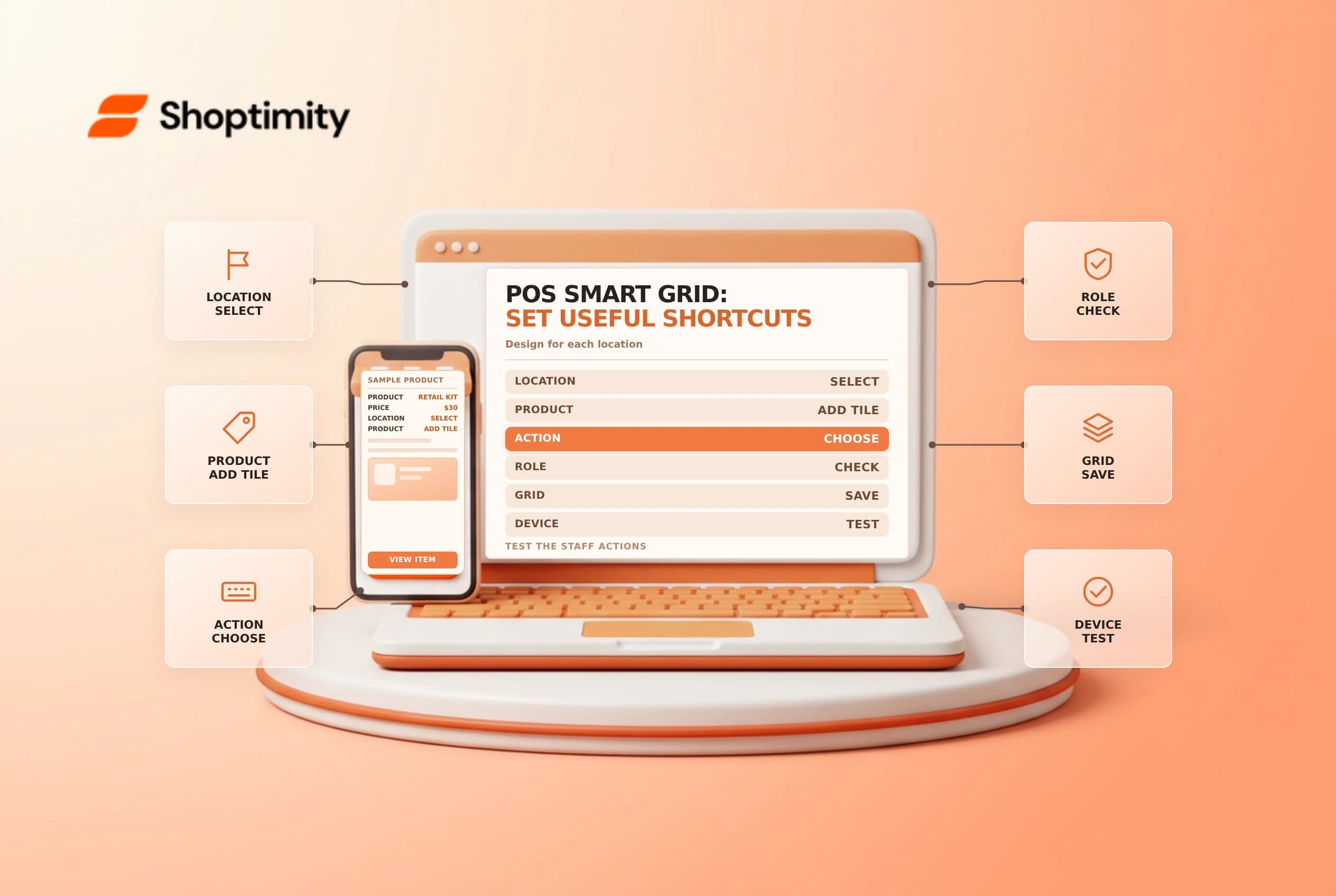
The Shopify POS smart grid gives retail staff quick access to frequently used products and actions. A well-designed grid reduces searching, but a tile does not replace staff permissions, training or a check of the active location. Build around the actual checkout workflow and test with the people who will use it.
Decide which shortcuts are needed
Shopify's smart grid guide describes configurable tiles and multiple pages in the POS app. Tiles can represent products, collections, app functions and POS actions. Shopify also documents reusable templates managed from the admin for multiple locations.
| Tile type | Practical question |
|---|---|
| Product or variant | Is this the exact item and option staff should add? |
| Action | Is the workflow supported at this location? |
| Discount | Is the offer current and approved? |
| App | Is the app installed and appropriate for POS? |
| Link | Is the destination trusted and useful to staff? |
Shopify's POS editor guide lists actions such as adding a customer, applying a discount and saving a draft. Some functions, including certain fulfillment tiles, require POS Pro. Verify the plan and permissions instead of promising the same behavior at every location.
Map tasks before adding tiles
Observe the most common transactions and identify where staff repeatedly navigate. Put high-frequency, low-ambiguity actions in a predictable position; group less common actions on another page. Use clear labels that distinguish a specific variant from a general product. Avoid placing a high-impact discount or custom-fee tile where it can be confused with an ordinary product.
Ask a cashier and manager to review the proposed layout. Decide which teams can edit it and how changes will be communicated. Shopify lists a POS permission for customizing the smart grid; access to the underlying action can require additional permissions or manager approval.
Edit and test the grid
In Shopify POS, use Add tile and choose a supported resource or action, then save. Shopify also describes managing templates from the POS sales channel in the desktop admin and assigning them to locations. Check the location and whether the team is changing a local grid or a shared template before saving.
| Test | Expected result |
|---|---|
| Product tile | Adds the intended product or variant |
| Discount tile | Applies the intended offer only when authorized |
| Shipping or fulfillment | Opens the correct supported workflow |
| Staff role | Required permissions and approvals still apply |
| Location | The intended layout appears on the right device |
Test a safe sample cart and remove it without creating an unintended sale. Verify the price, quantity and any customer data before checkout. If a tile is missing, inspect the app, POS version, plan, staff role and location rather than repeatedly adding duplicates.
Maintain templates and handoffs
Shopify says one template is designated as the default and can apply to new locations or locations whose assigned template is deleted. Before changing or deleting a template, list affected locations and provide a rollback layout. Confirm with store managers after the change rather than assuming every device has refreshed successfully.
Review seasonal products and expired discount tiles regularly. Keep a change log with the owner, affected locations and test date, and train relief staff on the most important actions. A shortcut speeds navigation; staff still need to verify the order and payment.
Related guides: POS ship and carry out and POS cash reconciliation.
Ready to build a faster, higher-converting store?
Every Shoptimity theme ships with conversion widgets built in — so you get speed and features without stacking apps.
7-day free trial · all themes included · cancel anytime
Continue Reading

Shopify B2B Company Locations: Give Buyers the Right Access
Configure Shopify B2B company locations, verify buyer permissions and test pricing, addresses and pa...

Shopify Checkout Contact Settings: Separate Email From Shipping Phone
Configure Shopify checkout contact settings and test email, phone and shipping address requirements ...

Shopify POS Recent Carts: Share a Sale Without Reserving Stock
Learn how Shopify POS recent carts work across devices, what they do not reserve, and how to hand of...