
Shopify Product Media Uploads: Formats, Limits and Quality Checks
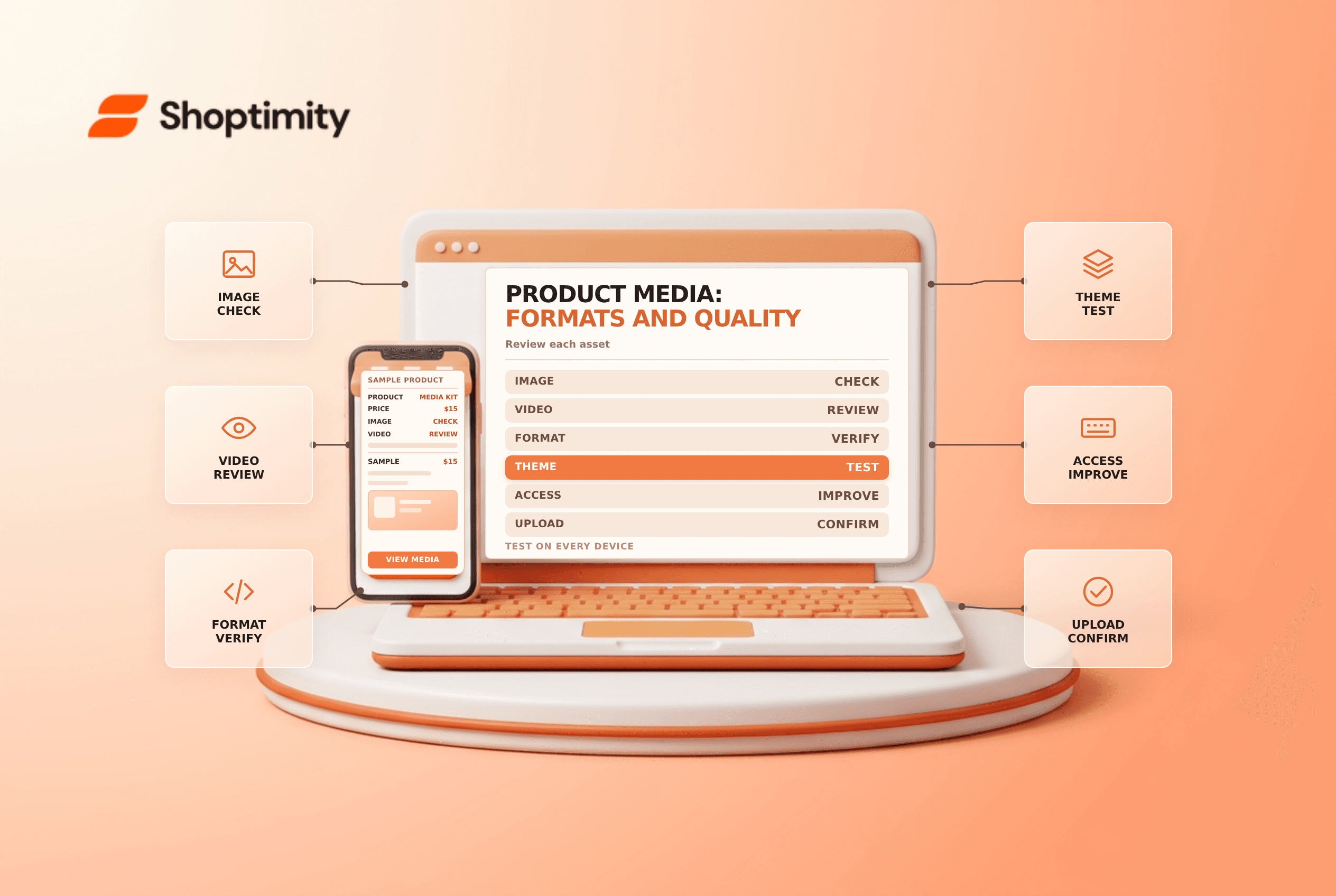
title: Shopify Product Media Uploads: Formats, Limits and Quality Checks slug: shopify-product-media-uploads-formats-limits meta_title: Shopify Product Media Uploads: Formats and Limits meta_description: Plan Shopify product media uploads, review current file and hosting limits, and test images, video, theme support and accessibility for store teams. primary_keyword: Shopify product media uploads secondary_keywords:
- Shopify merchant guide
- ecommerce operations author: The Shoptimity Team date: 2026-11-04 category: Operations schema: BlogPosting, FAQPage
Shopify Product Media Uploads: Formats, Limits and Quality Checks
Shopify product media uploads can include images, videos and supported 3D models. A file that uploads successfully may still fail to display as intended in a theme or sales channel. Check current file requirements, store limits and the customer's rendered experience before replacing a working asset.
Match the file to the job
Shopify's product-media guide describes supported formats and current limits. Its media-management guide says a product can have up to 250 media items, with additional video and 3D hosting limits that vary by plan.
| Media | Useful for | Check before upload |
|---|---|---|
| Image | Showing product details and variants | File size, resolution, crop and accurate color |
| Video | Demonstrating movement or use | Format, length, captions and theme support |
| 3D model | Inspecting shape or scale interactively | File requirements, device support and representation accuracy |
| Embedded video | Reusing a supported external host | Provider availability, privacy and fallback behavior |
Shopify's current product-media page lists image limits up to 5,000 by 5,000 pixels or 25 megapixels and under 20 MB. It lists uploaded video up to ten minutes, 1 GB and 4K, using supported formats. Requirements and plan allowances can change; check the live documentation rather than relying on a copied number indefinitely.
Prepare files for customers
Use clear, truthful images that represent the actual variant. Check lighting and color against the product, include necessary detail and avoid text that becomes unreadable on a small screen. Provide meaningful alternative text for images and captions or a transcript for relevant video content. A smaller file is useful only if essential details remain visible.
Shopify says themes need to support video or 3D media for those assets to display on product pages. Shopify also documents conversion of uploaded MOV and WebM video to formats served to customers. Test the rendered output rather than assuming the original file will be delivered unchanged.
Upload and validate safely
- Save an approved copy of the current media and identify where it is used.
- Check file format, size, dimensions and the store's relevant plan limits.
- Upload through the product's Media section or select existing media.
- Add appropriate image alternative text and organize the intended order.
- Test the product and variant on desktop, mobile and relevant channels.
- Check playback, loading, captions, crop and fallback behavior.
- Remove obsolete assets only after confirming their other uses.
Do not upload private customer records or internal documents as public storefront files. Shopify's file-upload guide cautions that files in the public content area should be intended for public access.
Troubleshoot without guessing
If an upload fails, check the product's media count, file specifications and store-level plan allowance. If the file is accepted but invisible, check theme support, media ordering, product status and channel availability. A video hosted externally may also fail because of provider settings or restrictions.
For adjacent editorial guidance see product image alt text and product video.
Coordinate asset changes with the people responsible for advertising and fulfillment. A new image should show the same configuration the customer will receive, including included accessories and any relevant variant differences. Keep a review date and owner for seasonal media. Verify that a file is not reused in another page before deleting it; broken references can be difficult to trace.
Ready to build a faster, higher-converting store?
Every Shoptimity theme ships with conversion widgets built in — so you get speed and features without stacking apps.
7-day free trial · all themes included · cancel anytime
Continue Reading

Shopify B2B Company Locations: Give Buyers the Right Access
Configure Shopify B2B company locations, verify buyer permissions and test pricing, addresses and pa...

Shopify Checkout Contact Settings: Separate Email From Shipping Phone
Configure Shopify checkout contact settings and test email, phone and shipping address requirements ...

Shopify POS Recent Carts: Share a Sale Without Reserving Stock
Learn how Shopify POS recent carts work across devices, what they do not reserve, and how to hand of...