
Shopify Retail Barcode Labels: Print and Scan the Right Variant
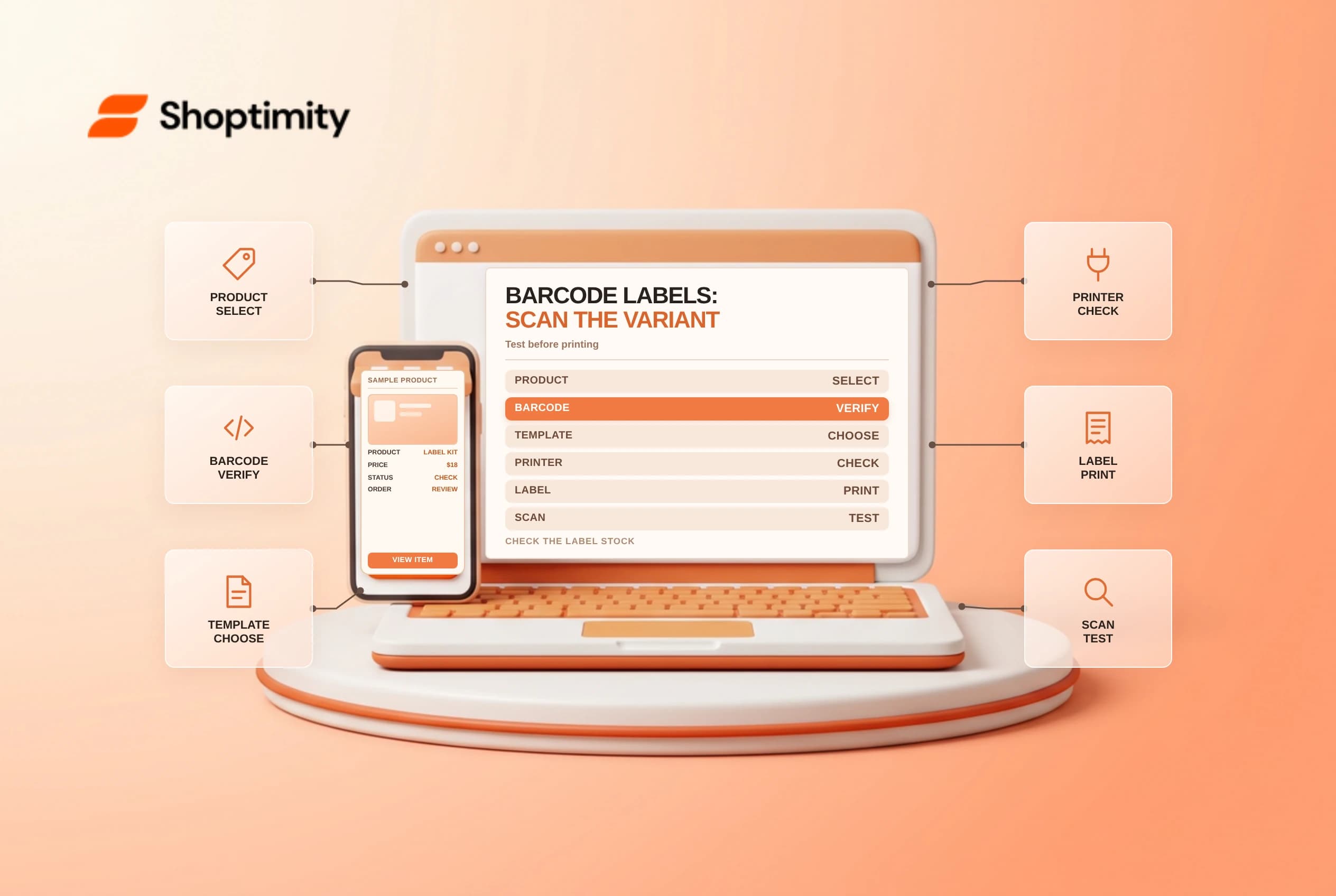
Shopify Retail Barcode Labels can generate and print product labels for retail operations. A legible barcode is useful only if it identifies the correct variant and fits the stock and printer being used. Test a small batch before replacing existing identifiers or printing labels for an entire catalog.
Separate barcode, SKU and label
A SKU is an internal stock identifier; a barcode is a machine-readable value associated with a product or variant. A printed label can contain both. Shopify's Retail Barcode Labels guide describes creating label templates, generating barcodes and printing variant quantities.
| Item | Verify |
|---|---|
| Variant | Correct size, color or other option |
| Barcode value | Matches the identifier assigned to that variant |
| SKU | Matches the store's internal product record |
| Label stock | Supported dimensions for the chosen template |
| Printer | Compatible model, connection and software |
| Scanner | Reads the printed value and opens the intended product |
Do not overwrite a supplier's existing barcode without understanding the impact on scanners, marketplaces, fulfillment partners and downstream systems. App-generated codes should not be represented as official GS1 identifiers unless the business has independently established that status.
Set up a template
Install the Shopify Retail Barcode Labels app and follow the current printer setup guidance. In the app, create a template, choose a supported label type and select the information to display. Arrange fields so that staff can read the product and variant. Shopify notes that printing from Shopify POS itself is not supported; confirm the supported desktop, Shopify app and printer combination for the device being used.
Use the exact label size and printer settings specified for the stock. Shopify's printer guide describes supported printers and setup constraints. Printer availability and regional support can change, so confirm the model rather than relying on a generic hardware recommendation.
Test before printing in volume
Select one test variant and print one label. Scan it with the equipment staff actually use at checkout and during inventory work. Confirm the resulting product, option, barcode and displayed price. Check alignment, contrast and readability after attaching the label to the packaging; a curved surface or glossy wrap can reduce scan quality.
| Test | Expected result |
|---|---|
| Scan from a normal distance | Correct variant appears |
| Similar variants | Each label maps to a distinct intended record |
| Price on label | Matches the approved retail price |
| Small label | Text and barcode are not clipped |
| Reprint | Printer uses the intended stock and quantity |
| Existing supplier barcode | Staff know which code to scan |
If the barcode fails, check the template size, print quality, scanner compatibility and barcode value before changing product data. Quarantine incorrect labels so they are not accidentally applied. Do not test by completing a real sale without authorization.
Roll out and maintain
Once the sample passes, select products and enter label quantities by variant. A partial receipt does not necessarily provide the desired print quantity automatically; compare the receiving record with the print job. Shopify says labels are not printed directly from a purchase order screen in its inventory migration guidance.
Record who approved identifier changes and label templates. Recheck printed prices after a price change and retire old labels carefully. For related context, see SKU versus barcode and product variants.
Before applying the batch, compare the first and last printed labels with the intended variant list. If a printer skips labels or shifts alignment, stop the job and check the remaining stock before restarting.
Ready to build a faster, higher-converting store?
Every Shoptimity theme ships with conversion widgets built in — so you get speed and features without stacking apps.
7-day free trial · all themes included · cancel anytime
Continue Reading
Shopify Flow Collection Deleted: ID-Only Alerts
Create a safe collection-deleted alert in Shopify Flow, understand its ID-only data and plan a manua...
Shopify Flow Discount Created: Choose the Trigger
Compare discount code and automatic discount creation triggers in Shopify Flow and design internal p...
Shopify Flow Inventory Item Deleted: ID-Only Data
Understand the inventory item deleted trigger, its ID-only limitation and how to alert operations wi...