
Shopify Staff Order Notifications: Route Alerts to the Right Team
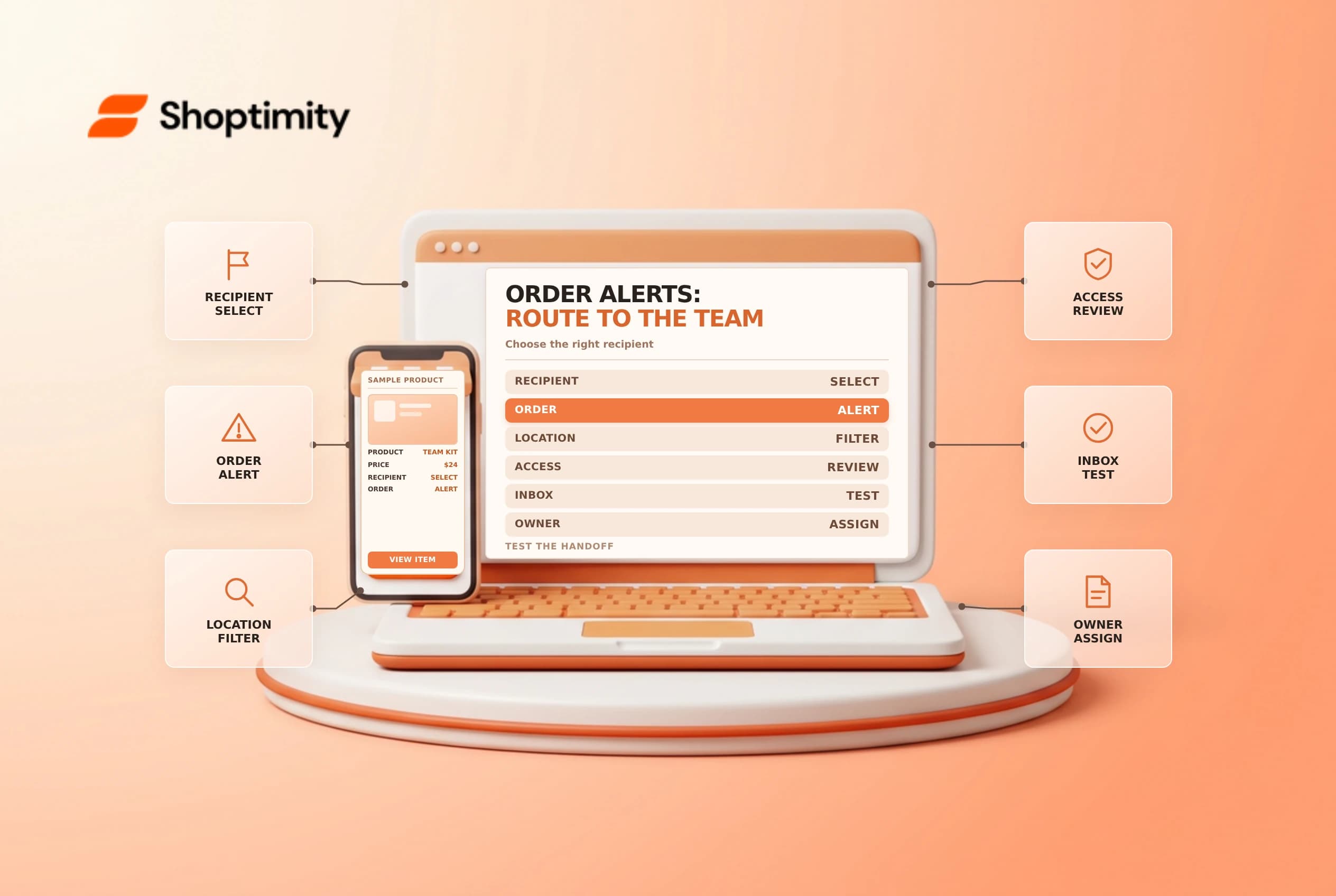
An order notification can alert a team that an order needs attention, but it is not an assignment, a fulfillment confirmation or a complete monitoring system. Configure recipients deliberately, test the intended order source and keep customer information limited to people who need it.
Distinguish staff and customer messages
Shopify's staff notification guide places recipient management in Settings > Notifications > Staff notifications. A recipient can be a staff member or an email address, subject to the available options. Customer order confirmations are a separate communication; changing a staff alert should not be assumed to change what the buyer receives.
| Question | Review |
|---|---|
| Who needs the alert? | Role, approved mailbox and backup owner |
| Which orders? | All orders, web or a supported POS location |
| Which event? | New order, return request or another supported notification |
| What data? | Minimum customer and order information needed |
| What happens next? | Owner, acknowledgement and escalation |
Where POS is installed, Shopify describes selecting all orders, web or a particular location for an order notification. Separate notifications may be needed for multiple specific locations. Confirm the actual settings available for your store before assuming one recipient covers every source.
Add and review recipients
Choose Add recipient, select an authorized staff member or enter an approved email address, and configure the intended order source where available. Review which notification types that recipient is set to receive. Use a controlled shared mailbox only if the organization has approved access, retention and offboarding procedures for it.
Shopify says the store owner receives new-order notifications by default, which can be deactivated. Don't remove the last useful alert without a replacement monitoring process. The same guide notes that order dispute updates are sent to staff members, not plain email-address recipients; verify event-specific behavior before relying on a mailbox for every alert.
Test the complete handoff
Use an approved test order and confirm that the intended recipient receives the right alert for the correct channel or location. Check spam filtering, delivery delay and whether the recipient can access the order in the admin. A notification link does not grant permissions by itself. If the email contains private information, verify that forwarding rules and shared mailbox access are appropriate.
Record what should happen after the alert: who checks payment and fulfillment status, who owns the order, and how an unacknowledged issue is escalated. A message arriving in an inbox does not mean the order was packed. Use the actual order state and team workflow for that decision.
Maintain the recipient list
Review recipients when staff change roles or a warehouse closes. Remove or disable obsolete addresses and test the replacement. If an alert stops arriving, inspect event selection, location filters, mailbox delivery and the relevant permissions before creating duplicate recipients. Keep a small inventory of critical notifications and backup owners.
See order Timeline handoffs and staff permissions for related controls.
Document an escalation path for nights, weekends and mailbox outages. For a time-sensitive workflow, decide how often a human reviews the order queue if a message is delayed or filtered. Run a test after changing the recipient or location filter, then remove test-order data according to policy. This avoids relying on a single unmonitored email address as the only control.
Ready to build a faster, higher-converting store?
Every Shoptimity theme ships with conversion widgets built in — so you get speed and features without stacking apps.
7-day free trial · all themes included · cancel anytime
Continue Reading

Shopify B2B Company Locations: Give Buyers the Right Access
Configure Shopify B2B company locations, verify buyer permissions and test pricing, addresses and pa...

Shopify Checkout Contact Settings: Separate Email From Shipping Phone
Configure Shopify checkout contact settings and test email, phone and shipping address requirements ...

Shopify POS Recent Carts: Share a Sale Without Reserving Stock
Learn how Shopify POS recent carts work across devices, what they do not reserve, and how to hand of...