
Shopify Subscriptions: Skip, Pause or Cancel an Order?
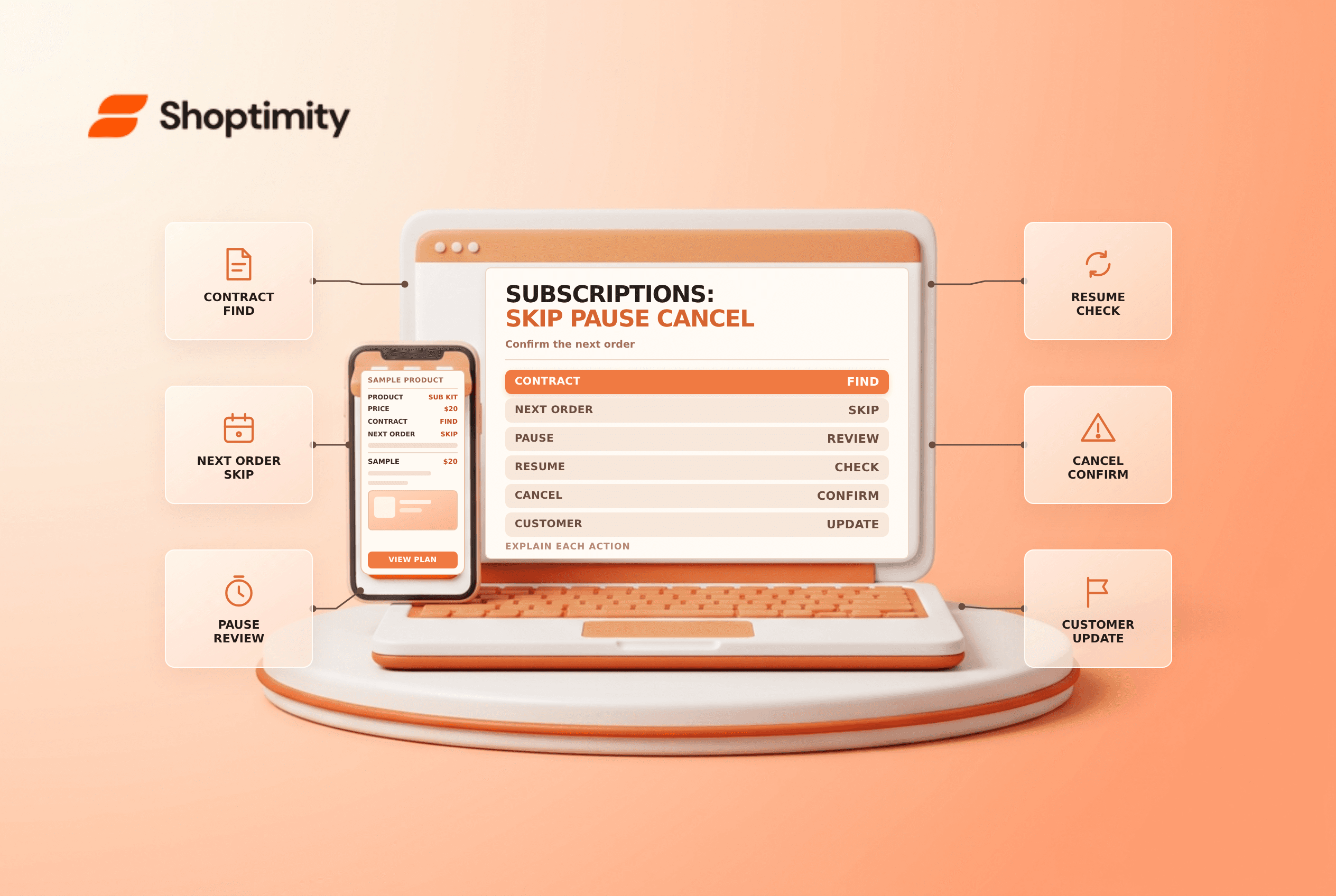
title: Shopify Subscriptions: Skip, Pause or Cancel an Order? slug: shopify-subscriptions-skip-pause-cancel meta_title: Shopify Subscriptions: Skip, Pause or Cancel meta_description: Compare Shopify Subscriptions actions for skipping, pausing and canceling recurring purchases, with billing timing and confirmation checks for store teams. primary_keyword: Shopify Subscriptions secondary_keywords:
- Shopify merchant guide
- ecommerce operations author: The Shoptimity Team date: 2026-11-04 category: Operations schema: BlogPosting, FAQPage
Shopify Subscriptions: Skip, Pause or Cancel an Order?
Shopify Subscriptions lets customers and merchants manage recurring purchases, but skipping an upcoming order, pausing a contract and canceling it have different consequences. Explain the next billing date and confirmation clearly so a customer does not mistake a temporary change for a permanent stop.
Compare the actions
Shopify's customer-experience guide describes these controls for the first-party Shopify Subscriptions app. Third-party subscription apps can have different rules and notifications.
| Action | Effect in Shopify Subscriptions | What to confirm |
|---|---|---|
| Skip an upcoming order | Omits a selected upcoming order | Which order date was skipped and the next scheduled date |
| Pause | Stops further upcoming orders and charges while paused | Pause confirmation and how to resume |
| Resume | Restarts a paused contract | The next order and billing date shown |
| Cancel | Ends billing and delivery immediately | Cancellation confirmation and any already-created order |
Shopify says canceling a subscription cannot be undone. A customer who wants a new subscription after cancellation must place a new subscription order, creating a new contract. Do not promise that a canceled contract can simply be resumed.
Help customers use self-service
Customers sign in to customer accounts and open the Subscriptions tab when the experience is enabled. They can review details, skip an upcoming order, pause or cancel, and manage supported payment and address information. Shopify says a “Next order skipped” or “Subscription paused” confirmation appears after the relevant action.
Make the path discoverable from order communications and support pages. Use clear language such as “skip the next order” rather than “stop subscription” for a one-cycle change. Confirm the actual next date shown in the customer's account instead of calculating it from a generic monthly assumption.
Manage a request in the admin
Shopify's contract-management guide describes actions under Apps → Subscriptions → Contracts. Verify the customer's identity and the correct contract before making a change. Ask whether the request concerns the next order only or all future orders, and document the authorized action.
Rescheduling has additional limits: Shopify says the new date must be within the billing cycle and no earlier than tomorrow, and a skipped order cannot be rescheduled without first resolving its skipped state. Review the actual interface and notification before saving.
Coordinate timing and communication
Shopify says its Subscriptions app sends an upcoming-order reminder three days before each recurring order is charged. Third-party apps follow their own schedules. If an order has already been created or paid, changing the contract may not resolve that existing order; inspect it separately and follow the applicable order or refund workflow.
- Confirm the contract, customer and requested action.
- Check the next scheduled order and any order already created.
- Skip, pause, resume or cancel only as authorized.
- Verify the displayed state and next date.
- Communicate the result and retain a suitable support record.
- Review billing and fulfillment exceptions separately.
See subscription setup and failed subscription payments for adjacent workflows.
A support agent should distinguish the recurring contract from an order that already exists. Inspect payment and fulfillment status on that order, and explain any separate cancellation or return steps required. Do not share payment credentials or ask a customer to send full card details in a support conversation.
Ready to build a faster, higher-converting store?
Every Shoptimity theme ships with conversion widgets built in — so you get speed and features without stacking apps.
7-day free trial · all themes included · cancel anytime
Continue Reading

Shopify B2B Company Locations: Give Buyers the Right Access
Configure Shopify B2B company locations, verify buyer permissions and test pricing, addresses and pa...

Shopify Checkout Contact Settings: Separate Email From Shipping Phone
Configure Shopify checkout contact settings and test email, phone and shipping address requirements ...

Shopify POS Recent Carts: Share a Sale Without Reserving Stock
Learn how Shopify POS recent carts work across devices, what they do not reserve, and how to hand of...