
Void a Shopify Shipping Label: Eligibility and Credits
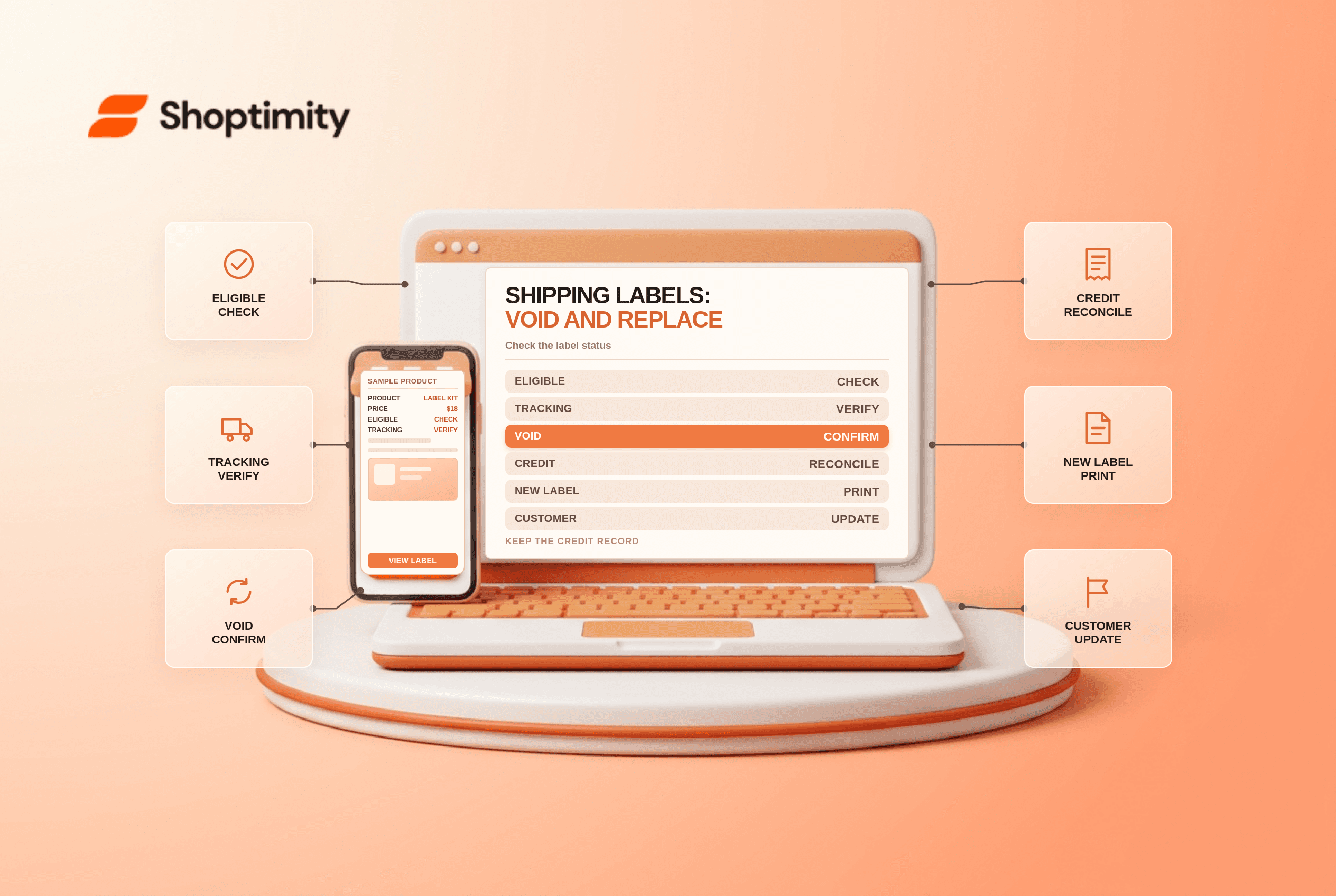
title: Void a Shopify Shipping Label: Eligibility and Credits slug: void-a-shopify-shipping-label-eligibility meta_title: Void a Shopify Shipping Label: Eligibility and Credits meta_description: Learn how to void a Shopify shipping label, check carrier and timing eligibility, replace an unused label and reconcile shipping credits for store teams. primary_keyword: void a Shopify shipping label secondary_keywords:
- Shopify merchant guide
- ecommerce operations author: The Shoptimity Team date: 2026-11-03 category: Operations schema: BlogPosting, FAQPage
Void a Shopify Shipping Label: Eligibility and Credits
To void a Shopify shipping label, check that it is eligible and unused, then cancel it in the admin before buying a replacement. A voided label generally creates a shipping-label credit, not a cash refund to the customer. The rules for return labels differ from those for outbound labels.
Check whether the label qualifies
Shopify's voiding guide lists requirements for labels purchased through its shipping-label workflow:
| Check | Shopify's documented condition | What to do |
|---|---|---|
| Purchase age | Not older than 30 days | Review the purchase date promptly |
| Tracking events | No tracking events | Confirm the carrier has not scanned it |
| Service | Not purchased using USPS First Class Mail service | Check the label's carrier and service |
| USPS manifest | Not added within the last 15 minutes | Follow the current manifest instructions |
| Return label | Cannot be voided in this workflow | Check pay-on-scan and expiry terms |
These are Shopify's documented general rules; carrier, location and product terms can differ. If the admin does not offer a void option or the shipment was already scanned, check carrier and Shopify support guidance instead of assuming a credit is guaranteed.
Void before creating a replacement
From Orders > Shipping labels, select an eligible label and choose the void action, or open the relevant order and void the label from its fulfillment section. Shopify supports bulk voiding of up to 250 labels at a time. Confirm the correct order, tracking number and reason before proceeding.
If an address, service or package detail needs to change, void the unused label first, correct the order or shipment details, and buy a new label. Verify the new tracking number and whether the customer received an updated shipping notification. Dispose of the old printed label so it cannot accidentally be used.
Understand the credit
Shopify's shipping-label billing guide says eligible label refunds are added as shipping-label credits and applied to future label purchases. Record the original charge, void event, credit and replacement purchase so finance can reconcile them. A credit for a label is distinct from a refund owed to the customer for shipping.
If insurance was purchased with the label, check the insurance cancellation and credit terms separately. Do not assume a canceled policy can still support a later claim.
Return labels are different
Shopify says return labels cannot be voided, but most expire and unused labels are not charged under the documented pay-on-scan workflow. Expiry varies by carrier, and Shopify's return-label guide describes exceptions. Verify the carrier and applicable return-label terms rather than applying outbound-label rules to every return.
A practical exception checklist
- Identify the order, carrier, tracking number and purchase date.
- Confirm that the label has no tracking events and meets the other eligibility rules.
- Void the unused label and record the confirmation.
- Correct the shipment and purchase a new label if needed.
- Verify customer tracking and remove the old physical label.
- Reconcile the credit and replacement charge on the billing record.
For adjacent workflows, see shipping-rate setup and returns self-service.
Ready to build a faster, higher-converting store?
Every Shoptimity theme ships with conversion widgets built in — so you get speed and features without stacking apps.
7-day free trial · all themes included · cancel anytime
Continue Reading

Shopify B2B Company Locations: Give Buyers the Right Access
Configure Shopify B2B company locations, verify buyer permissions and test pricing, addresses and pa...

Shopify Checkout Contact Settings: Separate Email From Shipping Phone
Configure Shopify checkout contact settings and test email, phone and shipping address requirements ...

Shopify POS Recent Carts: Share a Sale Without Reserving Stock
Learn how Shopify POS recent carts work across devices, what they do not reserve, and how to hand of...