
Shopify Order Batches: Run Pick Lists and Bulk Shipping Labels
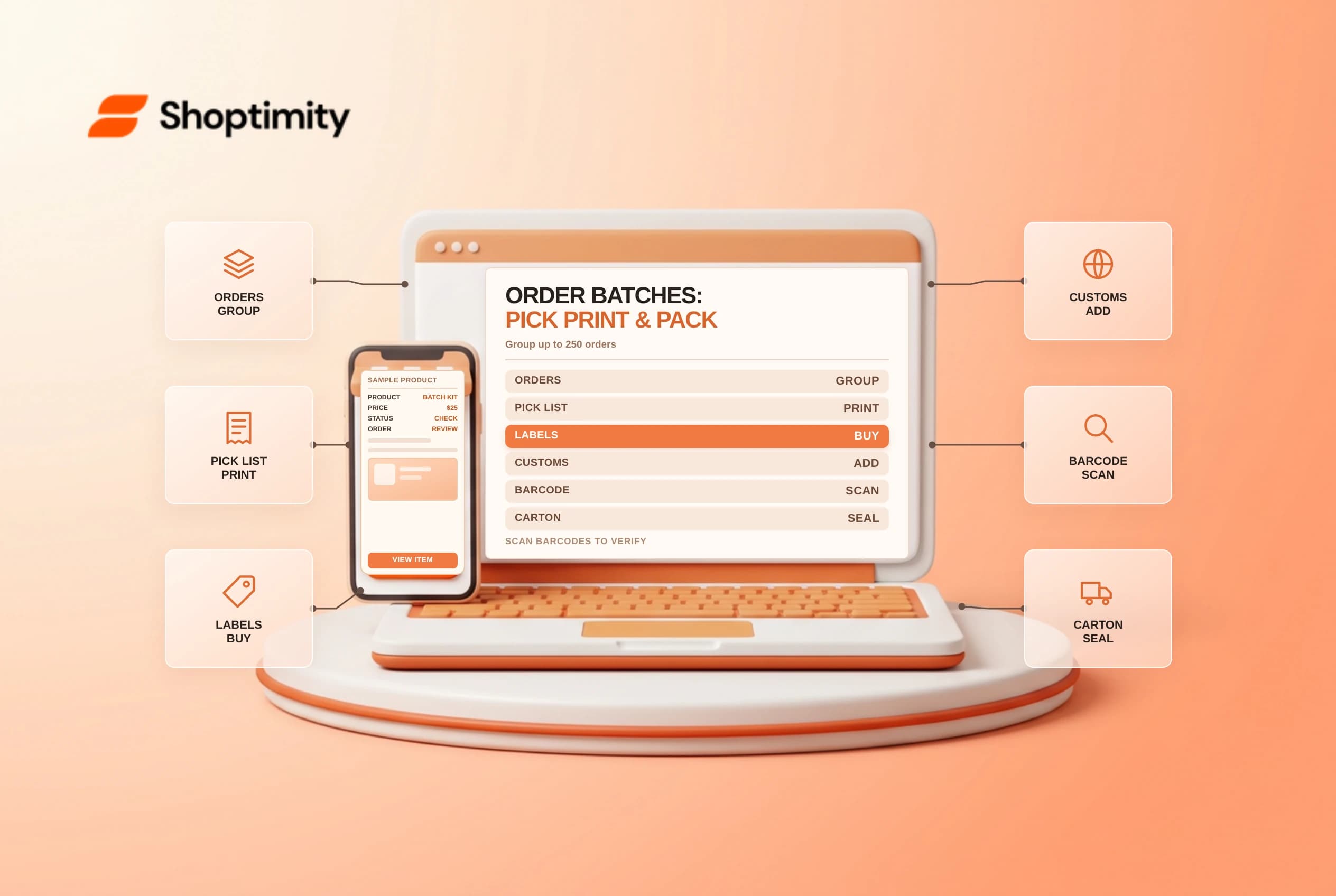
Shopify order batches let warehouse teams group up to 250 eligible fulfillments into a structured pick, print and pack workflow directly from the Orders page. Instead of opening orders one by one or using a blunt bulk mark-as-fulfilled action that skips packing verification, batch fulfillment coordinates consolidated pick lists, bulk label purchases, customs forms and barcode verification scans. Check Shopify Shipping eligibility, document dependencies and exception handling before changing floor routines.
Separate batch fulfillment from basic bulk actions
Shopify's batch fulfillment documentation and bulk fulfillment guide solve very different warehouse problems:
| Admin method | Maximum size | Best operational use | Critical limitation to check |
|---|---|---|
| Group by batch workflow | Up to 250 fulfillments | In-house picking, label buying, packing slips and scan verification | Label purchase requires a Shopify Shipping country |
| Shipping labels bulk buy | Up to 250 paid shippable orders | Buying carrier labels in bulk without custom pick-pack steps | Displays 100 orders per page unless opened inside a batch |
| Bulk Mark as fulfilled | Selected self-fulfilled orders | Recording external shipments already dispatched | Skips 3PL orders; marks local pickup orders as picked up immediately |
Read that third row carefully before running bulk actions on a mixed order view: selecting in-store pickup orders inside bulk Mark as fulfilled marks them picked up right away without sending a ready-for-pickup email to the buyer. Similarly, orders assigned to a fulfillment service are skipped by Mark as fulfilled and need Request fulfillment instead.
Design clean Pick, Print and Pack steps
Enable batches under Orders by clicking the columns icon and turning on Group by batch. Shopify structures batch workflows around three stages (Pick, Print and Pack) with configurable actions:
- Pick (
Pick list): Prints SKU, variant, quantity, bin name, order number and product or order tags so pickers walk warehouse aisles efficiently rather than backtracking per order. - Print (
Buy shipping labels+Create documents): Purchases labels for eligible self-fulfilled locations in Shopify Shipping countries and generates packing slips, shipping labels and customs forms. Note that customs forms can be selected inCreate documentsonly whenShipping labelsare also selected in that action. - Pack (
Scan to verify): Lets packers confirm variant barcodes with a compatible scanner, or verify quantities manually, before sealing each carton.
Remember that editing your batch workflow template updates future batches as well as the current batch if it has not been started yet.
Isolate address and hold exceptions early
Shopify's bulk shipping label rules automatically exclude already fulfilled orders, non-shipping digital items and orders with invalid shipping addresses. Keep high-velocity batches moving by filtering out exceptions before grouping:
- Group single-item orders of your top seller into dedicated batches where box size and weight stay identical across all
250labels. - Resolve fulfillment holds, fraud reviews and missing apartment numbers before releasing orders to the floor so one problem address does not sit half-picked on a packing table.
- Remember that locations managed by a third-party fulfillment service do not make a store eligible to buy Shopify Shipping labels inside a batch.
- Void misprinted or canceled batch labels promptly before carrier scan so unused postage credits return to your billing account.
Related guides: inventory bin locations for warehouses, order document templates and voiding a Shopify shipping label.
Keep a small buffer of thermal label stock and backup toner beside each packing station before starting a 250-order print step so mid-batch printer jams never scramble carton matching.
Ready to build a faster, higher-converting store?
Every Shoptimity theme ships with conversion widgets built in — so you get speed and features without stacking apps.
7-day free trial · all themes included · cancel anytime
Continue Reading
Shopify Flow Collection Deleted: ID-Only Alerts
Create a safe collection-deleted alert in Shopify Flow, understand its ID-only data and plan a manua...
Shopify Flow Discount Created: Choose the Trigger
Compare discount code and automatic discount creation triggers in Shopify Flow and design internal p...
Shopify Flow Inventory Item Deleted: ID-Only Data
Understand the inventory item deleted trigger, its ID-only limitation and how to alert operations wi...