
Shopify Ship From Store: Pack and Label Orders in POS
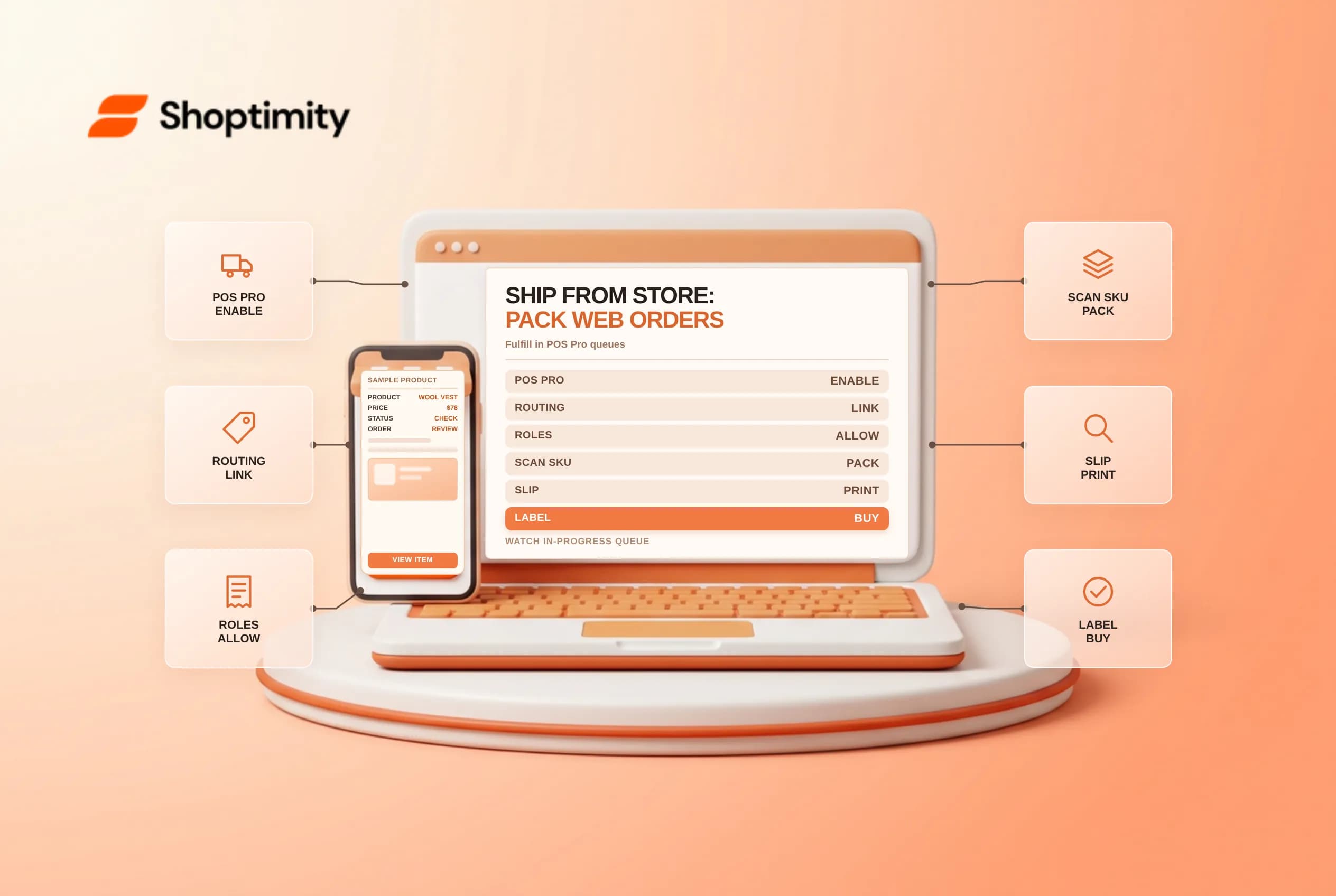
Shopify Ship from store lets retail associates pick, pack, print packing slips and buy carrier labels for online orders directly inside the Shopify POS app without opening the full Shopify admin. Turning physical boutiques into micro-fulfillment hubs moves slow-moving floor stock and cuts last-mile transit zones, provided location routing, shipping profiles and POS Pro permissions are configured ahead of time. Check plan requirements, queue statuses and label workflows before routing web orders to stores.
Verify POS Pro, routing rules and staff role permissions
In Shopify's Ship from store documentation and POS permissions guide, retail fulfillment requires both store-level shipping setup in the admin and an active Shopify POS Pro subscription at each fulfilling store location:
| Setup layer | Required configuration | Why it blocks store fulfillment if missed |
|---|---|---|
| Subscription gate | Active Shopify POS Pro subscription on the retail location | Standard POS Lite locations cannot fulfill shipping orders in the POS app |
| Admin shipping setup | Location added to a Shipping profile + included in Order routing rules | Incomplete admin shipping settings block POS label purchasing and completion |
POS staff role (Orders) | Fulfill shipping and pickup orders = Allowed | Associates cannot open or complete Prepare for shipping queues |
POS staff role (Orders) | Reassign or cancel fulfillment = Allowed | Staff cannot bounce damaged or missing floor units to another store or warehouse |
Shopify POS Pro subscription on the retail locationShipping profile + included in Order routing rulesOrders)Fulfill shipping and pickup orders = AllowedPrepare for shipping queuesOrders)Reassign or cancel fulfillment = AllowedFollow the three-stage POS fulfillment queue cleanly
One operational detail trips up retail teams during busy weekends: as soon as an associate starts packing an order and pauses, the order moves out of Prepare for shipping and into In progress. Train floor staff on the exact queue progression inside the POS Orders > Shipping tab:
- Pick and scan (
Shipping > Prepare for shipping): Tap the assigned order, tap Prepare for shipping, and select or barcode-scan each physical item pulled from the sales floor or backroom. - Print the packing slip (
Shipping > In progress): Select the active order, tap Prepare for shipping > Print packing slip, verify item quantities and tap Print, then tap Fulfill items. - Buy a label or attach third-party tracking: Either tap Purchase shipping label inside POS (
Shipping > In progress) to select a package and carrier service directly, or generate labels in an external carrier portal and enter the tracking number underShipping > Add tracking > Manage fulfillmentwhile confirming the exact carrier name.
Separate Ship from store from POS Ship to customer carts
Retail staff frequently confuse fulfilling incoming web orders (Ship from store) with creating a new delivery order for an in-person shopper (Ship to customer):
- Under Shopify's shipping orders from POS guide, creating an in-store
Ship to customerorder requiresCheckout > Ship to customerandCustomers > Manage customerspermissions, at least one physical shippable item, and initially marks all shipped items Unfulfilled until packed viaShip from store. - If a shopper wants to carry two items out today and ship one out-of-stock size home, review POS ship and carry out mixed orders, order routing rules for split shipments and manual tracking number verification.
- Stock dedicated 4x6 thermal label rolls, polymailers and bubble wrap at every fulfilling boutique before turning store fulfillment live in order routing, and assign a fixed morning and afternoon pick window so floor traffic never stalls carrier pickup cutoffs. Require associates to inspect floor-display garments or footwear for scuffs during step 1, and use
Reassign or cancel fulfillmentimmediately if the last store unit fails quality checks so the order routes cleanly to your main warehouse without delaying shipment or stranding the buyer's tracking email in limbo.
Ready to build a faster, higher-converting store?
Every Shoptimity theme ships with conversion widgets built in — so you get speed and features without stacking apps.
7-day free trial · all themes included · cancel anytime
Continue Reading
Shopify Flow Collection Deleted: ID-Only Alerts
Create a safe collection-deleted alert in Shopify Flow, understand its ID-only data and plan a manua...
Shopify Flow Discount Created: Choose the Trigger
Compare discount code and automatic discount creation triggers in Shopify Flow and design internal p...
Shopify Flow Inventory Item Deleted: ID-Only Data
Understand the inventory item deleted trigger, its ID-only limitation and how to alert operations wi...