
Shopify Manual Tracking Numbers: Match Each Fulfillment to Its Package
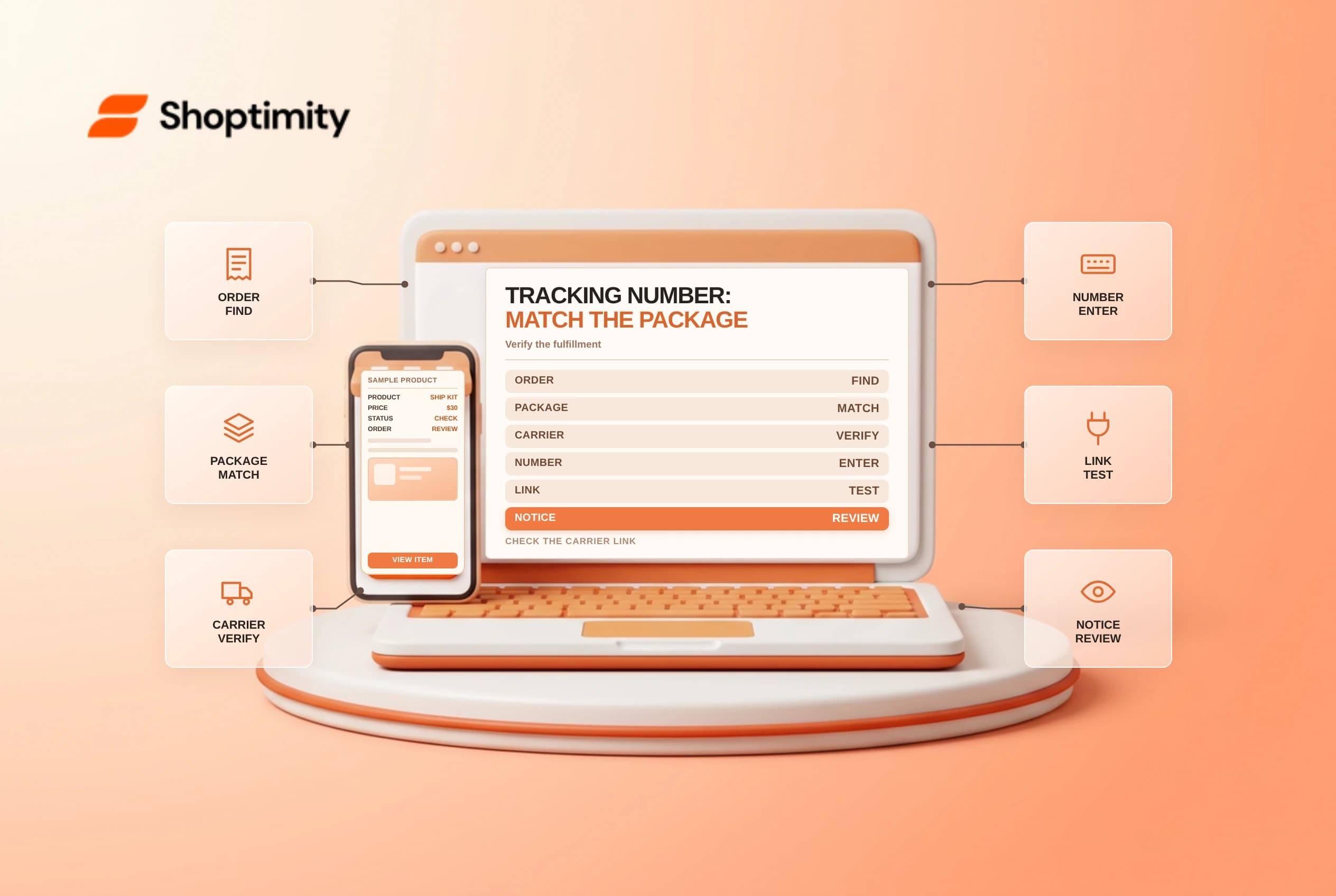
Adding a Shopify manual tracking number gives a customer a way to follow a shipment purchased outside Shopify Shipping. The number must be attached to the correct fulfillment and carrier. Verify the package and notification before saving; a tracking link is not evidence that a carrier has collected the parcel.
Identify the correct fulfillment
Shopify's order tracking guide says a tracking number can be entered during or after fulfillment. When a Shopify shipping label includes tracking, the information is generally added automatically. When using an external carrier, staff can enter the number manually and correct the detected carrier if necessary.
| Item | Check before saving |
|---|---|
| Order | Correct customer and order number |
| Fulfillment | Correct items and quantities for this package |
| Carrier | Matches the service that issued the number |
| Tracking number | Matches the label and carrier record |
| Tracking URL | Complete, from a trusted carrier when required |
| Notification | Appropriate customer update and timing |
For a split shipment, match each package to the fulfillment and items it contains. Do not paste a supplier's tracking number into an unrelated order just because the customer name looks similar. Protect customer addresses and live tracking links in internal screenshots.
Add or update the number
Open the order in Shopify admin. If the order is already fulfilled, use Add tracking on the appropriate fulfillment; Shopify's fulfillment guide describes adding or editing tracking after fulfillment. If the items are not yet fulfilled, review quantities and enter tracking during the fulfillment process when appropriate.
Shopify may recognize the tracking number and suggest a carrier. Confirm it against the label rather than assuming automatic detection is correct. If the carrier is not fully supported or Other is selected, Shopify says a complete tracking URL can be entered manually. Open the approved carrier link and check that the number in the URL corresponds to the actual shipment.
Shopify allows multiple tracking numbers to be added in the documented flow, but says they must all be from the same carrier. If packages use different carriers, review how the order is split into fulfillments and follow the current supported workflow instead of forcing the wrong carrier on a number.
Check notification and shipment status
Review whether Send a notification to the customer is selected before saving. A customer update can be helpful, but it should not say the package has been collected when it is still waiting on the warehouse shelf. A carrier may take time to scan a newly created label. Explain that delay accurately and investigate an absent scan against the pickup record.
| Situation | Safer response |
|---|---|
| Carrier detected incorrectly | Select the actual carrier or use the supported manual URL |
| Number belongs to another package | Stop and correct the fulfillment mapping |
| No first carrier scan | Check pickup and carrier records before promising delivery |
| Customer received wrong link | Correct the record and send an approved update |
| Several packages | Confirm each fulfillment and carrier separately |
| No tracking available | Explain the available delivery status without inventing a number |
Do not manually mark an order delivered solely because a label was created. Shopify says a no-tracking order can be marked delivered after the customer receives it; maintain evidence and follow the store's delivery policy.
Establish a warehouse handoff
Use a second check for high-value or multi-package orders. Record who verified the label, package and carrier handoff. After saving, open the customer-facing order status page through an authorized test or preview and check that the link points to the intended carrier. Avoid exposing customer-specific links in public documentation.
Related guides: shipping label origins and shipping label pickup.
Ready to build a faster, higher-converting store?
Every Shoptimity theme ships with conversion widgets built in — so you get speed and features without stacking apps.
7-day free trial · all themes included · cancel anytime
Continue Reading
Shopify Flow HTTP Requests: Design for Retries and Safe Secrets
Design Shopify Flow HTTP requests for timeouts and retries, protect credentials with secrets, and te...
Shopify Automated Store Policies: Back Up Text Before Switching
Review Shopify automated store policies, save custom content and translations, and plan a careful sw...
Shopify ABC Inventory Analysis: Use Revenue Grades Carefully
Read Shopify ABC inventory analysis grades, the 28-day revenue window and cost limitations before ma...