
How to Deactivate a Shopify Location: Prepare Orders and Inventory
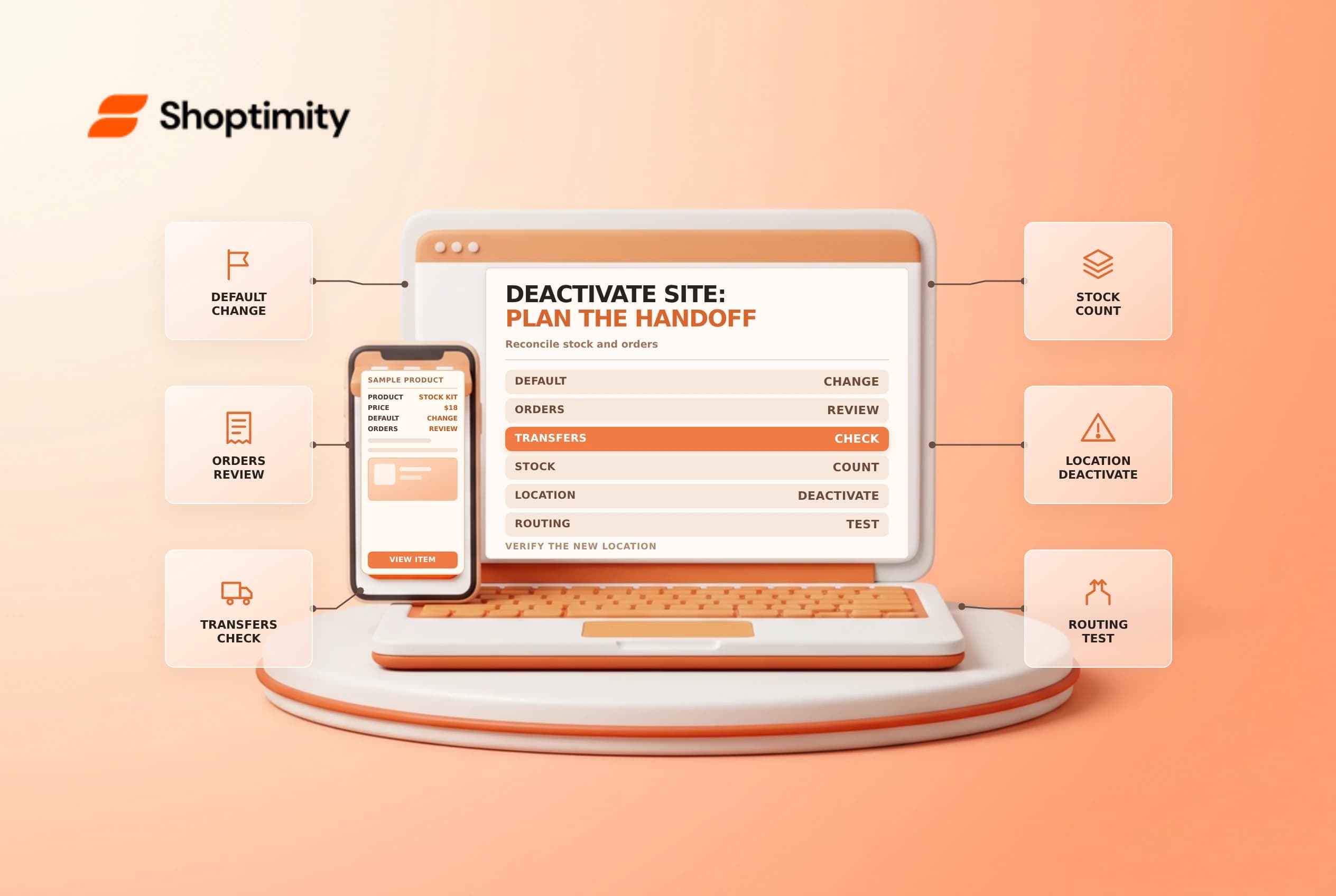
To deactivate a Shopify location safely, first understand its open orders, transfers, stock, fulfillment settings and customer promises. Deactivation is an operational change, not a physical inventory move. A warehouse closure needs a documented handoff and a verified destination before the team turns off the location.
Identify dependencies
Shopify's current location setup guide says a deactivated location cannot fulfill orders or serve as the default location. At least one location must remain active. If the location is the default, change the default first. Shopify also lists a POS Pro downgrade requirement before deactivation when applicable.
| Dependency | Owner's check |
|---|---|
| Default location | Is another active location ready to be the default? |
| Open orders | Can the assigned work be fulfilled or reassigned? |
| Transfers | Are in-transit and pending quantities accounted for? |
| Inventory | Where is each item physically, and where will it be recorded? |
| Delivery methods | Do shipping, pickup and local delivery still work? |
| POS and apps | Are subscriptions, devices and integrations addressed? |
Shopify says staff can be prompted to resolve assigned orders or transfers and reassign quantities during deactivation. Do not assume that the prompt is a substitute for a physical count or that a third-party app location can be managed like a store-owned warehouse.
Plan the transition
Take a snapshot of open orders, active transfers and inventory by variant and location. Decide who owns each exception and where stock is physically going. If goods move between sites, use the approved inventory transfer workflow and reconcile shipped, received and damaged quantities. Notify the receiving location so it can accept the work and identify any capacity constraint.
Review open pickup promises, carrier pickups, local delivery zones and third-party fulfillment requests. Contact affected customers when an agreed handoff changes. If the location is connected to POS or an app, coordinate the operational change and any subscription or integration steps with its owner. Keep historical records according to company policy.
Deactivate and verify
In Settings > Locations, open the intended location and review the Deactivate location action. Follow the current prompts, resolve outstanding dependencies and confirm only after the transition is approved. Shopify's current guide says deactivation does not itself change inventory quantities and describes some inventory operations that remain available at deactivated locations. This behavior can differ from older guidance, so verify the current admin and documentation for your store.
Afterward, check that the location no longer receives new fulfillment work and that the intended locations have the correct routing, online availability and delivery methods. Test a safe representative cart. Compare the physical receiving count with inventory records and investigate differences rather than entering an estimated quantity.
Keep a rollback and exception plan
Shopify says a deactivated location can be reactivated. Reactivation is not a substitute for reversing physical transfers, restoring routing and checking open orders. Document the decision maker, conditions for rollback and the specific settings to review. Do not delete a location simply to remove it from routine use; deletion has its own prerequisites and consequences.
Review the outstanding queue after the change. Assign a person to each incomplete order or transfer and confirm customer communications. See inventory transfers and order routing for adjacent controls.
Before the closure, confirm which staff can approve reassignment and who will investigate a negative or mismatched quantity. Keep proof of receipt from the destination location and a list of shipments still in transit. If the new site cannot accept an item, pause that part of the move and agree on an alternative rather than recording stock where it is not physically present.
Ready to build a faster, higher-converting store?
Every Shoptimity theme ships with conversion widgets built in — so you get speed and features without stacking apps.
7-day free trial · all themes included · cancel anytime
Continue Reading
Shopify Manual Tracking Numbers: Match Each Fulfillment to Its Package
Add Shopify manual tracking numbers to the correct fulfillment, verify the carrier and tracking URL,...
Shopify Flow HTTP Requests: Design for Retries and Safe Secrets
Design Shopify Flow HTTP requests for timeouts and retries, protect credentials with secrets, and te...
Shopify Automated Store Policies: Back Up Text Before Switching
Review Shopify automated store policies, save custom content and translations, and plan a careful sw...